

A Solidres site can take bookings in as many languages as you need. Solidres translates its own text: the booking form, the guest's dashboard and the emails come in 24 languages besides English. What you write yourself, such as the description of your property, the names of your room types and your extras, you translate with Speedy Translate, our translation extension for Joomla. Its Lite edition is free. This article takes a Solidres site from one language to two.
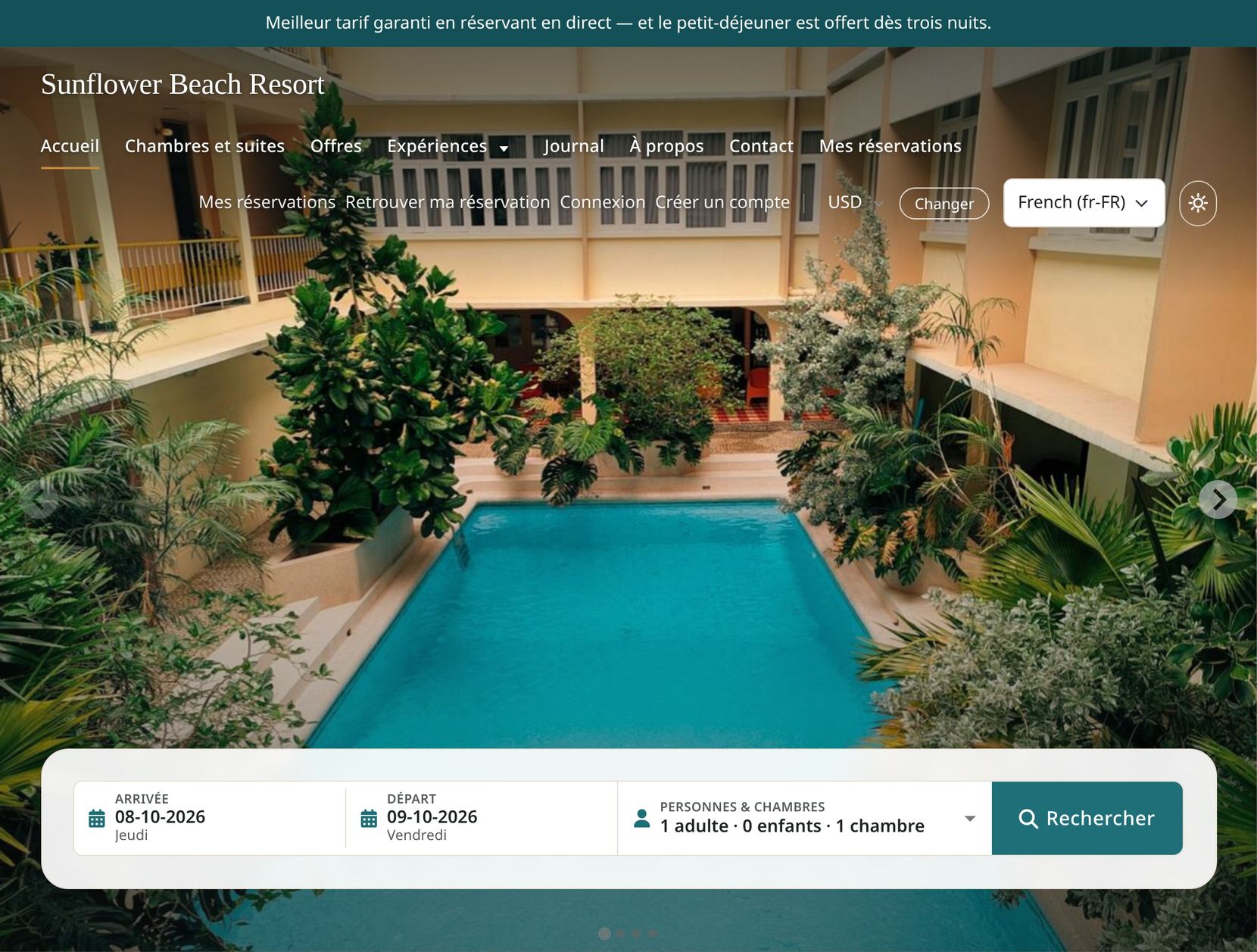
A Solidres site in French, with Speedy Translate's language switcher in the header.
PREREQUISITES:
- Solidres on Joomla 6.0 or later, with PHP 8.3 or later
- Speedy Translate 3.0 or later, Lite or Pro. Lite does everything this article describes.
- A backup of the site, as before any change of this size
How a multilingual Solidres site works
A booking site holds two kinds of text, and each has its own way of being translated:
| Text | For example | Translated by |
|---|---|---|
| Solidres's own text | Labels, buttons, the booking steps, the emails | Solidres's language files, which come with Solidres |
| Your content | Your properties, room types, extras, coupons, rate plans, and Joomla's menus, modules and articles | Speedy Translate, in language tabs under each field of the edit forms you already use |
A property, a room type or an extra stays one item in every language, with its translations stored beside it. There are no copies per language to keep in step: the availability, the prices and the bookings are the same whichever language the guest books in.
NOTE Keep Speedy Translate's Multilingual mode option on Speedy (Recommended), its default. That is the mode Solidres works with.
Step 1: Install Speedy Translate Lite
- Download Speedy Translate Lite from the downloads page.
- In your administrator, go to System → Install → Extensions and upload the zip file.
- Open Components → Speedy Translate.
One package installs the component, the system plugin that adds the language tabs and shows visitors each page in their language, and the Speedy Languages switcher module. Lite is free, with no backlink, no banner and no limit on languages. Its options are described in How to configure Speedy Translate.
Step 2: Add a language
Speedy Translate's dashboard opens with Set up your multilingual site: the steps a multilingual Joomla site needs, each with a button that does it for you.
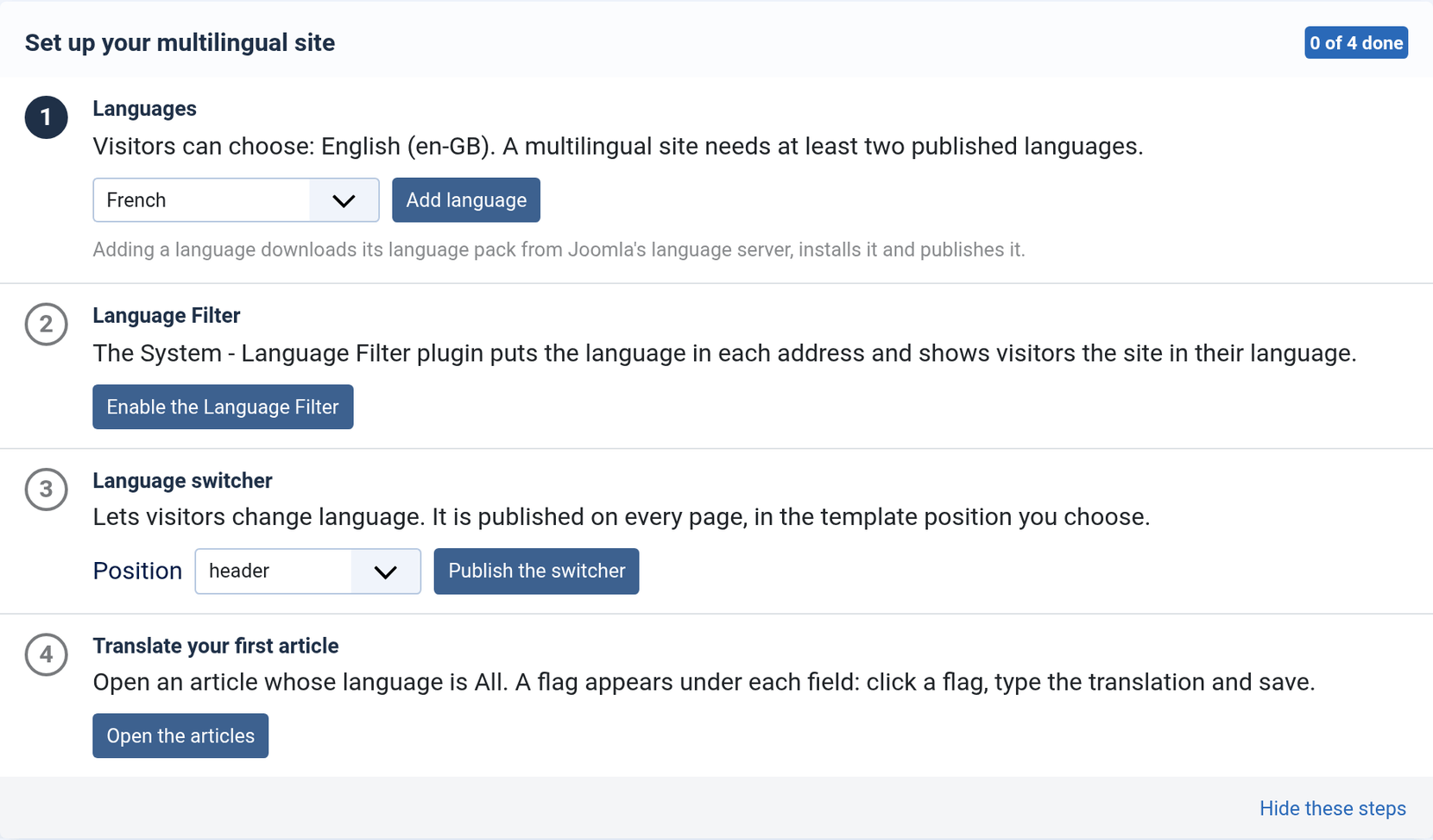
- Languages. Choose the language, French here, and press Add language. Speedy Translate downloads its language pack from Joomla's language server, installs it and publishes it.
- Language Filter. Press Enable the Language Filter. This Joomla plugin puts the language in each address (
/fr/…) and shows visitors the site in their language. - Language switcher. Choose a position of your template and press Publish the switcher. On the Lumina template,
headerputs it beside the currency switcher; on Cassiopeia,topbarworks well. - Translate your first article. On a booking site, start with your property instead: see Step 4.
Add each further language the same way, with step 1.
Step 3: Install Solidres again
Joomla copies an extension's language files only for the languages installed at that moment. If Solidres was installed before you added French, its French files were left out, and the booking form shows in English on the French pages.
Install the same Solidres packages again, over themselves, in System → Install → Extensions: the Solidres core package first, then each add-on you use (Experience, Feedback, Hub, Invoice, iCal, Channel Manager), each plugin or module you installed on its own, and the Lumina template. That adds the language files of the new language. Your settings, properties and bookings stay as they are.
IMPORTANT Do it every time you add a language. A Solidres update brings the files of every installed language with it, so there is nothing to repeat after an update.
Solidres comes in Arabic, Chinese (Simplified and Traditional), Czech, Dutch, French, German, Greek, Hebrew, Hindi, Hungarian, Indonesian, Italian, Japanese, Korean, Persian, Polish, Portuguese (Brazil), Romanian, Russian, Spanish, Thai, Turkish and Vietnamese, besides English. To change a wording, or for a language that is not in the list, change the strings in System → Manage → Language Overrides, or find them by their text with Speedy Translate's INI translations.
Step 4: Translate your property
Open your property in Solidres → Properties. Under each field you can translate, a row of flags shows the site's languages: the first is the original, the others open that language's translation of the field.
- Click the French flag under a field and type the French text.
- Leave a tab empty and the French pages show the original. A property's name, address and phone number usually stay as they are.
- Press Translate from en-GB in a tab for a machine translation to review, from Google, DeepL or Yandex with your own key.
- Press Save once: the property and all its translations are saved together.
Then do the same for each room type in Solidres → Room types, and for your extras.
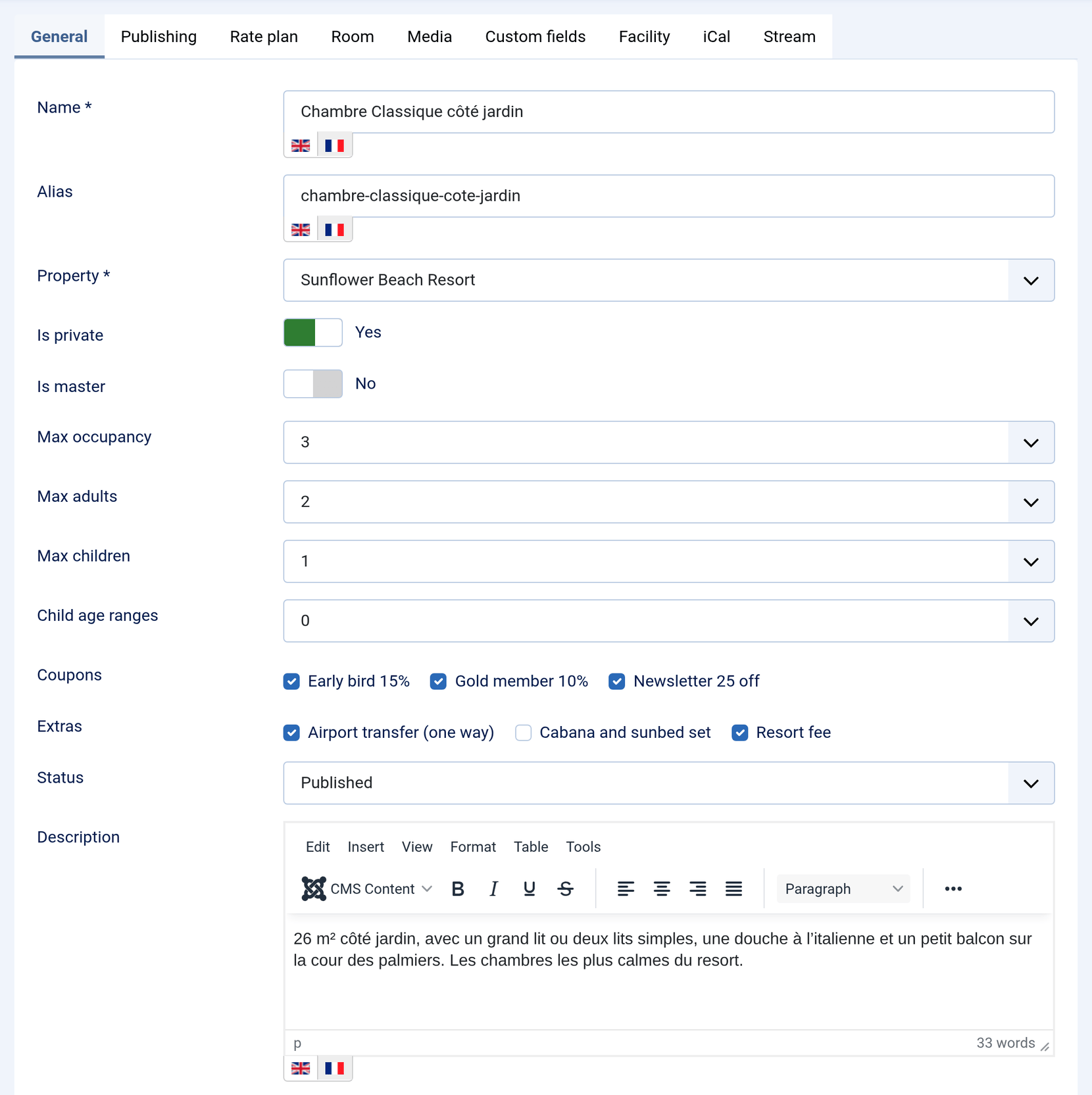
A room type with the French tab open under its name, alias and description.
The Custom fields tab
The facilities and policies of a property, and the facilities, size and beds of a room type, are in the Custom fields tab of their edit form. Every field there has language tabs too, and is translated the same way.
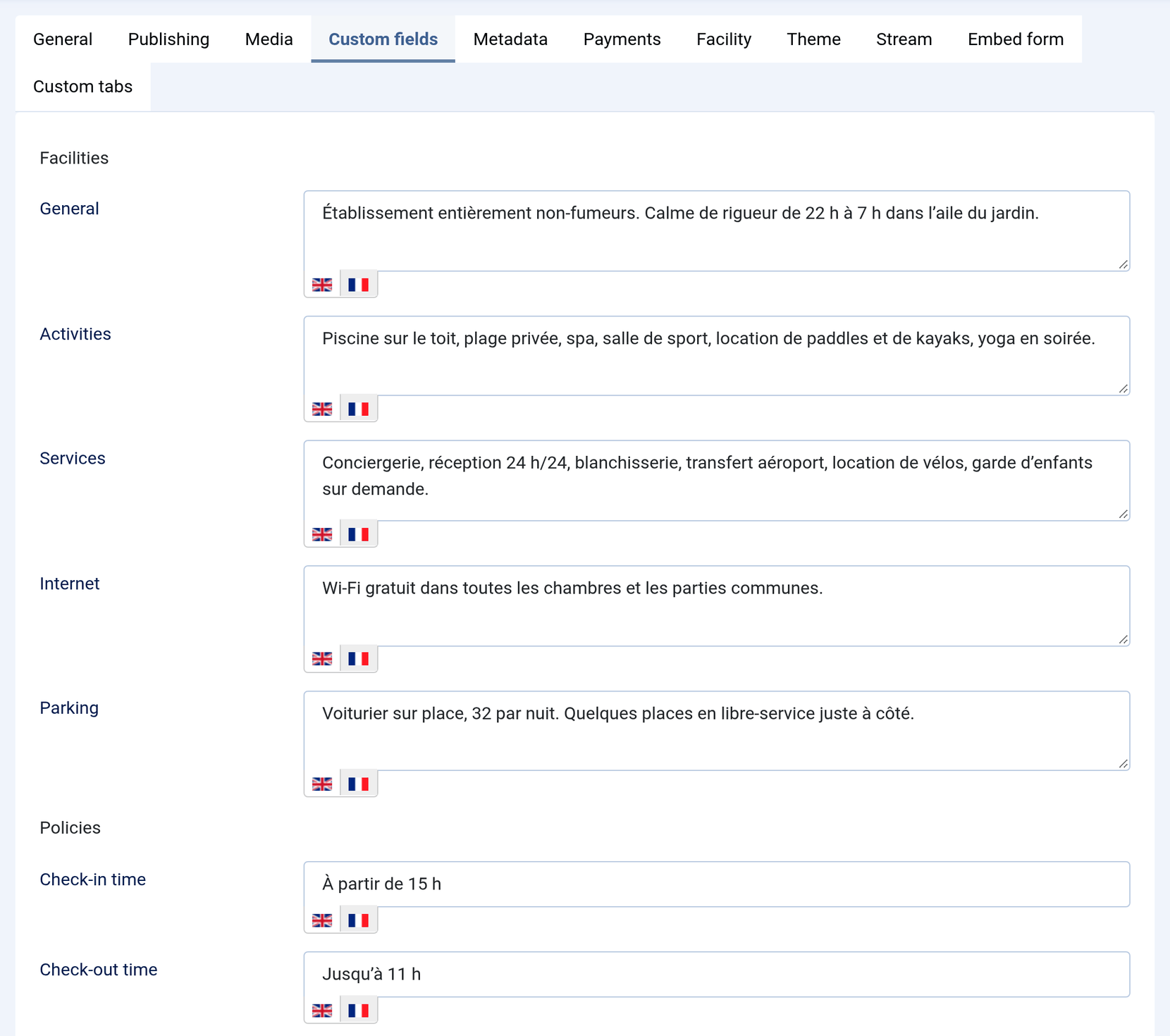
NOTE No more {lang} tags. Earlier versions of this guide had you type {lang en}…{/lang} blocks into these fields, because Falang could not translate them. With Speedy Translate, type each language in its own tab. Blocks you already wrote keep working, as Speedy Translate reads them on every page, so you can move them into the tabs the next time you edit the property.
What you can translate
Open the item's own edit form; the fields below have language tabs.
| Content | Where | Translated fields |
|---|---|---|
| Properties | Solidres → Properties | Name, alias, address, city, description, meta title, meta description, keywords, and the Custom fields tab |
| Room types | Solidres → Room types | Name, alias, description, and the Custom fields tab |
| Extras | Solidres → Coupons & Extras → Extras | Name, description |
| Coupons | Solidres → Coupons & Extras → Coupons | Name |
| Rate plans | The Rate plan tab of a room type: open a rate plan to edit it | Title, description |
| Currencies | Solidres → System Info → Currencies | Name, sign |
| Reservation statuses | Solidres → System Info → Statuses | Label |
| Facilities and themes | Solidres → System Info → Facilities, Themes | Title, description |
| Custom fields of the guest form | Solidres → Customers → Custom fields | Title |
| Experiences | Solidres → Experiences | Name, alias, locations, what is and is not included, cancellation policy, languages, descriptions and custom tabs; and the experience categories, transportation, extras and coupons |
| Hub subscription levels | Solidres → Subscriptions → Levels | Title, description |
Partners who manage their properties from the Hub's front-end dashboard get the same language tabs there.
NOTE Running the Hub? Translate the City of each property, and check that Enable multilingual mode is set to Yes in Solidres's Options, on the General tab. The Hub's location search then finds your properties by the translated name of their city, such as Londres for London.
Keep track with Batch translations
Batch translations, on Speedy Translate's dashboard, lists every item of a content type with its status in each language. Choose Solidres properties, Solidres room types, Solidres extras, Solidres coupons or Solidres custom fields (or one of the experience types) in the first drop-down.
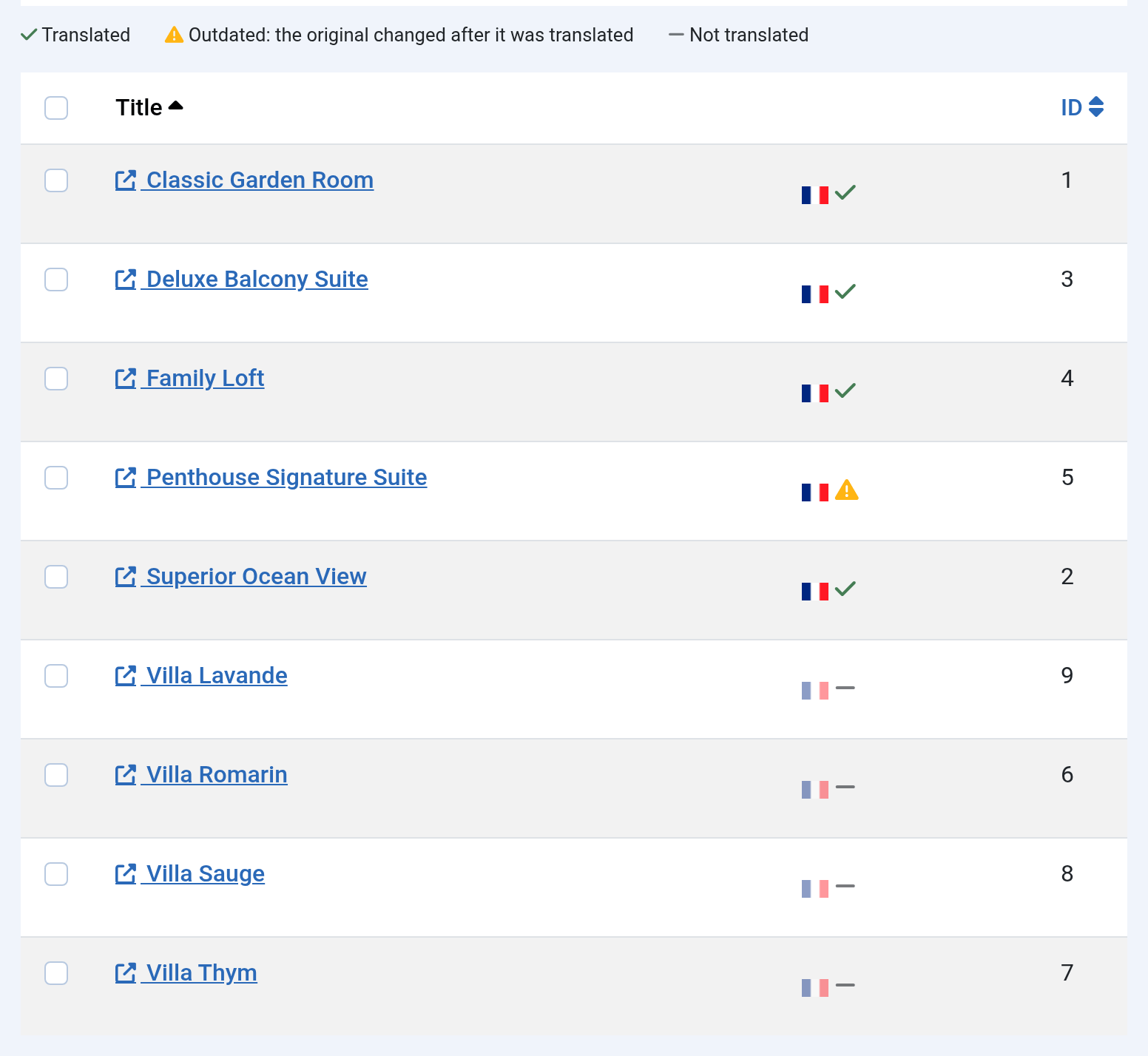
- A check mark: translated.
- A warning sign: outdated, as the original changed after it was translated.
- A dash: not translated yet.
Click a title to open the item's edit form. An outdated translation has an orange dot on its flag: update it, or tick Still right for the new original when the change does not affect it, such as a typo fixed in English. How to translate content with Speedy Translate covers the statuses in detail.
Menus, modules and the rest of the site
Speedy Translate translates Joomla's own content the same way, in the tabs of its edit forms: menu items, modules, articles, categories and tags. On the Lumina template, the bands of the front page are modules, and their titles and texts have tabs like the rest.
Check the site
Open your site and choose French in the switcher.
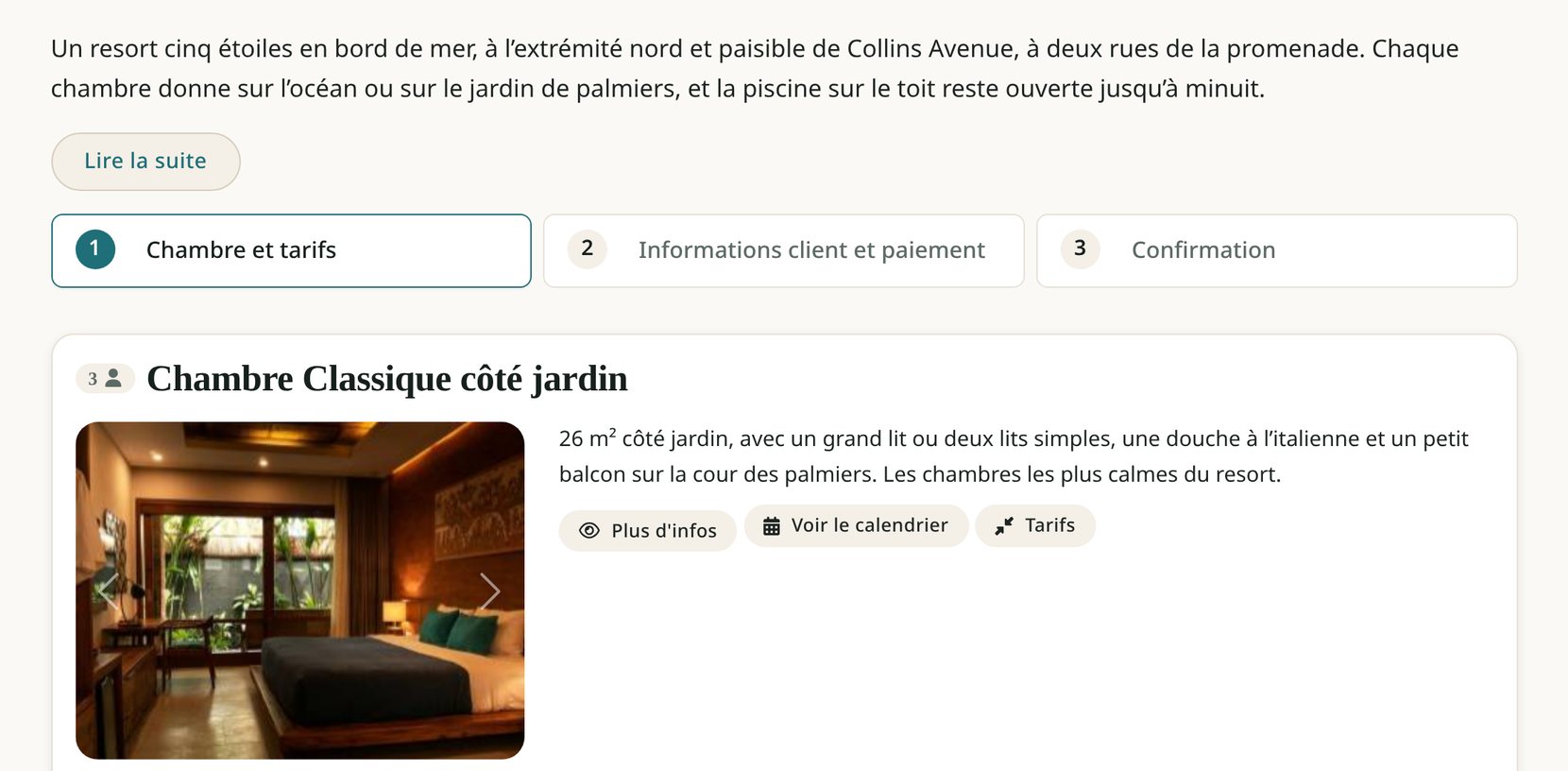
Your translations and Solidres's own French text, side by side.
- Each page links to its versions in the other languages with hreflang tags, so that search engines show guests the page in their language. See Language switcher, SEO and Smart Search.
- Solidres records the language a guest booked in, and writes the emails about that booking in it.
- Labels or buttons still in English? A Solidres package was installed before the language: see Step 3. A description still in English has no translation yet: look for its dash in Batch translations.
Moving from Falang
Earlier versions of this guide used Falang. Speedy Translate takes over without retyping anything:
- Install Speedy Translate, as in Step 1.
- On its dashboard, open Migrate from Falang. It copies Falang's translations, those of your properties, room types, extras and the rest of Solidres included, and leaves Falang's own data as it is.
- Check the site in each language, publish the Speedy Languages switcher in place of Falang's, then uninstall Falang.
The {lang} blocks in your Custom fields tabs stay where they are and keep working. Every step is described in How to move from Falang to Speedy Translate.
Translate a whole booking site in one go
Speedy Translate Pro installs over Lite and keeps every translation you made. On top of Lite, it adds:
- Bulk translation: your properties, room types and extras into a new language in one job, run by Joomla's scheduled tasks. It fills only the gaps, and leaves what you typed alone.
- ChatGPT, Claude and Gemini, a provider per language, and a glossary of terms to keep as they are, such as your property's and room types' names.
- Coverage per language and content type on the dashboard, and XLIFF export and import for your translator.
- Smart Search in the visitor's language, and unlimited support tickets.