

A property is the hotel, B&B, guest house or holiday home you take bookings for. Everything about it is on one screen: open Solidres → Properties and click New, or click a property's name. The screen has seven tabs, and each one answers one question about the property. This article goes through them in the order they appear.
PREREQUISITES:
- Solidres 4.6.0 or later. Earlier versions arrange the same settings in other tabs: see Where did my setting go?
- A Joomla administrator account that can manage Solidres
Start with the name and the Details tab
Two fields sit above the tabs and stay in view whichever tab is open:
- Property name, the name guests see.
- Web address, the end of the property page's address, such as
sunflower-hotel. Leave it empty and Solidres makes it from the name.
For a new property, fill in the Details tab and save. Every other tab already has working values and can wait. Each setting has a line of help under it, so you can read what it does without leaving the screen. The Help button in the toolbar opens this article.
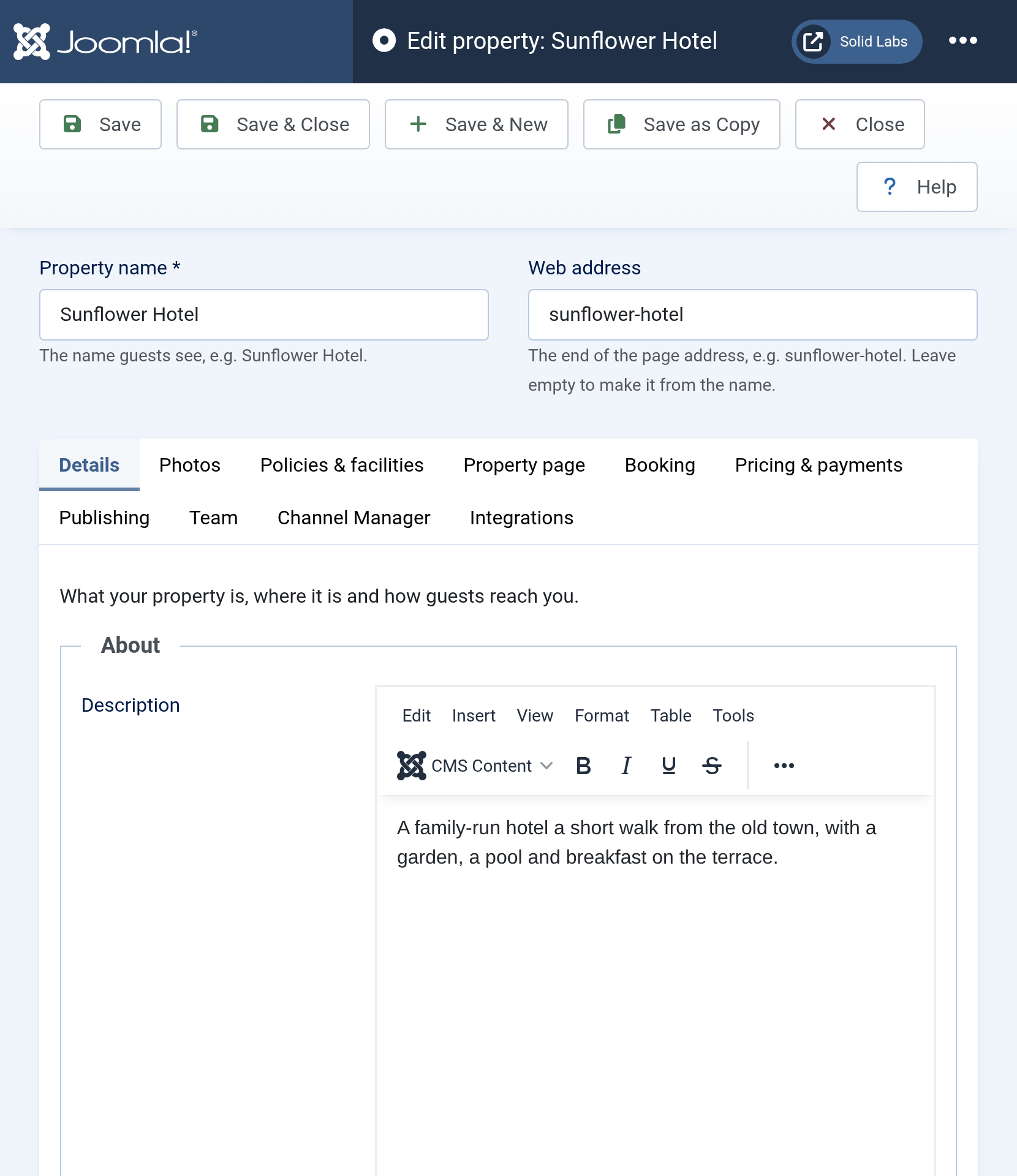
Details
What your property is, where it is and how guests reach you.
- About: the description on the property page.
- Location: the address and the map. Drag the map's pin to the property's entrance and the latitude and longitude fill in. Country is required: it decides which taxes the Pricing & payments tab offers.
- Contact: the email address is required, and new bookings are emailed to it.
- Social links: each link shows on the property page once it is filled in and Show this link is on.
- Status and settings, in the column on the right: whether the property is published, its Category (for example Hotels or Villas), its Currency, its star rating, and whether it is the Default property, the one the Check Availability module searches. Only one property can be the default.
Photos
Photos of the property and its logo. Room photos are added on each room type.
Click + to add photos, then drag them to set their order. The Logo is printed in booking emails and on invoices.
Policies & facilities
Your house rules and what the property offers, as guests read them on the property page.
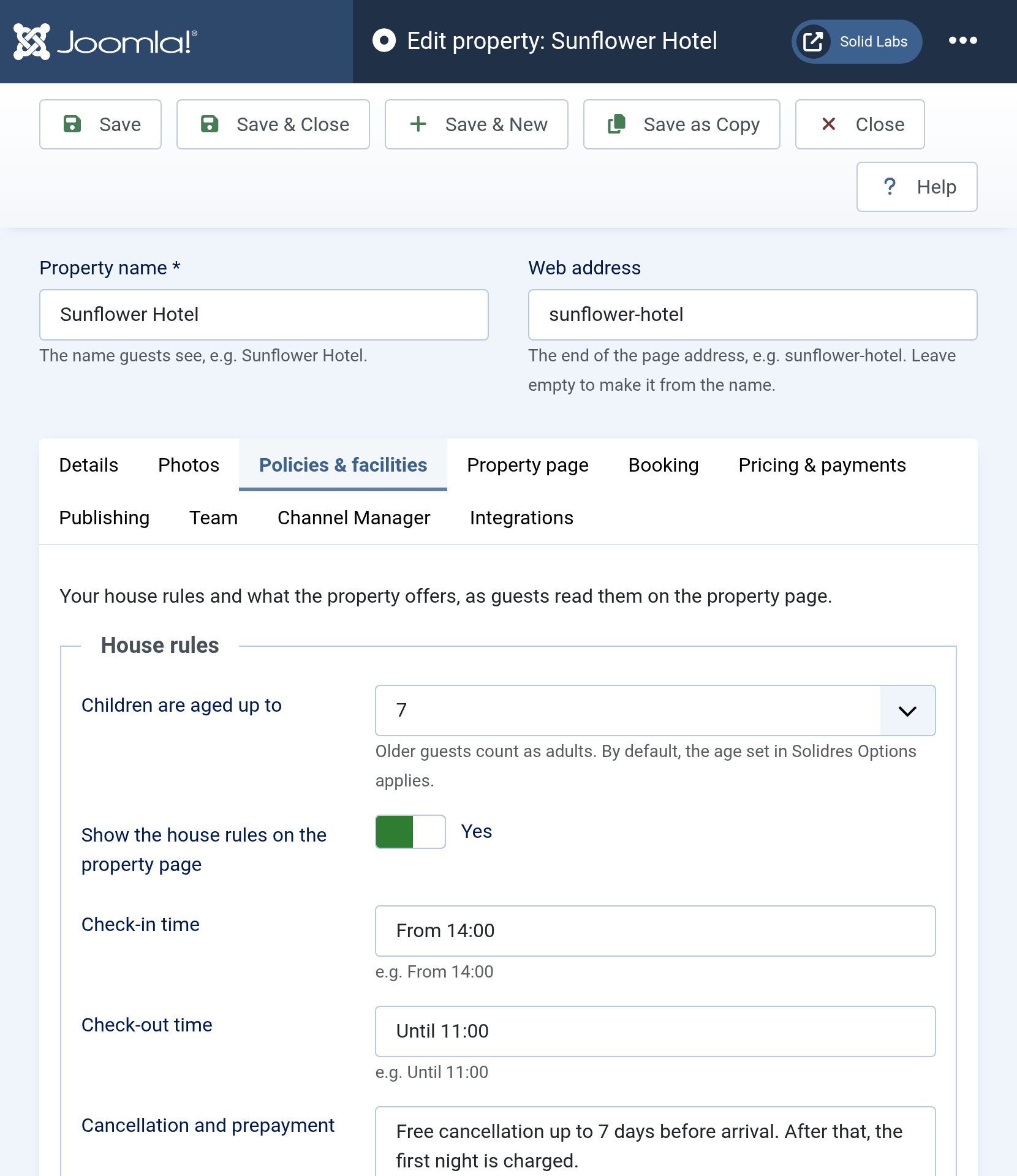
- House rules: check-in and check-out times, your cancellation and prepayment policy, children and extra beds, pets and the cards you accept at the desk. This is text for guests to read. Whether guests can cancel online is set on the Booking tab.
- Children are aged up to: guests older than this are booked as adults. Left empty, the age set in Solidres Options applies.
- Facilities: what the property offers, in five short texts (general, activities, services, internet, parking).
The house rules and facilities fields come from the Solidres extension plugin, where each can be made optional, required or hidden, and where you can add fields of your own: see How to add custom fields. With the Hub, this tab also has a facilities checklist and Themes, which guests filter searches by.
Property page
How the property page looks and what guests can do on it.
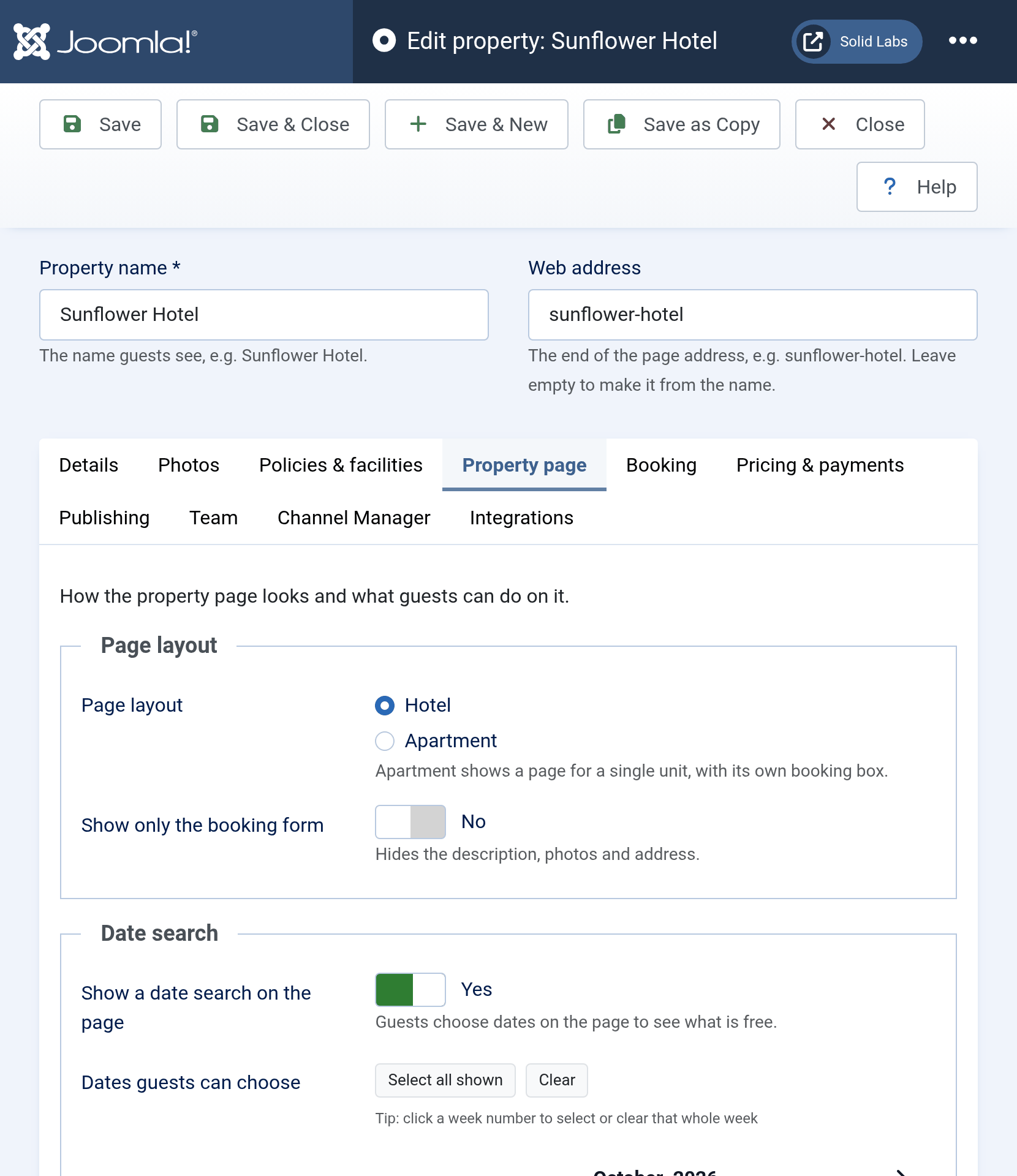
- Page layout: Hotel lists the room types; Apartment shows a page for a single unit, with its own booking box. Show only the booking form hides the description, photos and address.
- Date search: a search on the page where guests choose dates to see what is free, the dates they can choose, and how many rooms and guests they can ask for.
- Room types: Show fully booked room types lists them with a not-available note instead of hiding them.
- Extra tabs: tabs of your own on the property page, such as Getting here or FAQ.
Booking
How guests book, what they can change afterwards and who gets the emails.
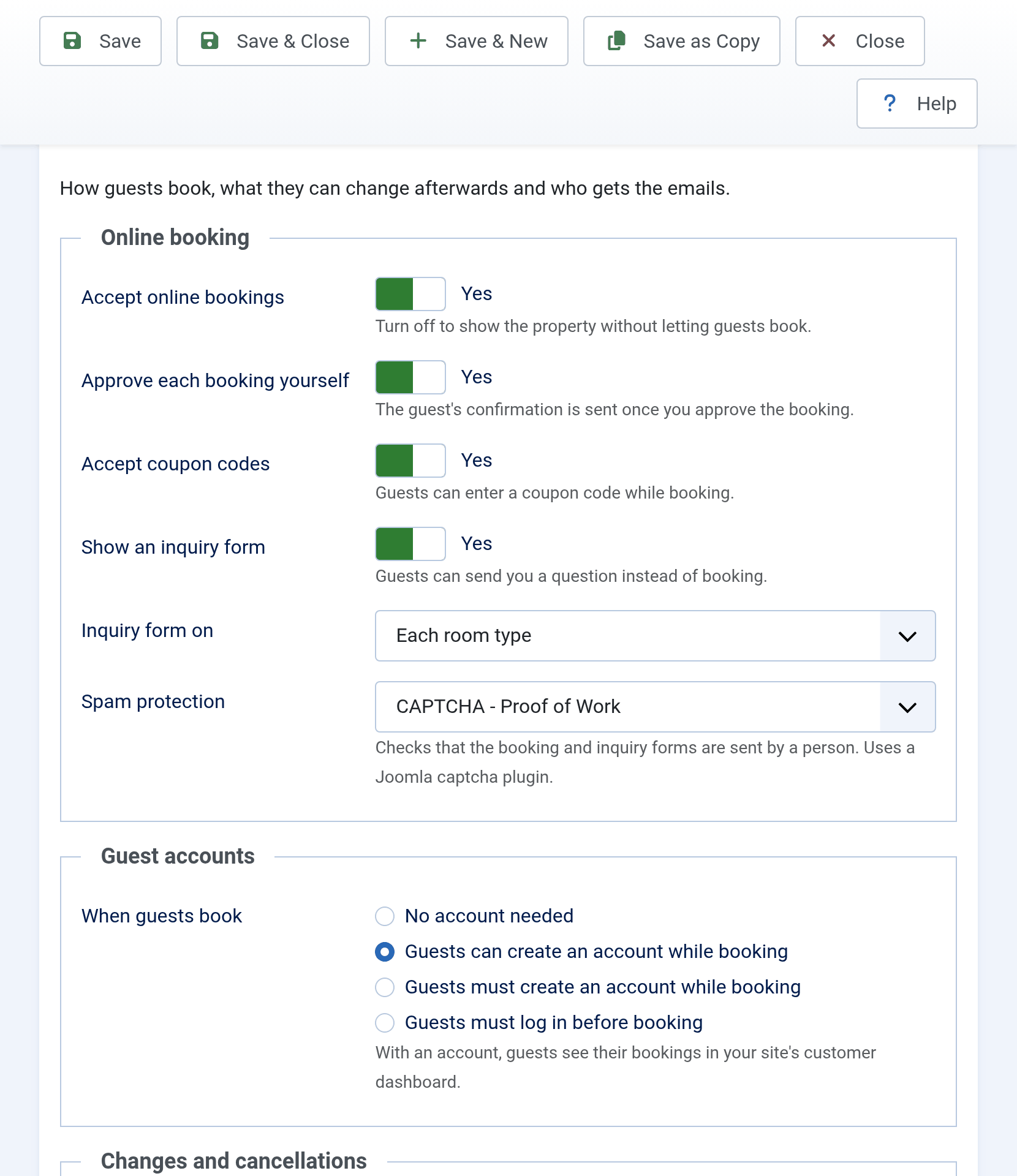
Online booking
- Accept online bookings: turn it off to show the property without letting guests book. Still show prices then decides whether room prices stay visible.
- Approve each booking yourself: the guest's confirmation is sent once you approve the booking.
- Accept coupon codes: guests can enter a coupon code while booking. See How to configure Coupon.
- Show an inquiry form: guests can send you a question instead of booking, about the property or each room type.
- Spam protection: a Joomla captcha plugin checks that the booking and inquiry forms are sent by a person.
Guest accounts
When guests book decides whether guests need an account on your site. With an account, guests see their bookings in your site's customer dashboard.
| Choice | What guests see |
|---|---|
| No account needed | The booking form asks for their details only. |
| Guests can create an account while booking | The booking form offers to create an account, with a username and password. |
| Guests must create an account while booking | The username and password are required to book. |
| Guests must log in before booking | Only guests who are logged in can book. |
Changes and cancellations
Whether guests can change their booking (and its dates) or cancel it on your site, after looking up their booking or logging in, and until how many days before arrival. After that, they contact you.
Booking emails
- Also send booking emails to: more addresses that receive your booking emails, separated by commas. See How Solidres sends outgoing emails.
- Rate plan details in emails, and Files attached to the confirmation email: the path of each file on the server, such as your house rules as a PDF.
- Property name in your emails: another name for the property in the status-change emails you receive.
With the SMS plugin, the text message settings are on this tab too.
Pricing & payments
How prices are worked out, the deposit, and how guests pay.
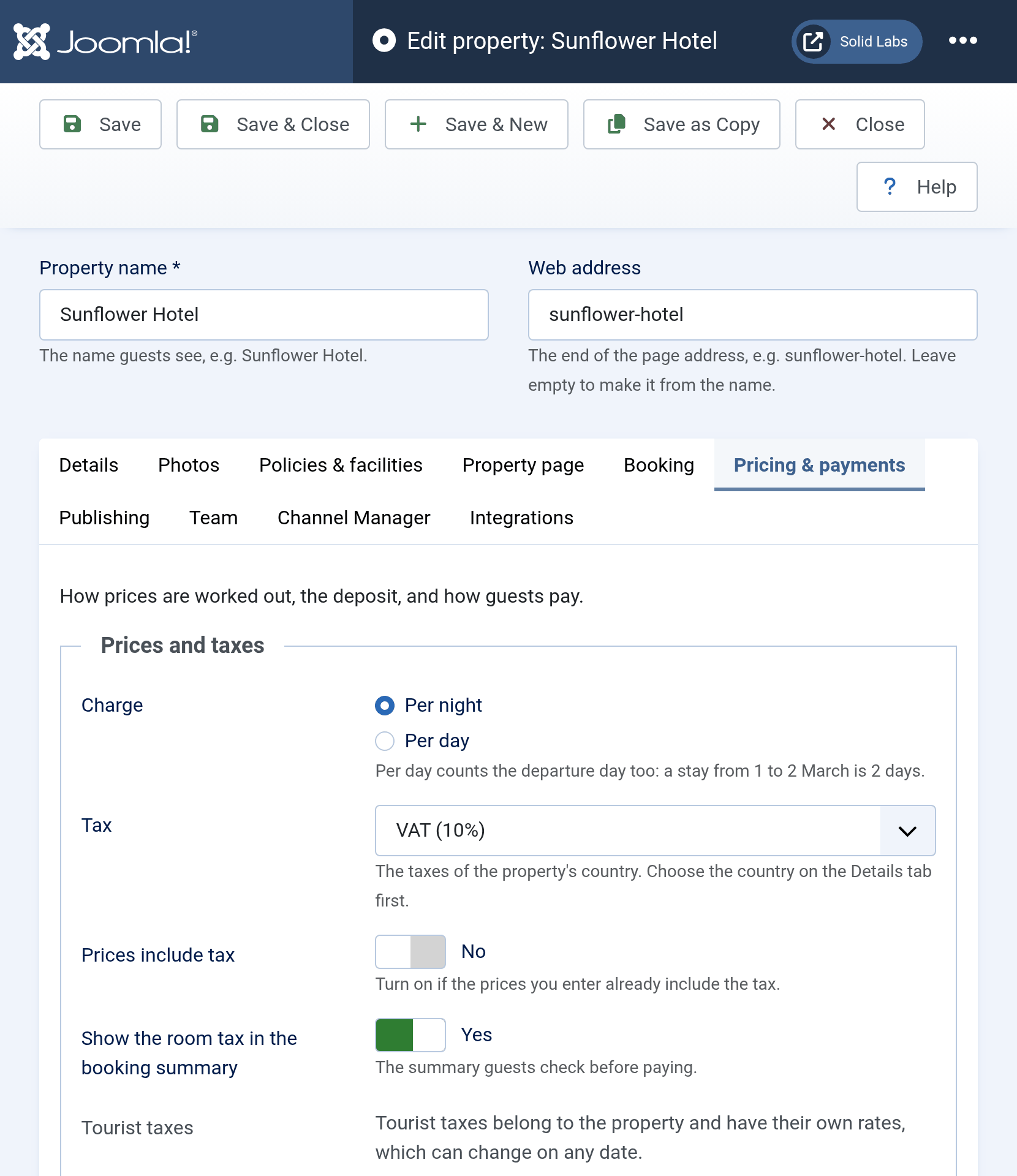
Prices and taxes
- Charge: per night, or per day. Per day counts the departure day too: a stay from 1 to 2 March is 2 days.
- Tax and Prices include tax: choose the tax of the property's country, and turn on Prices include tax if the prices you enter already include it.
- Tourist taxes: the Set up tourist taxes button opens the property's tourist taxes. See How to configure tourist tax.
- Booking fee (a fixed amount added to every booking) and Round booking totals.
Deposit
Turn on Ask for a deposit to have guests pay part of the total when they book, then choose How the deposit is worked out:
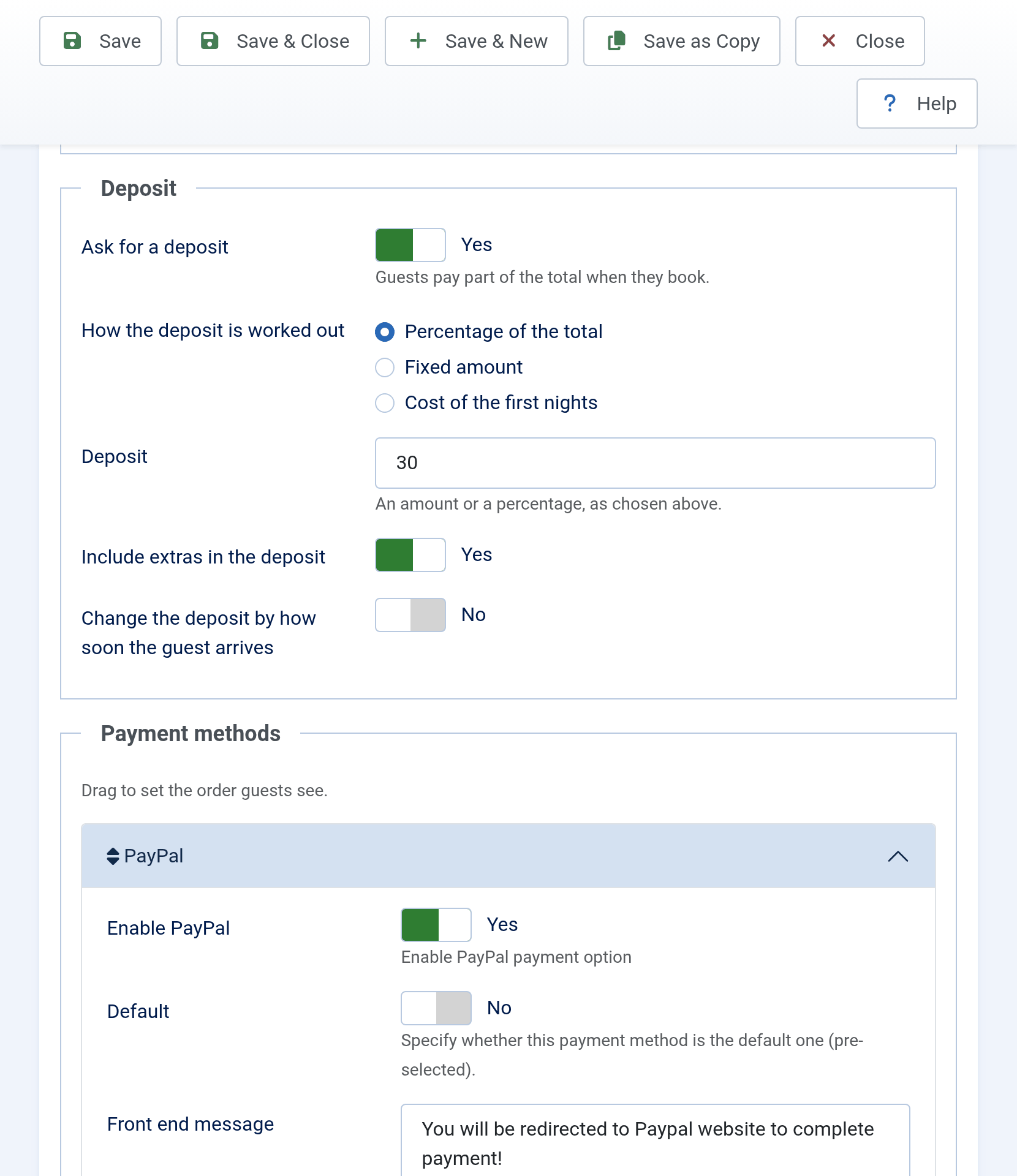
| Choice | The deposit is |
|---|---|
| Percentage of the total | The percentage entered in Deposit of the rooms' price with tax, plus the tourist tax paid online and the booking fee. |
| Fixed amount | The amount entered in Deposit, whatever the booking costs. |
| Cost of the first nights | The price of the Number of nights you enter, counted from the arrival day, with the online tourist tax. |
Include extras in the deposit adds the extras the guest books. A percentage or a fixed amount can also change with how soon the guest arrives: turn on Change the deposit by how soon the guest arrives and add a deposit for each number of days before arrival.
Payment methods
Each payment method installed on your site has a panel here. Open it, turn it on and fill in its settings. One method that is turned on must be the Default. Drag the panels to set the order guests see. See How to setup PayPal plugin and How to configure Offline payment plugin.
The rest of the tab
- Prices in property lists: the lowest and highest price shown in property lists. With both set, they also sort and filter the lists when no dates are chosen.
- Commission, with the Hub and commission turned on: see How to configure subscription and commission.
- Invoice details, with the Invoice plugin: the company details and note printed on the property's invoices.
Publishing
Where the property appears: your site's menu, search engines and other websites.
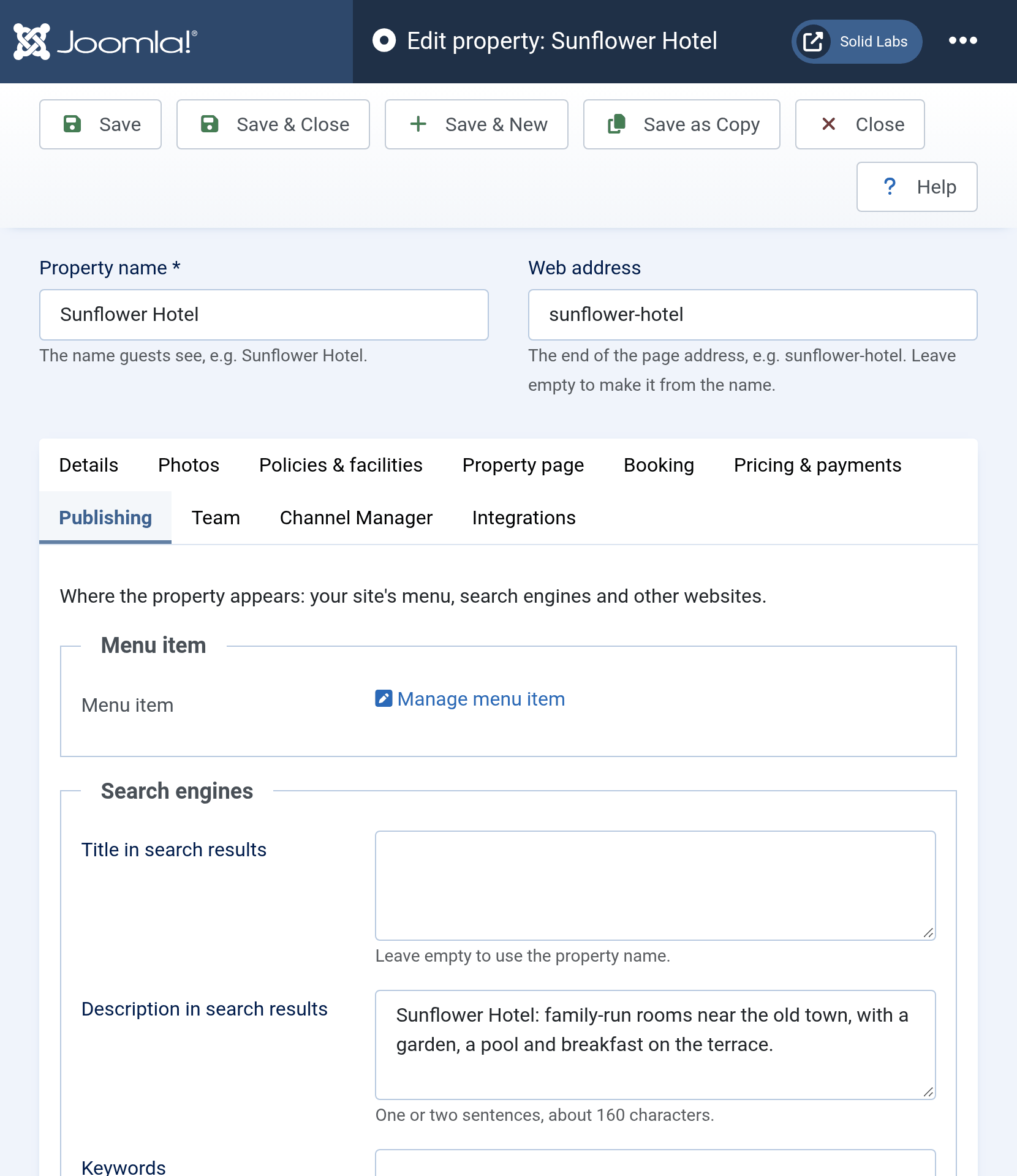
- Menu item: turn on Add a menu item, choose a menu and save, and Solidres creates a link to the property in that menu. Once the property has a menu item, a link to it replaces these fields.
- Search engines: the title and description shown in search results, and whether search engines may list the page.
- Embed on another website: a booking form for this property on another website, such as one built with WordPress or Wix. Save a new property first. See How to put the Solidres booking form on your website.
- Record: who created the property and when, and when it last changed.
Tabs your add-ons add
These tabs appear only when an add-on puts something in them:
- Team: the Hub's staff, the people who help run the property, and the Housekeeping plugin's housekeeping staff.
- Channel Manager: connects the property to the booking sites you sell on. See How to configure Solidres Channel Manager.
- Integrations: settings other add-ons add to the property, such as conversion tracking.
- Activity: with the Stream plugin, the latest changes to the property and who made them.
Settings you do not see
A setting that does nothing on your site is left out of the screen: it belongs to an add-on, or to an option in Solidres Options, that is turned off. Its value is kept, and it is back once the add-on or option is on.
- Without the Hub: tags, the facilities checklist, themes and staff. The distance from the city centre needs the Hub or Experience.
- Approved needs the Hub and Property submission approval; the commission settings need the Hub and Enable commission, and the commission rates also Commission rate per property. All three options are on the Hub tab of Solidres Options.
- Housekeeping staff needs the Housekeeping plugin, and the invoice details the Invoice plugin.
For Hub partners
Partners edit their properties on the partner dashboard with the same tabs and sections, without what only you, the site's administrator, set: the partner, the default property, the approval, the access level, the commission, the staff, the menu item, embedding and extra tabs. Their screen has no Channel Manager or Activity tab. Payment methods appear when Front end payment method manage is on in Solidres Options.
To keep more settings from partners, choose them in Solidres Options → Hub → Ignored property fields. The list names each one by its tab and section. A partner's save keeps their values.
Where did my setting go?
Solidres 4.6.0 moved the settings out of the tabs earlier versions had. No setting was removed, and nothing you saved changed. Two groups of switches became one choice each, still saved as before: the three guest account switches are now When guests book, and the deposit type and Charge the first nights instead are now How the deposit is worked out.
| Tab before 4.6.0 | Now |
|---|---|
| General | Details, except the charge per night or day, the tax and Prices include tax (Pricing & payments → Prices and taxes) and the name used in emails (Booking → Booking emails) |
| Publishing | Shared out by what each setting does: the online booking, account, change and email settings are on Booking; the deposit, prices, invoice details and commission on Pricing & payments; the page layout, date search and room types on Property page; the child age on Policies & facilities; the logo on Photos; the menu item and the record on Publishing |
| Media | Photos |
| Custom fields | Policies & facilities (house rules and facilities) and Details → Social links |
| Metadata | Publishing → Search engines |
| Payments | Pricing & payments → Payment methods |
| Facility, Theme | Policies & facilities |
| Staffs | Team |
| Plugins | The plugin's own section: text messages on Booking, conversion tracking on Integrations |
| Stream | Activity |
| Embed form | Publishing → Embed on another website |
| Commission rates | Pricing & payments → Commission |
| Custom tabs | Property page → Extra tabs |
| Channel manager | Channel Manager (unchanged) |