

The Look screen changes how your site looks: its preset, colours, fonts, logo, browser icon and more. It shows your home page beside the settings, with your changes, before you save them. It works on a site that uses the Lumina template, and it is in the back office of Solidres 4.6.0 and later under Website → Look.
PREREQUISITES:
- Solidres 4.6.0 or later, and Lumina as the site's default template. Lumina 1.2.0 or later draws the preview and adds the Header, Hero, Footer and Custom CSS tabs, the favicon, the page background, the corners and the fonts included with Lumina. With an older Lumina the screen has the Brand, Style & Layout and Features tabs only, and the preview shows the site as saved.
- The right to change Solidres' options (Configure ACL & Options on Solidres), the same right as the Options button. Staff who manage bookings only do not see the screen.
Open the Look screen
In the back office menu, open Website → Look. On a site whose administrator menu is Joomla's own, open index.php?option=com_solidres&view=look in the back office.
The settings are on the left, in tabs, and the preview of your home page is on the right. On a narrow screen the preview is below the settings.
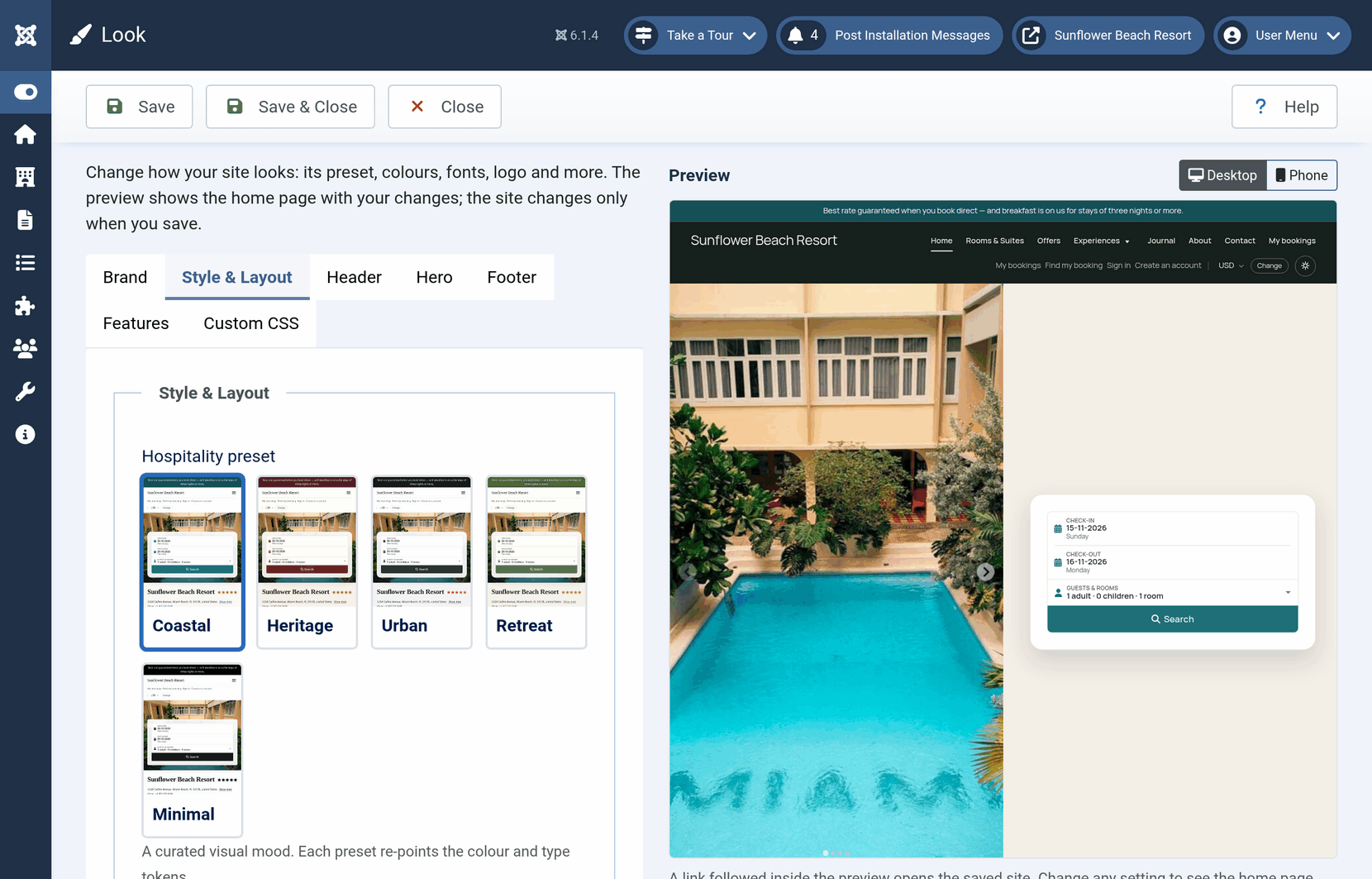
The preview
Each change you make redraws the preview within a second, with the page where you left it. Nothing changes on your site until you save, so try anything.
- Desktop and Phone, above the preview, draw the page at the width of a computer screen or of a phone.
- A link you follow inside the preview opens your site as it is saved. Change any setting to see the home page with your changes again.
- The preview is only for you. Search engines are told not to index it, and it is never cached.
Brand
- Show brand: the logo or site title in the header.
- Logo and Logo (dark mode): pick or upload an image from Media. With no logo, the header shows the Site title, or, when that is empty too, your site's name.
- Tagline: a short line beside the logo.
- Favicon: the small icon in the browser tab and in bookmarks. A square PNG or SVG of at least 48 pixels works best. Leave it empty to keep Lumina's icon.
Style & Layout
- Hospitality preset: the overall mood, colours and fonts together. Each preset is shown as a picture of a site wearing it; click one to choose it. Coastal is light and airy, Heritage rich and classic, Urban moody and contemporary, Retreat earthy and natural, Minimal monochrome and type-led.
- Primary colour and Accent colour: your own brand colours over the preset's. Leave them empty to keep the preset's. In dark mode Lumina uses a lighter shade of the same colour, so text stays readable.
- Page background: the colour behind the page's content. Preset default keeps the preset's own; Plain white, Warm off-white and Tinted, a pale shade of your primary colour, give any preset another background. The quieter bands, such as the price rows of the rooms, follow it. In dark mode each is a dark shade of the same choice.
- Corners: how round the corners of cards, fields, photos and buttons are. Sharp squares them all, buttons included; Softly rounded rounds them a little; Round rounds them more, with pill-shaped buttons. Preset default keeps the preset's own.
- Heading font and Body font: the type of headings and of text. Preset default keeps the preset's heading font. The fonts on the visitor's device load nothing, but each device shows the first of them it has, so your site can look a little different from one device to another. The fonts included with Lumina look the same on every device and are served from your own site, a small file each: EB Garamond, a classic serif; Noto Serif Display, an elegant high-contrast serif, for headings only; Inter, a clean sans-serif; and Manrope, a geometric one. They have the letters of the European languages, Vietnamese, Russian and Greek included; text in other scripts, such as Arabic, Hebrew, Thai, Chinese or Japanese, keeps the device's fonts.
- Container width: how wide the page's content runs.
Header
- Layout: where the logo and the menu sit. Logo on the left puts the menu beside it; Logo centred above the menu and Large logo above the menu give the menu a row of its own under the logo; Menu on either side of the logo splits the menu in two halves around a centred logo, the header of many boutique hotels. In the centred and split layouts, the modules of the header (guest links, currency, the light and dark switch) and the button run along a thin strip above; the large logo has them beside it. On a phone every layout shows the logo beside the menu button.
- Over the home photo: the header lies over the photo at the top of the home page, transparent, until the visitor scrolls; or it sits above the photo, solid. On a booking site, and above the hero with the photo beside the booking box, the header is always solid.
- Colour: the header's background. Plain is the page's own; Brand colour fills it with your primary colour; Dark with a deep shade of the preset. On the brand colour or on dark, the header shows your Logo (dark mode) when you have one, so a dark logo does not disappear.
- Button and Button text: a menu item, usually your booking page, shown as a button at the end of the header. Leave the text empty to show Book now in the visitor's language. With no menu item, there is no button.
Hero
The hero is how your home page opens: the photos of the module in the Slideshow position, and the modules of the Booking position, usually the availability search and sometimes a headline above it.
- Style: Full-width photo runs the photo across the whole page. Photo beside the booking box sets the photo on one half and the headline and the booking box on the other, on the page's own colour; on a phone the photo comes first. Short band keeps the photo to a strip, so the page's content starts sooner. No hero shows no photo, and the booking bar as on every other page.
- Hero height: how tall the full-width photo, or the photo beside the booking box, is.
- Booking box: with the full-width photo or the short band, the booking box lies over the foot of the photo, or sits in a band of its own below it. Below suits a busy photo, or one too short for the box.
- Shade: while the booking box lies over the photo, a gradient darkens the foot of the photo so a headline and the box stay readable. Dark is the deepest, Light half as deep, and None leaves the photo as it is, for a photo that is already dark.
Footer
- Layout: Columns sets the modules of the footer positions side by side, as before. Centred under the logo puts your logo, or the site title, at the top of the footer and the modules one below another in a centred column, with menus and lists of links in a row: a good fit for a small property with an address, a few links and its social pages.
- Colour: the background of the footer and of the copyright bar below it. Dark, the default, is the deep block the footer has always been; Plain is the page's own surface; Brand colour fills it with your primary colour. On the brand colour or on dark, the centred footer shows your Logo (dark mode) when you have one.
Features
- Dark mode: follow the visitor's device, always light, always dark, or a switch in the header that the visitor chooses with.
- Sticky availability bar: keeps the search bar pinned under the header as the visitor scrolls, on screens 992px wide and up. On a home page with a photo, Lumina 1.3.0 and later pin it when the hero's Booking box is Below the photo, and a booking box over or beside the photo stays with it; Lumina 1.2.0 pins it on the other pages only.
- Back-to-top button.
Custom CSS
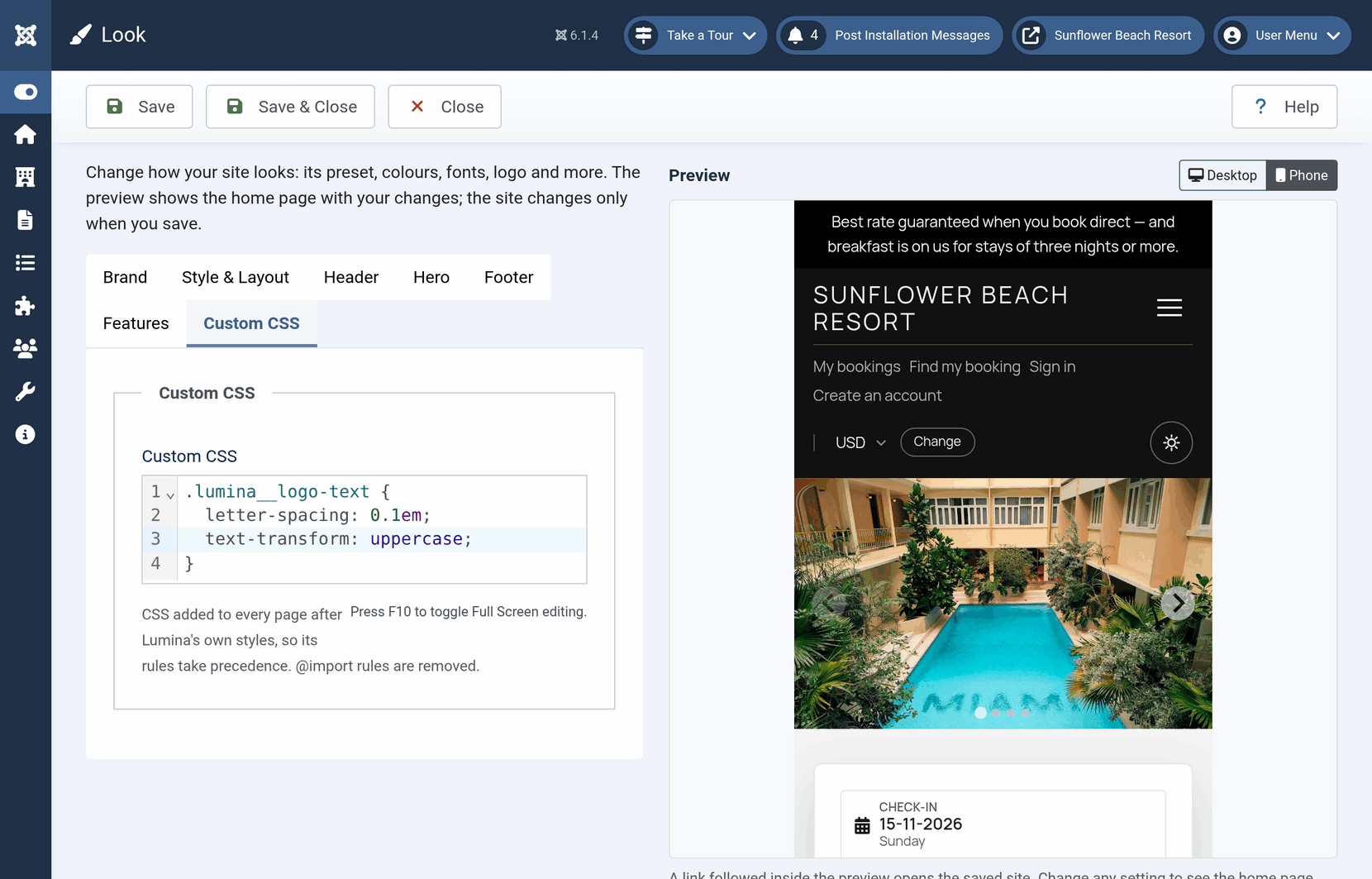
The Custom CSS tab takes CSS of your own, added to every page after Lumina's styles, so your rules win. Use it for the small changes no setting covers, such as setting the site title in the header in spaced capitals:
.lumina__logo-text {
	letter-spacing: 0.1em;
	text-transform: uppercase;
}
It takes CSS only. @import rules are removed, so a stylesheet from another server is never loaded; to use your own font or image, upload it to Media and refer to its address. The preview shows your CSS as you type.
Save
Save keeps you on the screen; Save & Close returns to Solidres. Your site shows the change straight away: saving clears Joomla's page cache and Solidres' cache, so visitors do not wait for them to expire. Close leaves without saving.
A value the screen cannot take, such as a colour that is not a colour, is shown in a message, the screen keeps what you typed, and nothing is saved until it is corrected.
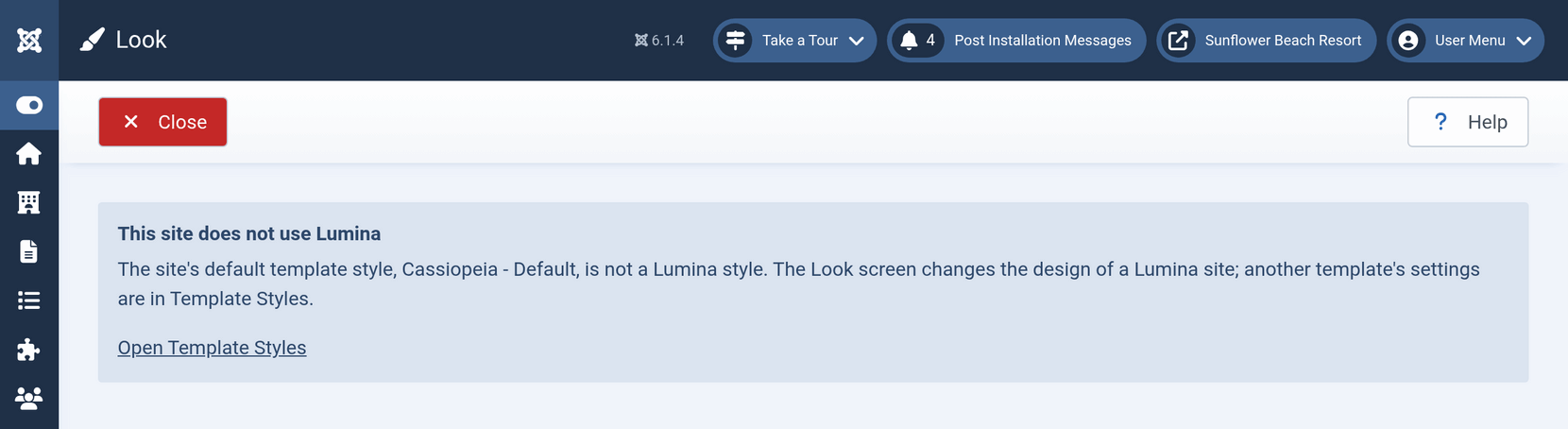
A site that does not use Lumina
The Look screen changes Lumina's settings only. When your site's default template is another one, the screen says so. That template's settings are in System → Site Template Styles, and the screen links there for whoever may manage templates.
Questions
Is this the same as Template Styles?
It changes the same settings, those of your site's default Lumina style. Template Styles is Joomla's screen, for whoever may manage templates, and has no preview; the Look screen is for whoever may change Solidres' options, and shows the preview. A change made in one shows in the other.
Where do I change what the home page shows?
The sections of the home page, such as the slideshow, the rooms and the map, are modules. Change them in Website → Site Modules, or in Content → Site Modules on a site whose administrator menu is Joomla's own.