

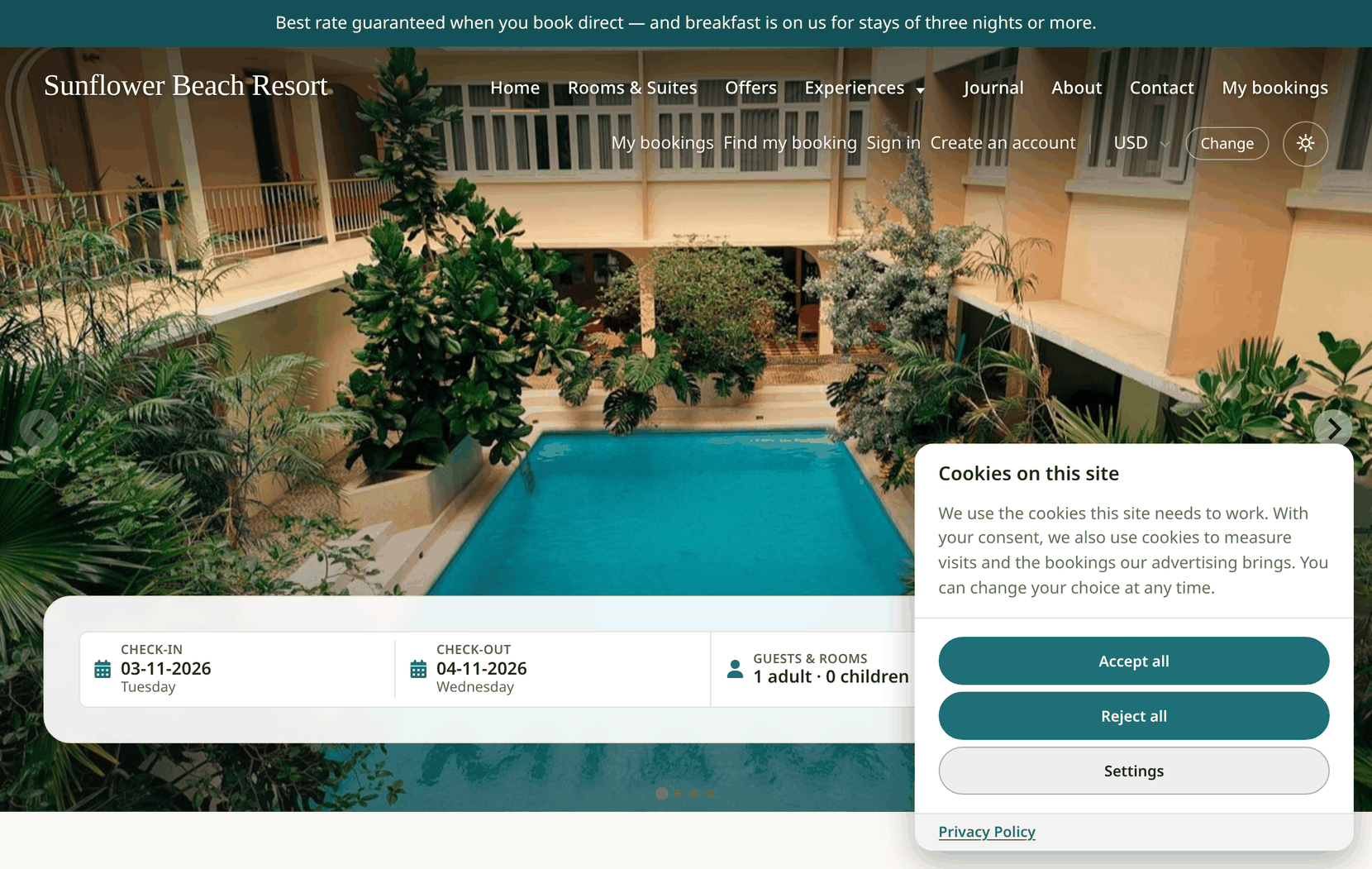
A cookie banner asks your website's visitors whether the site may use cookies that are not needed for it to work, such as those of an analytics or advertising tool, and keeps those tools waiting until the visitor agrees. From Solidres 4.7.0 your site can show a banner of its own, with no other extension: it asks each visitor once, in their language and in your template's colours, and runs the tools it holds back only for the categories the visitor accepts. It also tells Google's tags the visitor's choice, through Google Consent Mode.
PREREQUISITES:
- Solidres 4.7.0 or later. For Conversion tracking to wait for the banner, Conversion tracking 1.1.0 or later.
- A Joomla administrator account that can change Solidres Options.
NOTE Whether your site needs a banner, and what it must say, depends on the law where you and your guests are. This article describes what the banner does, not what the law asks of you.
On this page:
- Turn the banner on
- What your visitors see
- The categories
- Your own sentence and the privacy policy
- Letting visitors change their choice
- How long a choice lasts, and asking again
- Conversion tracking
- Holding back your own scripts
- Google Consent Mode
- What the banner does not do
- For developers
Turn the banner on
- Go to Solidres → System → Configuration and open the Cookie consent tab.
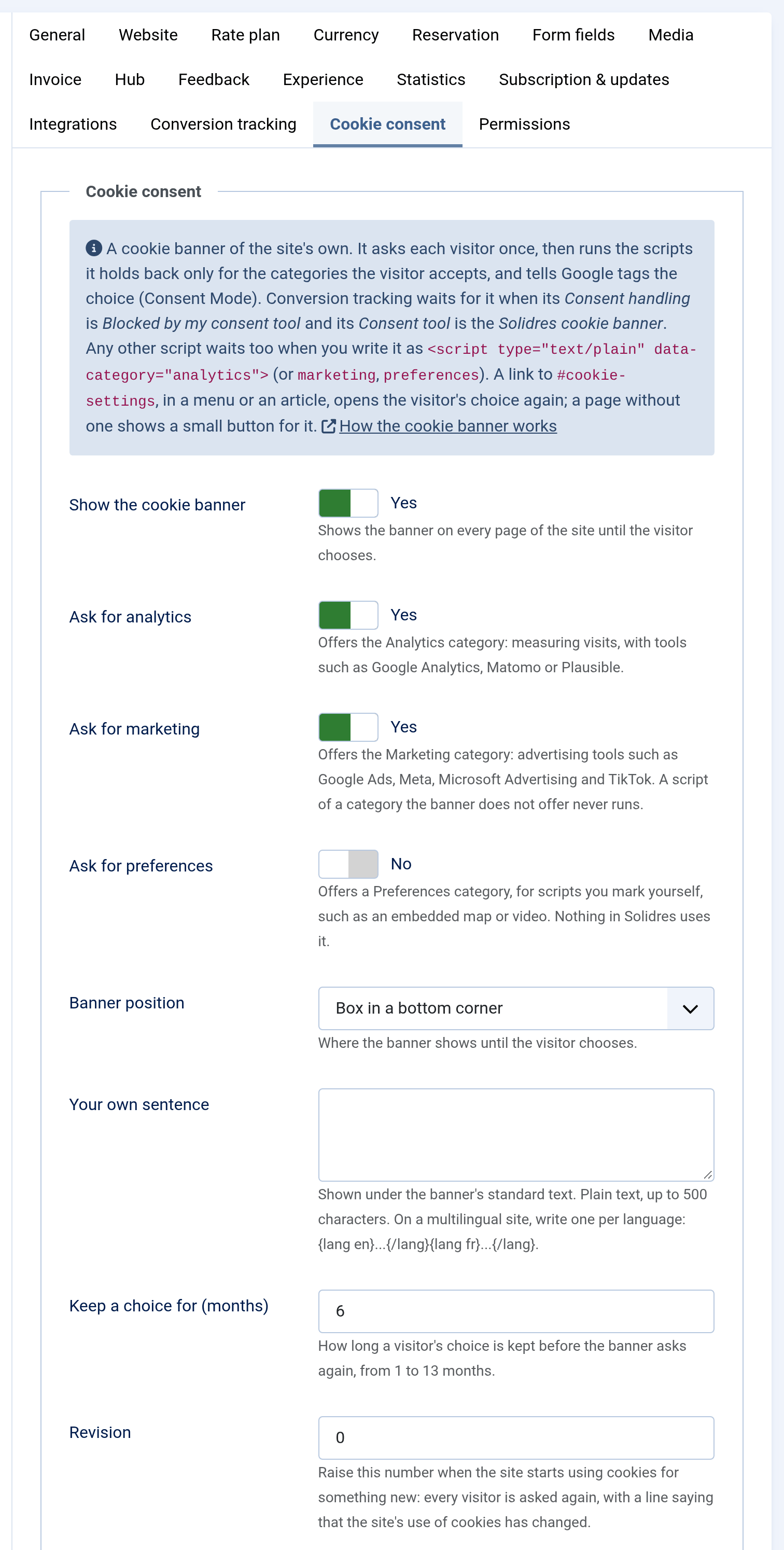
- Set Show the cookie banner to Yes. The other settings appear below it.
- Choose the categories to ask for, and check the rest of the tab (see the sections below).
- Click Save, then open your site in a private browser window to see the banner as a new visitor does. The banner opens only when your site has something to ask about (see When the banner asks).
On a site updated to Solidres 4.7.0 the banner stays off until you turn it on. On a site built from a Solidres quickstart package it is on from the start, with a Cookie settings link in the footer and Conversion tracking already waiting for it, and it starts asking once you set up a tool in Conversion tracking.
What your visitors see
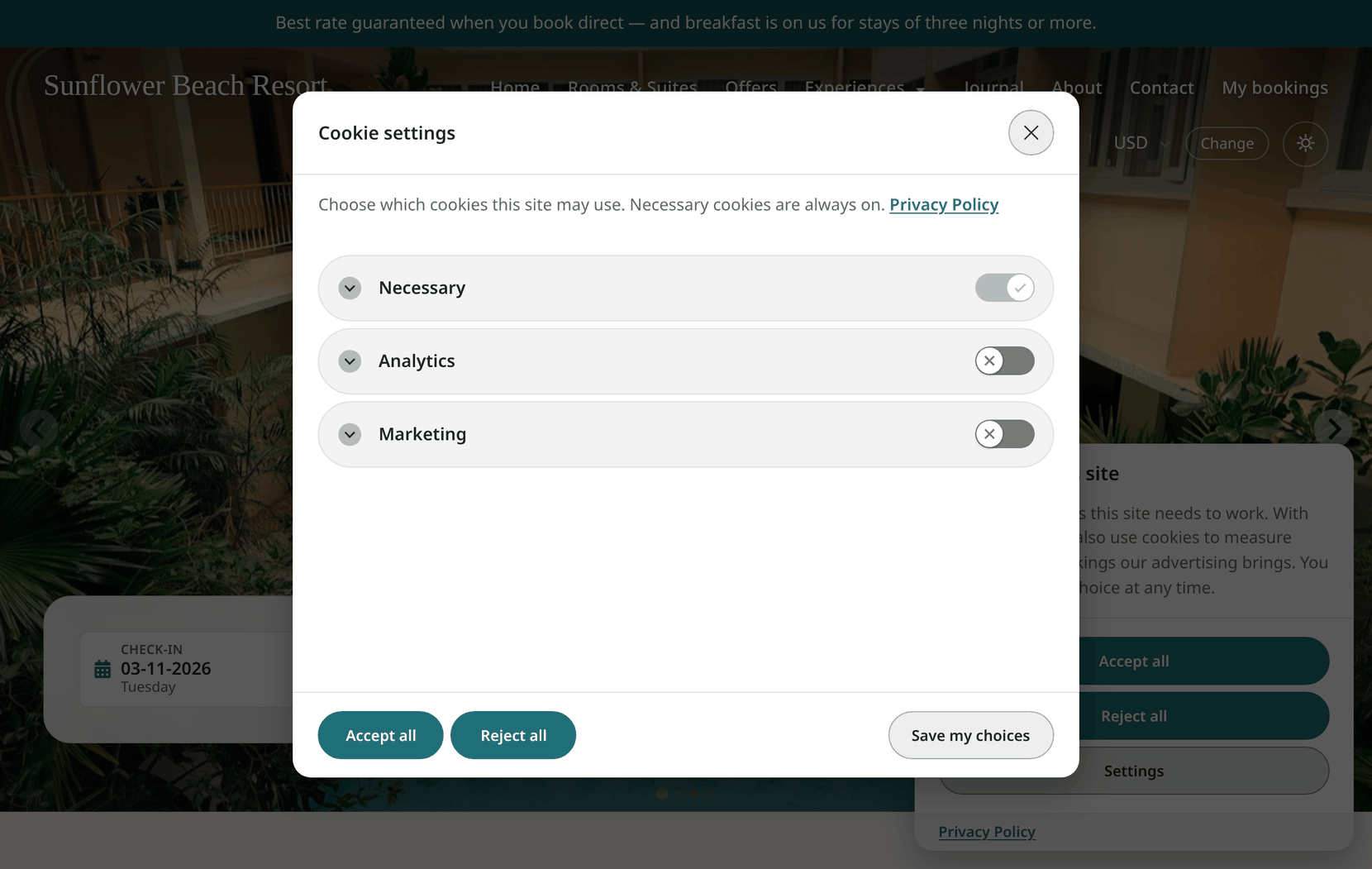
Visitors who have not chosen yet see the banner with three buttons of equal size: Accept all, Reject all and Settings. Until they choose, the tools the banner holds back do not run. Settings opens a dialog with a switch for each category, so a visitor can accept analytics but not marketing, for example, and Save my choices.
When the banner asks
The banner asks only when your site has something to ask about. A visitor who has not chosen yet sees it:
- on the pages of your booking engine, once Conversion tracking has a tool set up: on all of them for a tool set up for the whole site, and on the property's or experience's own page for an ID set on a property or experience. Guests choose before they book, not on the confirmation page, where Conversion tracking's tools run;
- on any page that holds back a script of a category you offer (see Holding back your own scripts);
- on any page with a Google tag, which reads the visitor's choice through Google Consent Mode.
On a site where nothing waits for consent, the banner stays closed, since there is nothing to accept or reject. The Cookie settings link still opens the dialog, and once a visitor has chosen, the choice applies on every page.
The banner's texts are translated into every language Solidres comes in, and follow the language of the page. Its colours follow your template's, in its light and dark modes. It works by keyboard alone: the dialog takes the focus, Tab stays inside it and Esc closes it. Screen readers announce it by its name and each switch by its category.
Banner position places it as a Box in a bottom corner (the default: the right corner, or the left on a page in a right-to-left language), a Bar along the bottom, or a Box in the middle of the page.
The visitor's choice is kept in a cookie of your site, sr_consent. The banner is not shown inside pop-ups and print windows; the page around them has it.
The categories
The banner always lists Necessary cookies, which are always on: the guest's booking, their language and currency, signing in, and the choice itself. Beside it, it asks for the categories you offer:
| Option | Category | What waits for it |
|---|---|---|
| Ask for analytics (on by default) | Analytics | Measuring visits and bookings: Google Analytics, Matomo, Plausible, Umami, Fathom |
| Ask for marketing (on by default) | Marketing | Advertising tools: Google Ads, Meta, Microsoft Advertising, TikTok, and affiliate tags |
| Ask for preferences (off by default) | Preferences | Scripts you mark yourself, such as an embedded map or video. Nothing in Solidres uses it. |
Offer only the categories your site uses. A script that waits for a category the banner does not offer never runs, so if you switch Ask for marketing off, your advertising tags stop for every visitor.
Your own sentence and the privacy policy
The banner's standard text says that the site uses the cookies it needs to work and, with consent, cookies to measure visits and the bookings its advertising brings. Your own sentence adds a line of yours under it, for example who runs the site or what your partners do. It is plain text, up to 500 characters. On a multilingual site, write it once per language in language blocks:
{lang en}Hotel Lumen is run by Lumen Hospitality Ltd.{/lang}{lang fr}L'hôtel Lumen est exploité par Lumen Hospitality Ltd.{/lang}
The banner and its dialog link your privacy policy, the one set on the General tab of Solidres Options, which checkout links too: the Privacy Policy article, or the Privacy Policy URL when Terms and Conditions format is URL. Without one, the banner shows no link. Your privacy policy is where to list the cookies and tools your site uses.
Letting visitors change their choice
Visitors must be able to change their mind as easily as they chose. Any link to #cookie-settings opens the dialog again:
- In a menu, usually the footer's: add a menu item of the type System Links → URL, titled Cookie settings, with the link
#cookie-settings. Sites built from a Solidres quickstart package have one. - In an article, such as your privacy policy: link any words to
#cookie-settings.
On a page without such a link, a small round button appears in a bottom corner once the visitor has chosen, and opens the dialog.
How long a choice lasts, and asking again
- Keep a choice for (months): 6 by default, from 1 to 13. After that the banner asks again.
- Revision: raise this number, from 0 to 1 and so on, when your site starts using cookies for something new, such as a new advertising tool. Every visitor is then asked again, with a line saying that the site's use of cookies has changed since they last chose.
When a visitor withdraws analytics or marketing, the page reloads without those tools, and the cookies of the tools Conversion tracking connects are deleted. Cookies your own scripts set stay until they expire.
Conversion tracking
The Conversion tracking add-on tells Google Analytics, Google Ads, Meta and your other tools about each new booking. To make it wait for the banner, open its tab, Solidres → System → Configuration → Conversion tracking, set Consent handling to Blocked by my consent tool and Consent tool to Solidres cookie banner, and save. Each tool then runs once the guest accepts its category, which its Consent category sets: advertising tools wait for marketing, analytics tools for analytics. If the banner is off while they wait for it, the tab warns you, because nothing would run. See Cookie consent in the Conversion tracking article.
Holding back your own scripts
The banner runs only the scripts that are marked as waiting for it. To hold back a script of your own, such as a chat widget or a tool your template adds, write it with type="text/plain" and its category in data-category:
<script type="text/plain" data-category="analytics" src="https://stats.example.com/script.js"></script>

<script type="text/plain" data-category="marketing">
  // runs once the visitor accepts marketing
</script>
The category is analytics, marketing or preferences. When the visitor accepts it, the banner runs that category's scripts in the order they appear on the page, each script with an address after the one before it has loaded, so a tool's library is there before the code that uses it. Put the script wherever your site lets you add one, such as your template's custom code or an extension made for it: by default, Joomla's editor removes scripts from articles and modules. A script marked data-category="necessary" runs at once. A held script of a category you offer also makes the banner ask on the page it is on.
CONTENT SECURITY POLICY If your site sends a policy with a nonce, for example through Joomla's System - HTTP Headers plugin, the banner's own scripts carry the nonce, and a held script keeps the nonce it was written with when the banner runs it. A script your template or an extension adds through Joomla carries it; one typed into the page by hand does not, so the policy blocks it. Load such code from a file instead, which 'strict-dynamic' or the file's address in script-src allows.
Google Consent Mode
Before any tag runs, the banner sets Google's four consent signals to denied. After the visitor's choice, on that page and on each one after, it updates them: Analytics grants analytics_storage, and Marketing grants ad_storage, ad_user_data and ad_personalization. Google's tags read these signals however they are loaded: by Conversion tracking, by your template, or by Google Tag Manager, whose tags' consent settings use them too.
A Google Tag Manager container your site loads directly is not held back by the banner: Google's own tags in it follow Consent Mode, and its other tags need Tag Manager's consent settings (Require additional consent for tag to fire).
What the banner does not do
- It does not find scripts by itself. A tool that is neither connected by Conversion tracking nor written as a held script, such as an embedded video, a social media widget or your template's own analytics code, runs as before. Hold its script back as above, or remove it. Such a tool does not make the banner ask either.
- It keeps no record on your server. The visitor's choice is kept in their browser only.
- It does not write your privacy policy or list your cookies: say there which tools your site uses and why.
Run one consent tool on a site, not two. If your site already has another consent extension, keep the Solidres banner off; Conversion tracking can wait for that tool instead.
For developers
Once the visitor has chosen, and on each page after, the banner dispatches a solidres:consent event on document, with the accepted categories and the revision as its detail. It fires again when the visitor changes their choice:
document.addEventListener('solidres:consent', function (event) {
  // event.detail: { categories: ['necessary', 'analytics'], revision: 0 }
  if (event.detail.categories.indexOf('marketing') !== -1) {
    // load something that needs marketing consent
  }
});
SolidresConsent.accepted() returns the accepted categories and SolidresConsent.showSettings() opens the dialog. Any element with the attribute data-sr-consent-settings opens it too, like a link to #cookie-settings. The banner is built on the CookieConsent library, version 3, which ships with Solidres.
An extension that loads tools needing consent on some pages can have the banner ask on the pages before them too, as Conversion tracking does, by setting the banner's required option in PHP on those pages:
$document->addScriptOptions('com_solidres.consent', ['required' => true]);