

Every booking made on your site, received from a channel or added by you is a reservation in Solidres. This article shows how to find a reservation in the list, read it at a glance, change it, and write to the guest about it.
PREREQUISITES:
- Solidres 4.7.0 or later, for the screens shown here
- For Hub partners: Hub 2.5.0 or later
The reservations list
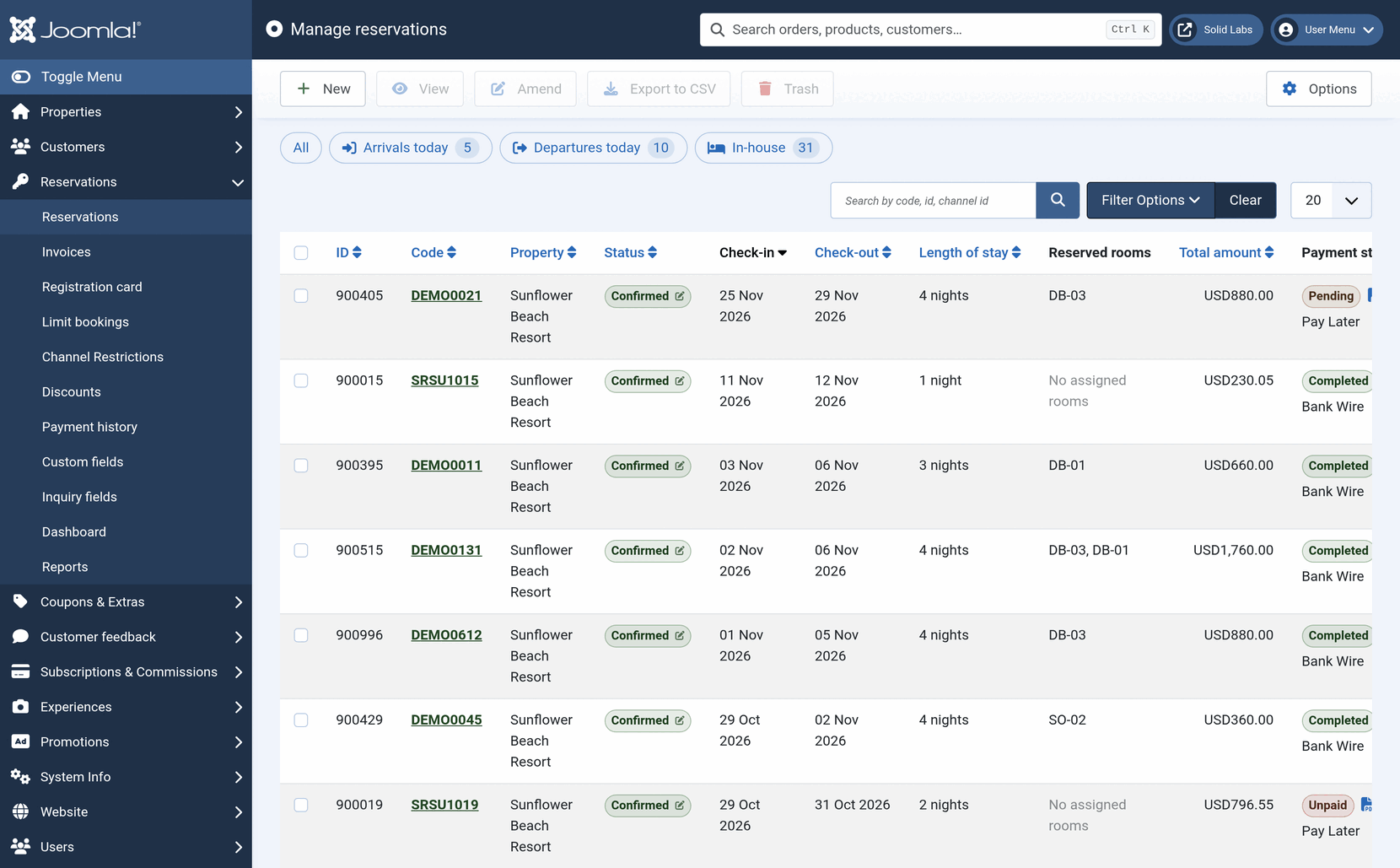
Open Solidres → Reservations. Each row is a booking: its code, the property, the status, the check-in and check-out dates, the nights, the rooms, the total, the payment status, the customer, when it was made, its origin and, for a booking from a channel, the channel's order ID. The newest come first; click a column's header to sort by it.
Quick filters
Above the search box, All, Arrivals today, Departures today and In-house each show their count and, when clicked, the bookings they count. They are the same as the tiles of the Solidres dashboard, so a tile and its quick filter always agree. The one in use is highlighted; All goes back to the whole list.
Search and filters
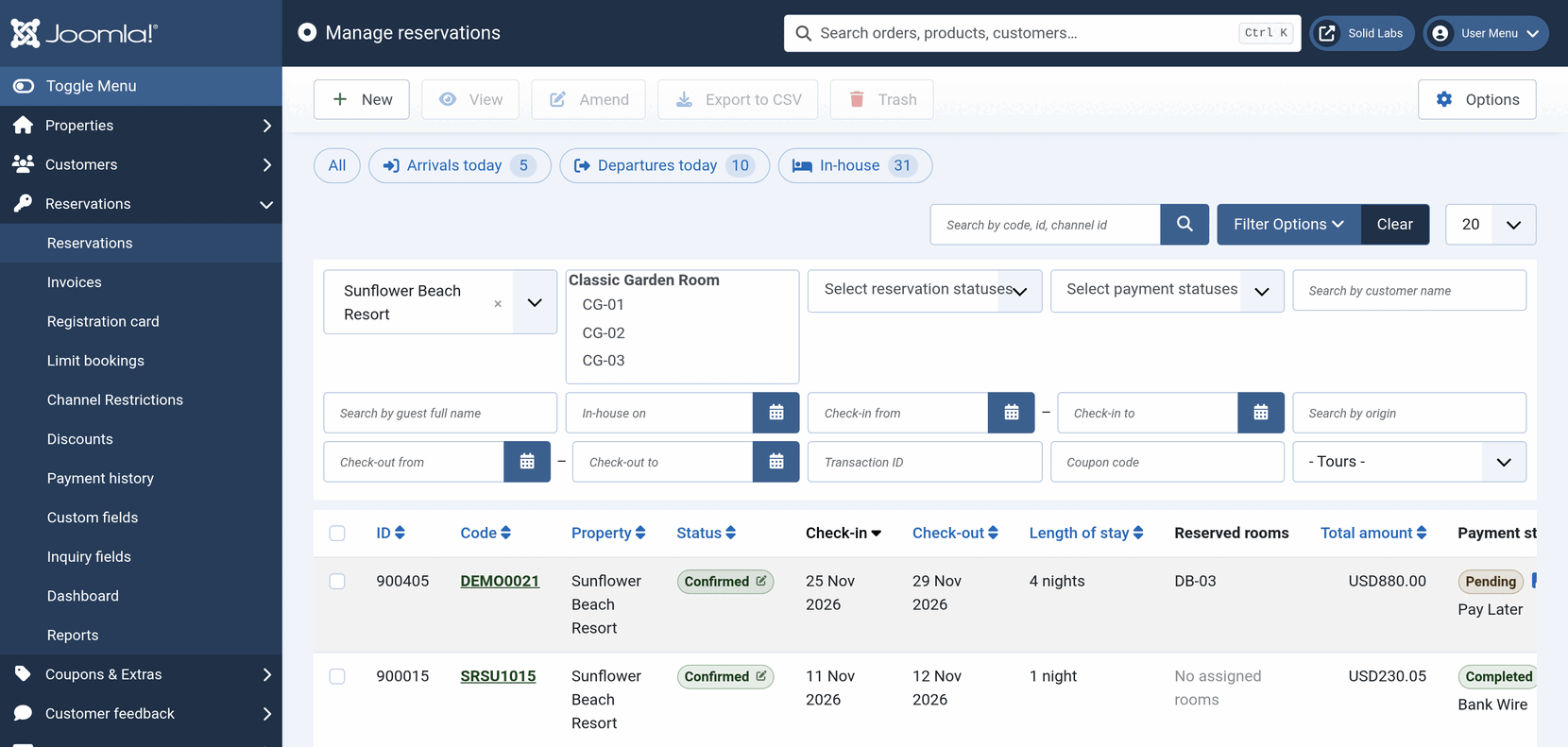
The search box finds a booking by its code, its number or its channel order ID. Filter Options opens the other filters:
- The property, and the reserved rooms, statuses and payment statuses, several of each at once if you like.
- The customer's name, the guest's full name, the origin, the transaction ID and the coupon code.
- In-house on: the bookings staying on a given night.
- Check-in from – to and Check-out from – to: two ranges of dates, each with its first and last day side by side. Fill in one end to leave the range open on the other side; give the same day twice for the arrivals or departures of that day.
- With the Experience add-on, Tours: the stays with tours booked with them, or those without.
A date filter applies the moment you pick a day; moving the calendar to another month does not reload the list. The filters you used stay set until you clear them, and the filter bar names them.
Changing a status from the list
Click a booking's status badge to change its status without opening the booking. The badge's colour is the status colour you chose in Solidres → Statuses. A change that sends an email, or that a channel manager must hear about, does so as it would from the reservation screen.
Other actions
Tick one or more bookings to View, Amend, Export to CSV or trash them. New adds a booking yourself: choose the property, the dates, the customer, the status and the payment status, then Load available rooms, and go on with the rooms and rates and the guest's details.
A reservation
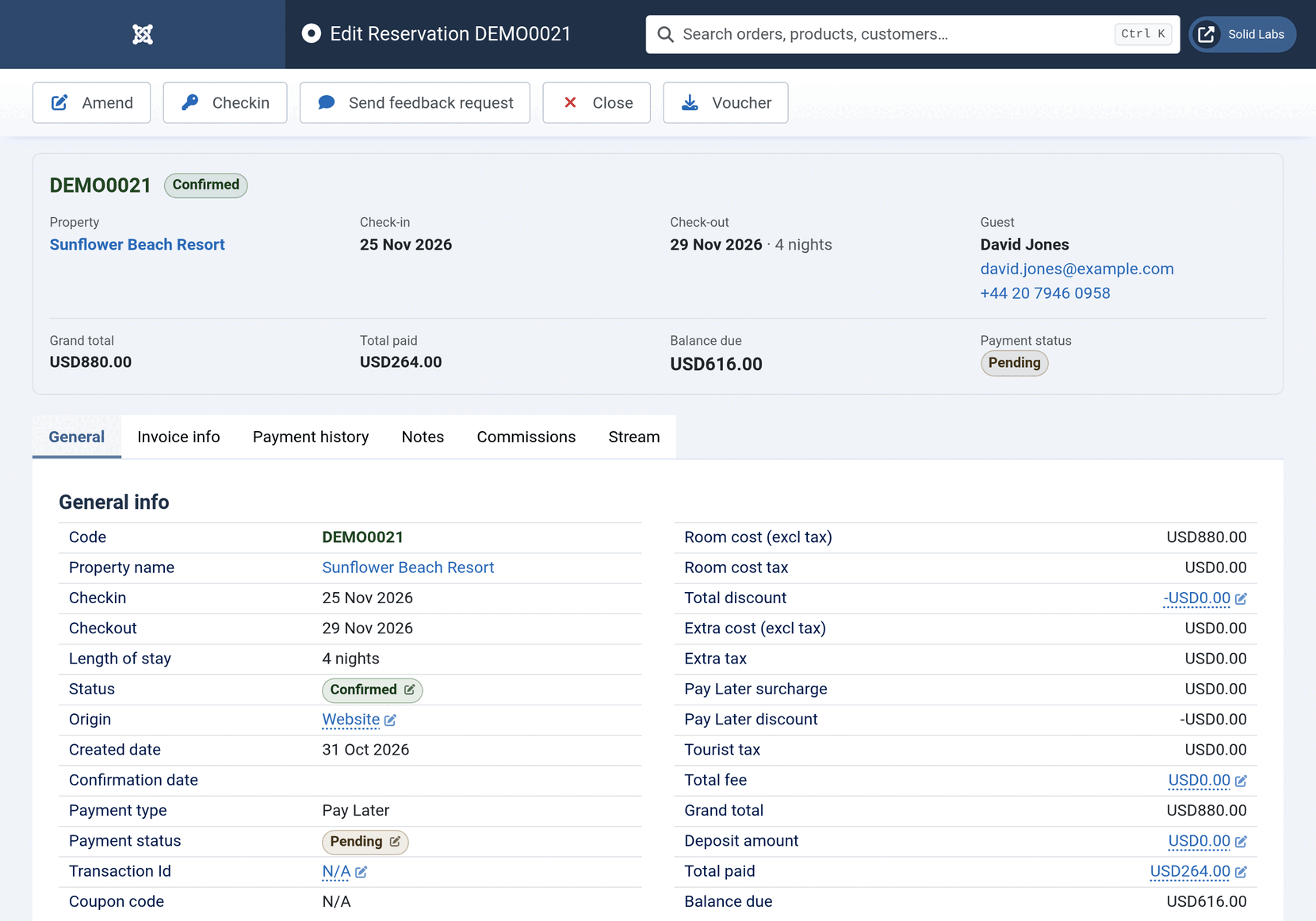
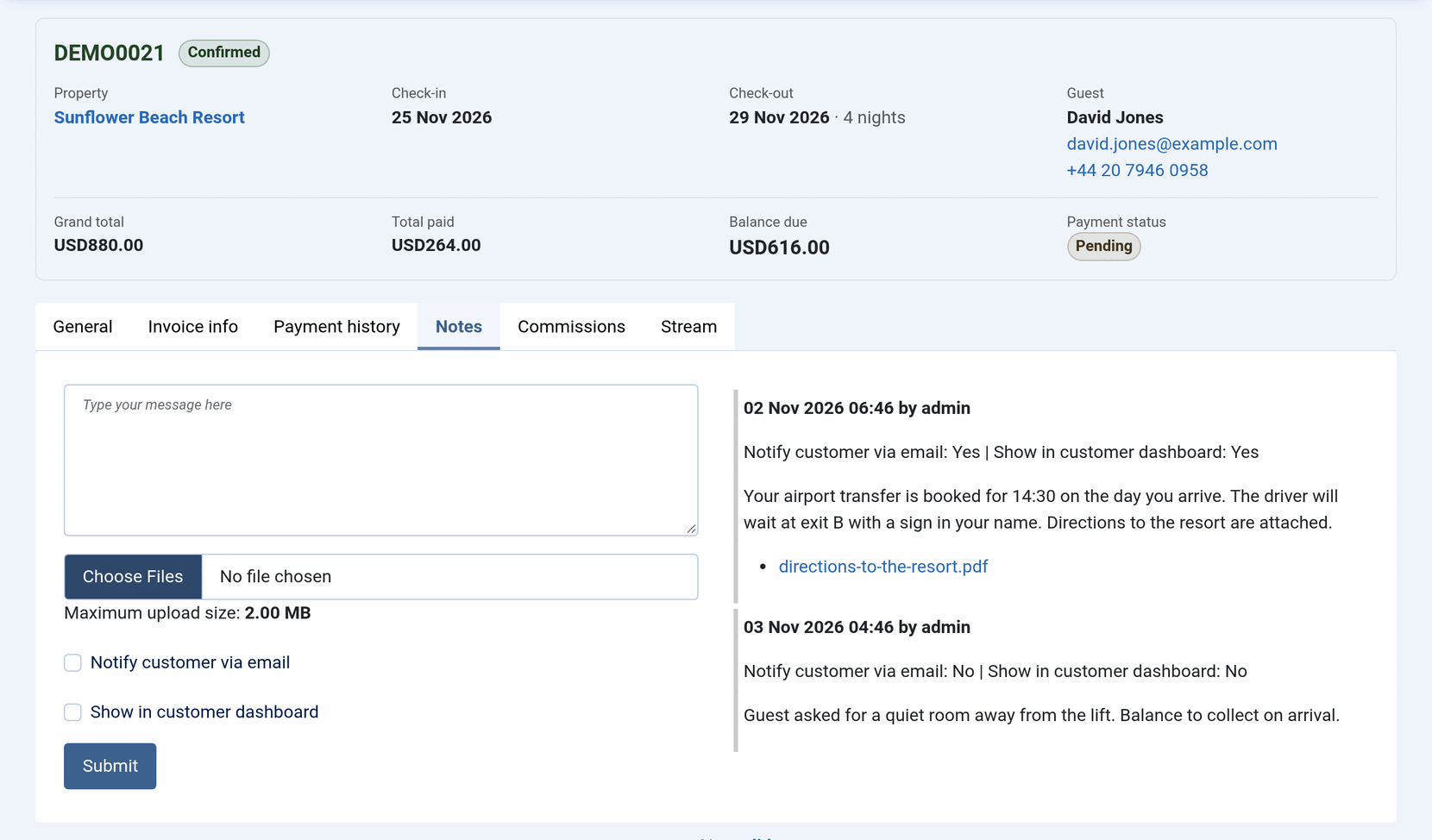
Click a booking's code to open it. Above the tabs, the summary gathers what you most often need: the guest, the property, the dates, the status and the payment status, the guest's name and contact details, the grand total, what was paid, the Balance due and the payment status. A booking still to approve, or checked in or out, says so there too.
The tabs:
- General: the reservation's details and price breakdown, the customer, the card details of an offline payment, the rooms with their guests and extras, then the sections add-ons add, such as the tours booked with the stay (Experience).
- Invoice info: the invoices of the booking, with the Invoice add-on.
- Payment history: each payment received or recorded, with its method and reference.
- Notes: what you and your staff wrote about the booking, and what you wrote to the guest. See Notes and messages to the guest.
- Commissions: with the Hub, the commission on the booking.
- Stream: the booking's history, with the Stream add-on.
Changing a figure in place
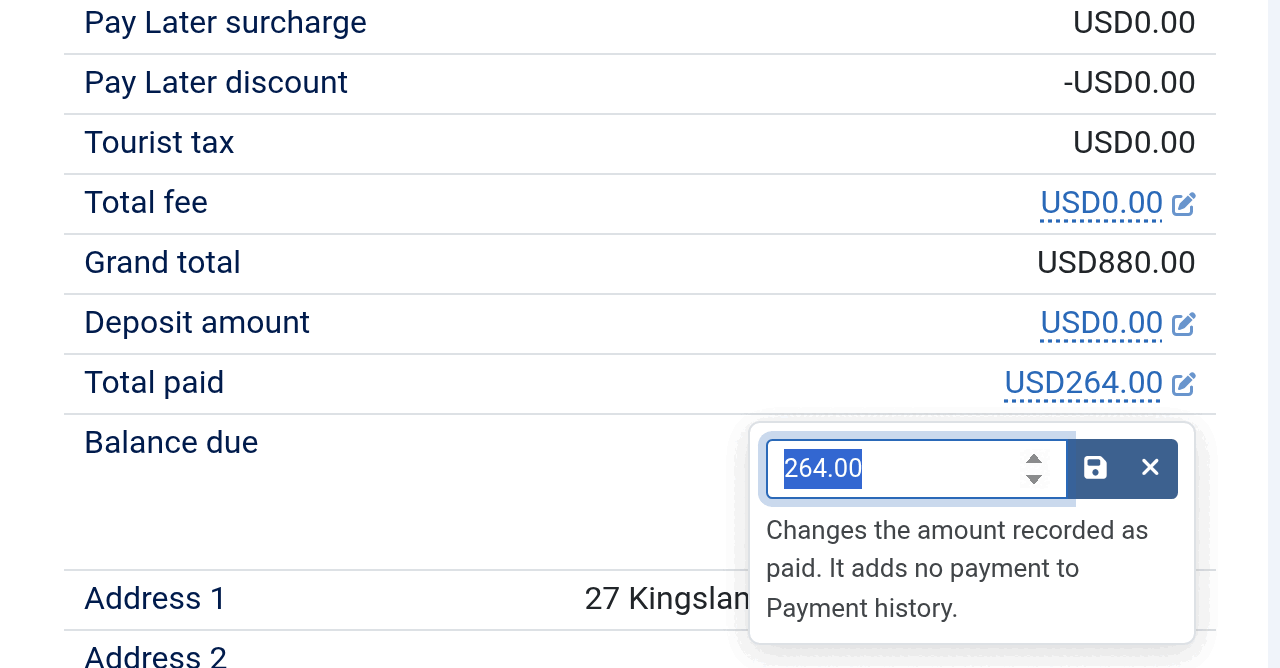
The status, the payment status, the origin, the transaction ID, the discount, the fee, the deposit and Total paid can be changed where they are shown. Each has a small pencil: click it, or move to it with the Tab key and press Enter or Space. A small form opens beside it; save it, or press Escape to close it. Screen readers announce each one as Change followed by its name, such as Change Total paid.
Changing the discount, the fee, the deposit or Total paid works out the balance due and the summary again. Total paid only changes the amount recorded as paid: it adds no payment to the Payment history tab.
Notes and messages to the guest
On the Notes tab, write the note, attach any files, and choose who reads it:
- With neither box ticked, the note is for you and your staff only.
- Show in customer dashboard shows the note and its files to the guest on their booking, under Messages from the property. Only the guest the booking belongs to can download the files. The guest sees the note's date, not who wrote it.
- Notify customer via email emails the note to the guest, with its files attached. Tick both to email it and show it on their booking.
See How to configure front-end customer dashboard for what the guest sees.
Reservations for Hub partners
With the Hub, partners manage the bookings of their own properties from the partner dashboard's Reservations menu. They get the same list, with the quick filters counted on their properties only, and the same reservation screen, with its summary, the sections add-ons add and the files attached to notes. What only you handle is left out: the Commissions and Stream tabs and the link to the customer's profile. See Initial configuration for Hub plugin.
Coming from an earlier version
In Solidres 4.7.0 the list's four date filters sit as two ranges, check-in and check-out, each with its two calendars side by side. They filter as before, and a filter you had saved still applies; picking a day applies it at once, and moving the calendar to another month no longer reloads the list. The list, the reservation screen and the partner's screens are now drawn by the same files, so a template override of one of them made for an earlier version may need making again: Solidres → System Info lists such overrides in its Template override check list.