

A guest who books without an account is a booking and nothing more: their name, email and address are kept on the booking, which you find in Reservations. A guest with an account on your website is also a customer: Solidres lists them in Customers, fills in the booking form for them when they come back, and links their bookings to them. This article covers the customers, the groups you can put them in, the export of your guest list and the registration card a guest signs on arrival.
PREREQUISITES:
- Solidres 4.7.0 or later for the export; the rest is much the same in 4.x. The registration card comes with the Invoice add-on, which Solidres Self-hosted installs; a site we run for you has it too.
Who is a customer
Every account on your site that is not a Super User has a row in Customers → Customers. A guest gets an account in one of three ways:
- While booking, when your property lets them: on the property's Booking tab, When guests book is No account needed unless you change it to Guests can create an account while booking, Guests must create an account while booking or Guests must log in before booking. See Setting up a property.
- On your website, from its Create an account page.
- From you, in Customers → Customers (below).
With an account, a guest signs in to see their bookings on the My bookings page, and finds the booking form filled in. Your own account and your staff's accounts are listed too, under the name of the account, in the group Public and with no bookings: leave those rows alone, as deleting one deletes the login (see Deleting a customer).
Find a guest
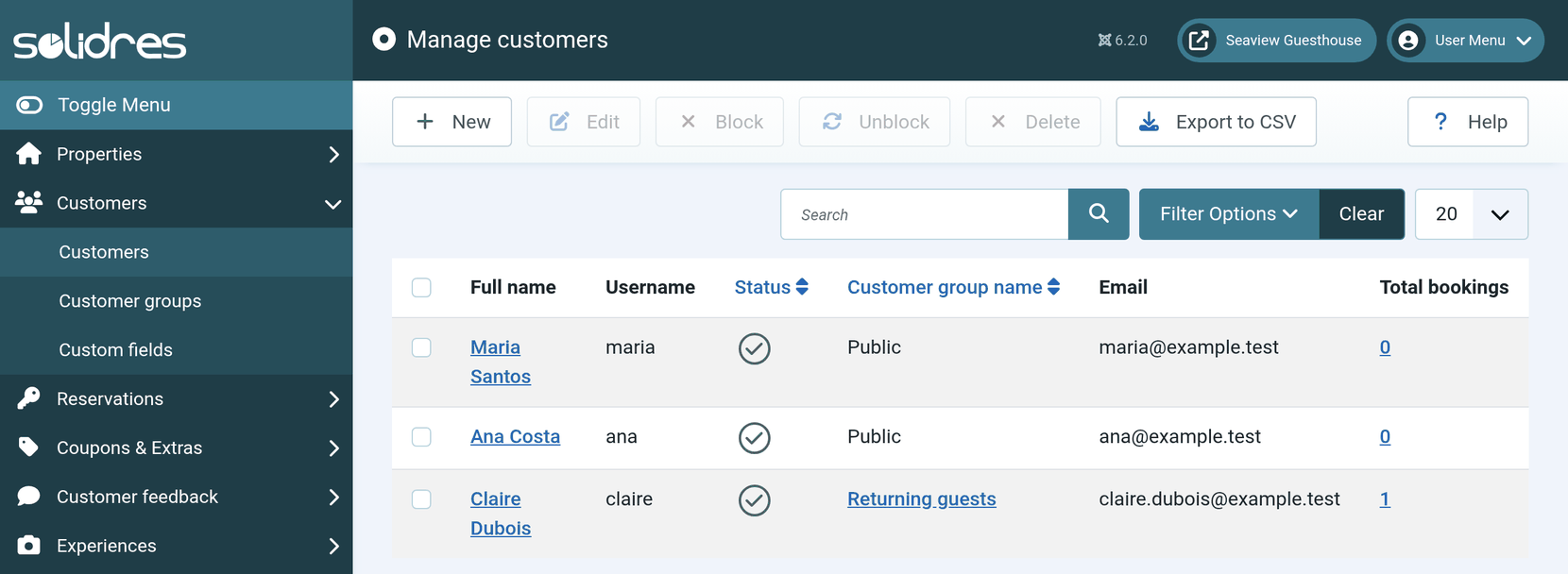
Open Customers → Customers. Type a name, a username or an email in the search box and press Enter. Filter Options narrows the list to one Customer group, or searches the full name, the username or the email alone; Clear shows everyone again.
Each row shows the customer's full name, username, whether their account is active (Status), their Customer group name, email, and Total bookings: the bookings they made while signed in, or that you made for them, cancelled ones included: click the number to list them in Reservations. On a wide screen, Register date and Last visit date show when the account was made and last signed in. Click a name to open the customer.
Add or change a customer
- In Customers → Customers, click New.
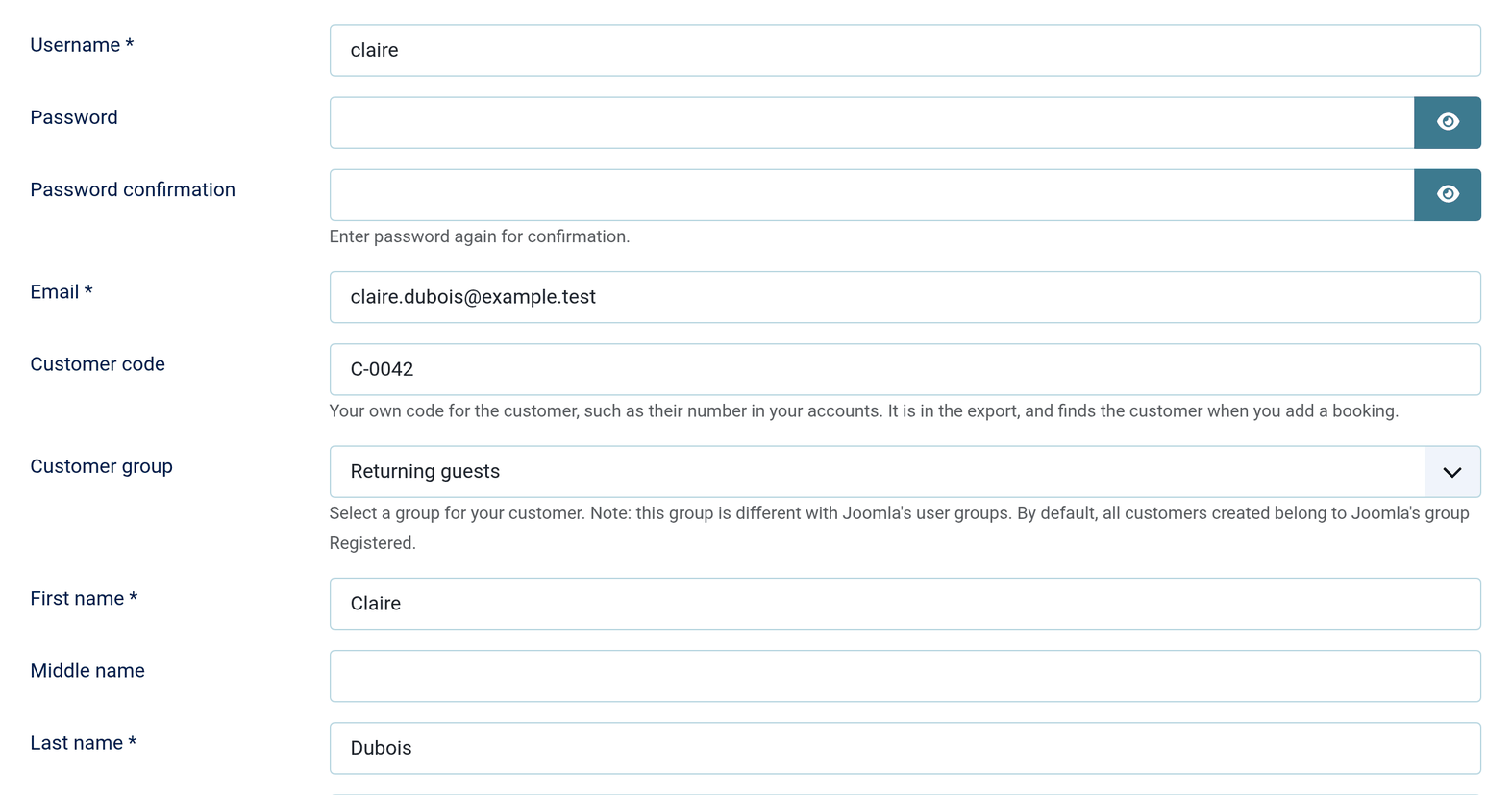
- Type a Username, a Password and its Password confirmation, and the guest's Email.
- Choose a Customer group if you use them, or leave Public.
- Fill in First name, Last name and Country, which are required, and whatever else you know: phone, address, company, VAT number. Customer code is for your own reference, such as the guest's number in your accounts; it is in the export, and finds the guest when you add a booking for them.
- Click Save & Close.
Joomla emails the guest their username and password, under the subject New User Details, and they can sign in on your website at once. To change a customer later, click their name, change what you need and save. Leave Password empty to keep the one they have. What you change here fills the booking form next time; the bookings they already made keep the details they were made with.
Block stops a customer from signing in, and Unblock lets them in again: tick the row, then click the button. Their details and bookings stay as they are.
Deleting a customer
Delete asks first, and goes further than the row. It deletes the guest's account, so they can no longer sign in; their reviews; and their answers to your booking form's extra questions on their bookings. Their bookings stay, with the name and address they were made with. Never delete your own row or a member of staff's here: that deletes the login (to remove someone who has left, see When someone leaves). To keep a guest out, Block them instead.
Customer groups
A customer group is a set of customers you name yourself, such as Returning guests or Corporate. Public means no group: every new customer starts there. A customer group is not a Joomla user group: it decides nothing about what the guest may see or do on your site.
- Open Customers → Customer groups and click New.
- Type the Group name and click Save & Close.
- Open each customer who belongs to it, choose the group in Customer group and save. Guests cannot choose a group themselves.
What a group does:
- Rate plans. A rate plan can be given a customer group (see Rate plan configuration). A member who is signed in is offered their group's rate plans on your property page, in place of the Public ones; everyone else is offered the Public ones. So give the group a rate plan for every room type its members may book: a room type with none for the group shows them no price. When you add a booking for a member in Reservations and choose them as the Customer, every rate plan of the room type is yours to choose from.
- Coupons. A coupon given a customer group works only for the members of that group, signed in on your website: a code you can send to your returning guests that no one else can use. A coupon left at Public works for every guest, members of a group too. See How to configure Coupon.
A group with customers in it cannot be deleted; move them to another group first. Deleting a group from the trash also deletes its rate plans and its coupons.
Export your guest list
- In Customers → Customers, search or filter the list down to the customers you want, or leave it as it is for everyone. To export a few rows only, tick them.
- Click Export to CSV.
The file, such as solidres_customers_export_2026-11-16.csv, holds the rows you ticked, or else every customer the list holds with its search and filters, on every page. It opens in Excel, Numbers or Google Sheets, with a column each for the customer code, the customer group, first, middle and last name, email, phone, mobile phone, address, city, postcode, state, country, company, VAT number, username, register date, last visit date, total bookings and whether the account is blocked, then your guest form's own questions (below).
It holds customers only. Guests who booked without an account are in the bookings: Reservations → Export to CSV gives their details booking by booking. Keep what you export as safe as the site itself, and use it only as your privacy policy says. A guest who asks for their data, or for it to be erased, is answered through Joomla's privacy requests, which only the site's Super User can open (on a site we run for you, ask us): Solidres adds the guest's bookings and invoices to the export, and anonymises them on removal.
The registration card
The registration card is the form a guest checks and signs on arrival, printed from their booking with its details filled in. You design one card for the whole site:
- Open Reservations → Registration card.
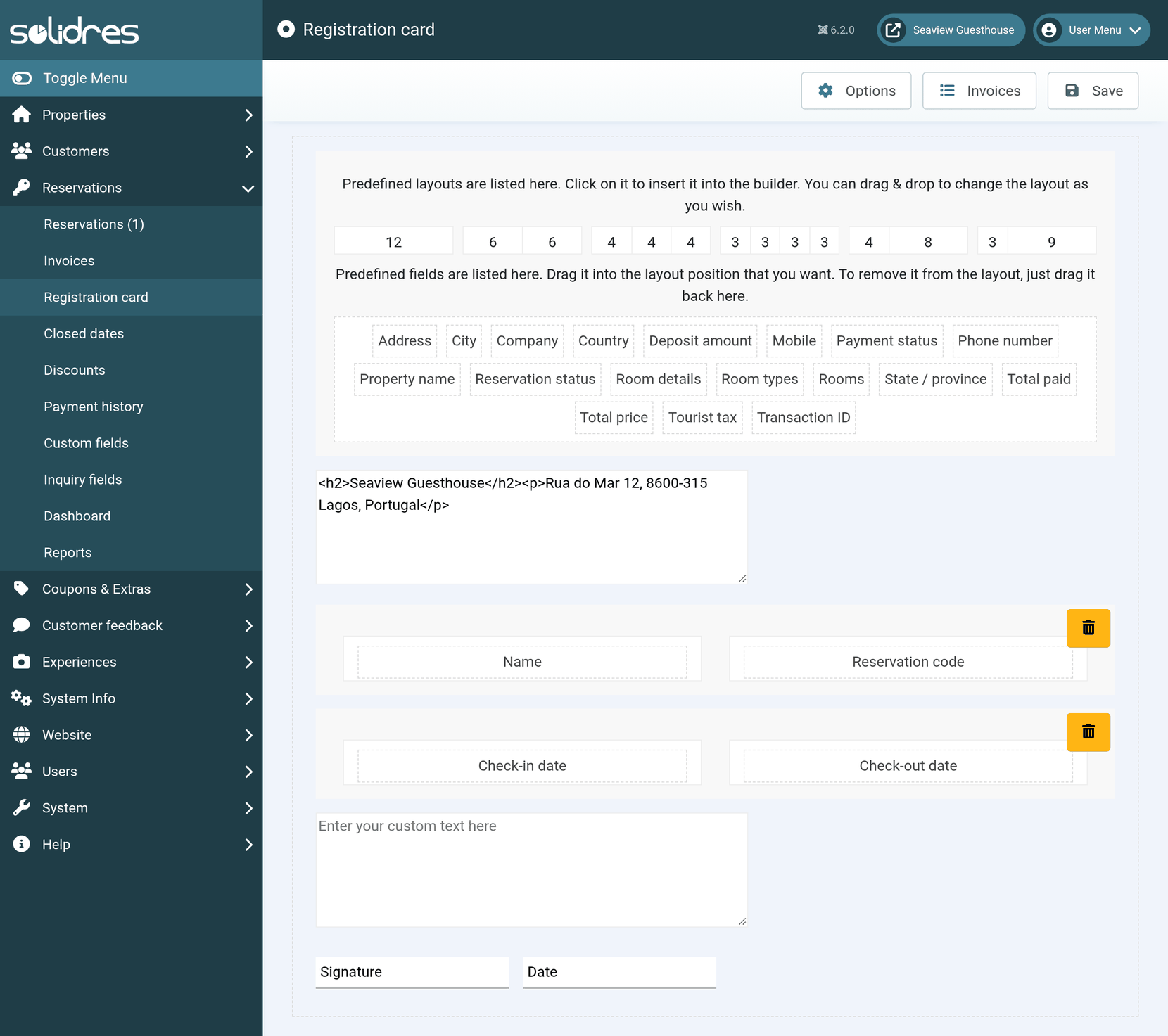
- Click a row shape under Predefined layouts: 12 is one wide column, 6 6 two halves, and so on. Each click adds a row to the card below.
- Drag the fields you want, such as Name, Reservation code, Check-in date and Check-out date, from Predefined fields into the columns. To take a field off the card, drag it back.
- Type your property's name and address, or a few lines of house rules, in the text boxes above and below.
- The two captions at the foot, Signature and Date, can be changed; the date printed beside the second is the day the card is printed.
- Click Save. Solidres answers Saved!.
To print a guest's card, open their booking and click Print registration card in the toolbar; it appears once a card has been saved. The card takes the guest's details from the booking.
Your own questions
Customers → Custom fields holds the questions of the guest form, the step of the booking where guests give their details, which is also a customer's profile. To add a question, such as the guest's arrival time or their passport number, see How to add custom fields. The answers appear on the booking, and in the export for customers.
Your staff
Members of Property staff do everything this article describes, deleting customers and groups included, except the questions in Customers → Custom fields, which stay yours. The customer screens need the right Manage customer, and the questions Manage customer fields; to change who has them, see Change what they may see.
For site builders
A customer is a Joomla account plus a Solidres profile. The plugin User - Solidres adds the profile when an account is saved, except for Super Users since Solidres 4.8.0, and removes it when the account is deleted in Users. Customer user group, in Solidres' Options, is the Joomla user group given to accounts made in Customers → New and the one that opens the guests' My bookings page; it is not a customer group. An account a guest creates while booking gets Joomla's New User Registration Group and, since Solidres 4.8.0, the Customer user group too. Since Solidres 4.8.0, a group's rate plans are offered on the property page on every site (before, only with the Hub). Joomla's privacy requests (Users → Privacy) include a guest's Solidres data since Solidres 4.8.0: an export holds their customer record, bookings (of their account, and those made without one with the request's email), invoices, tour bookings and reviews; a removal anonymises them, keeping codes, dates and amounts. The registration card is kept in a file of the Invoice add-on, one for the site and one language.