

The Front Desk is the room-by-room calendar of a property: one row for each room, one column for each day, and a bar for each booking and each room block. It answers the questions of a shift at the desk at a glance (who arrives today, who leaves, which rooms are free next weekend) and lets you act on the answer in place: move a guest to another room, lengthen a stay, take a booking on the phone or close a room for works.
PREREQUISITES:
- Solidres 4.6.0 or later
- The Front Desk plugin 1.1.2 or later, available to Solidres subscribers
- For quick bookings: the Custom Field plugin, which supplies the guest's fields
- For room blocks: the Closed Dates plugin, called Limit Booking before version 2.0.6
- For the Front Desk on the website, for Hub partners: the Hub plugin
COMING FROM THE STATISTICS PLUGIN? The Front Desk replaces its calendars, and reads the same reservations. See Coming from the Statistics plugin.
On this page:
- Getting started
- Reading the calendar
- Choosing the dates
- Finding a booking
- A booking's details
- Moving a booking or changing its dates
- Taking a booking: Quick Booking
- Closing rooms: Close dates
- Using the keyboard
- Settings
- Who can do what
- The Front Desk for Hub partners
- Coming from the Statistics plugin
- Troubleshooting
Getting started
- Install the plugin from System → Install → Extensions. Its updates are listed in System → Update → Extensions afterwards, with the Download ID you entered in Solidres Options.
- Enable it: go to System → Manage → Plugins, search for Front Desk and click the status of Solidres - Front Desk.
- Open Solidres → Properties → Front Desk.
The calendar opens on the default property (the one marked as default in the properties list). When the site has more than one property, the Property list at the top right switches to another. Only published properties are listed, and only published room types are shown.
While the plugin is disabled, the menu item opens a page that says so. Links and menu items made for the calendars of the old Statistics plugin open the Front Desk.
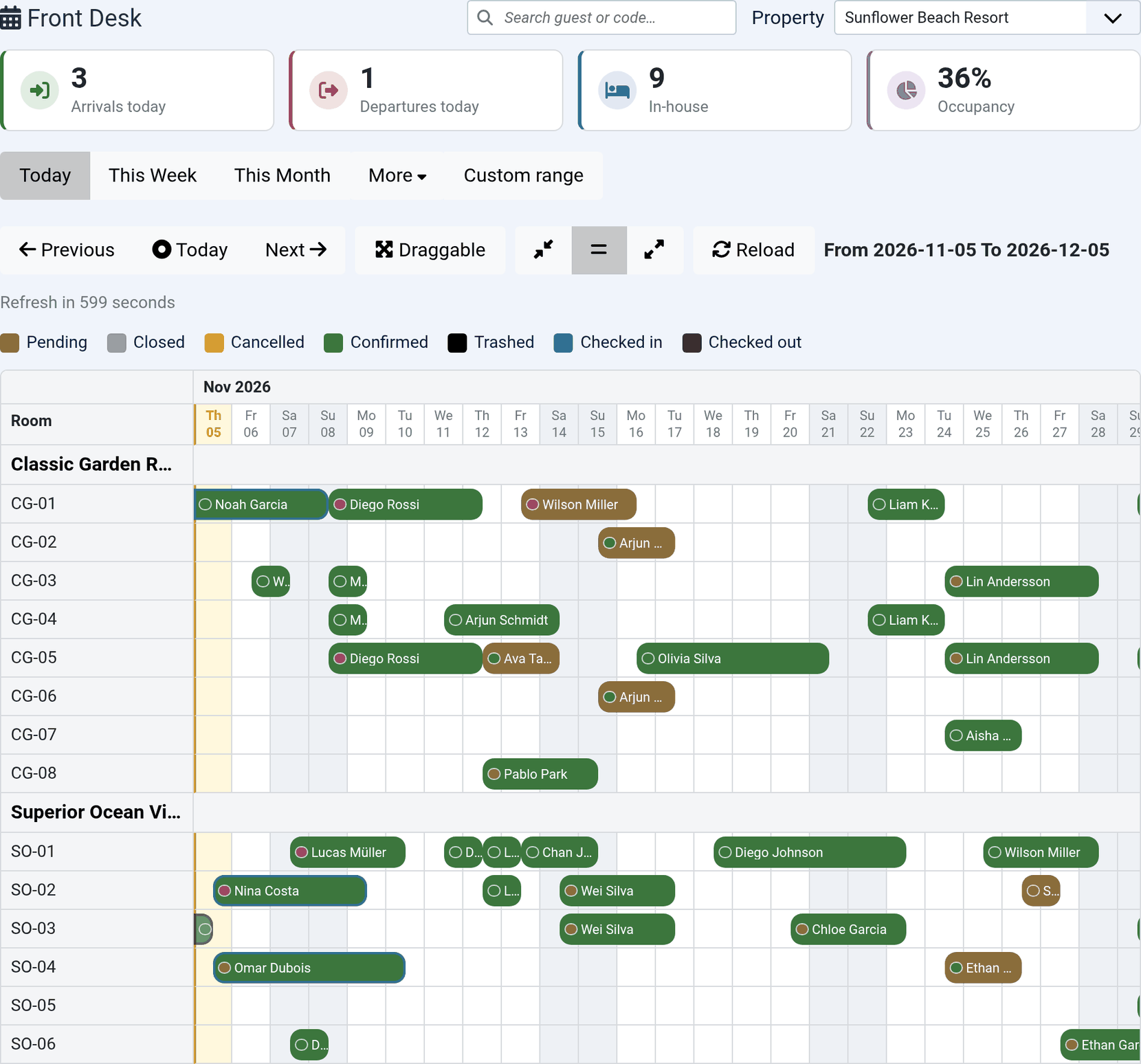
Reading the calendar
Today at a glance
The four tiles above the calendar always describe today, whatever dates the calendar shows:
- Arrivals today and Departures today: the bookings that arrive or leave today.
- In-house: the bookings staying tonight.
- Occupancy: the rooms taken tonight, as a share of all the property's rooms.
They count the same bookings as the reservation tiles on the administrator's home page and the Solidres dashboard: today is the date in the site's time zone (Joomla's Global Configuration, Server tab), and only the statuses the reports count, so a cancelled booking is never expected at the desk.
Rows, columns and bars
Each room type is a heading row, with its rooms beneath. Click the name of a room type to fold its rooms away or bring them back. Each column is a day: today is highlighted, weekends are shaded, and the days that have passed are greyed.
Each booking is a bar on the row of its room, in the colour of its reservation status, with the guest's name. A booking of several rooms has a bar on each of them.
- A booking priced per night runs from the middle of its arrival day to the middle of its departure day, as the room is free in the morning of the one and from the afternoon of the other. Two bookings can therefore meet on the same day: one guest leaves, the next arrives.
- A booking priced per day covers each of its days in full.
- The dot at the start of a bar is the booking's payment status, in that status's colour.
- A booking that is checked in carries an outline in the colour the legend shows for Checked in; a checked-out one is outlined in the colour of Checked out and faded. You check a guest in and out with the Checkin and Checkout buttons of the reservation screen.
- A room block shows as a striped bar with a lock and its title.
Point at a bar, or move to it with the Tab key, to see the booking's code, room, dates, grand total and payment status.
The legend
The legend above the calendar names the colour of each reservation status, and of Checked in and Checked out. Each entry is also a switch: untick one to hide those bookings, for example the cancelled ones, and tick it again to bring them back. Which statuses appear at all is a setting: see Settings.
Density
The three buttons beside Draggable make the days narrower or wider: Compact fits more days on the screen, Comfortable shows more of each name.
The Front Desk remembers the dates, the property, the hidden statuses, the folded room types and the density while your browser stays open. The address in the browser carries the dates and the property, so a bookmark opens the same view.
Choosing the dates
- Today: from today, a month ahead. This is where the Front Desk opens.
- This Week and This Month. The week starts on the day set as the first day of the week in Solidres Options.
- More: Last Week, Last Month, Last 3 Months, Last 6 Months and Last Year.
- Custom range: pick the first and last day in From and To, then click Apply. The calendar shows a year at most (370 days).
Previous and Next move the calendar back or forward by the length of what it shows: a week, a month, three months. Today brings it back. The dates shown are written beside Reload.
The calendar reloads itself so that bookings made meanwhile appear, counting down the seconds under the buttons. It waits while a window of the Front Desk is open, and Reload reloads it at once.
Finding a booking
Type a guest's name or a reservation code in Search guest or code… at the top. The matching bookings stand out, the others fade, and the calendar scrolls to the first match. The search looks through the dates on screen only: if a guest is not found, show more dates.
A booking's details
Click a bar to open its Reservation details: the code, the dates, the guest's name, e-mail and phone numbers, the note the guest left when booking, the sub total, tax, deposit and grand total (with the tours booked with the stay), and the payment status.
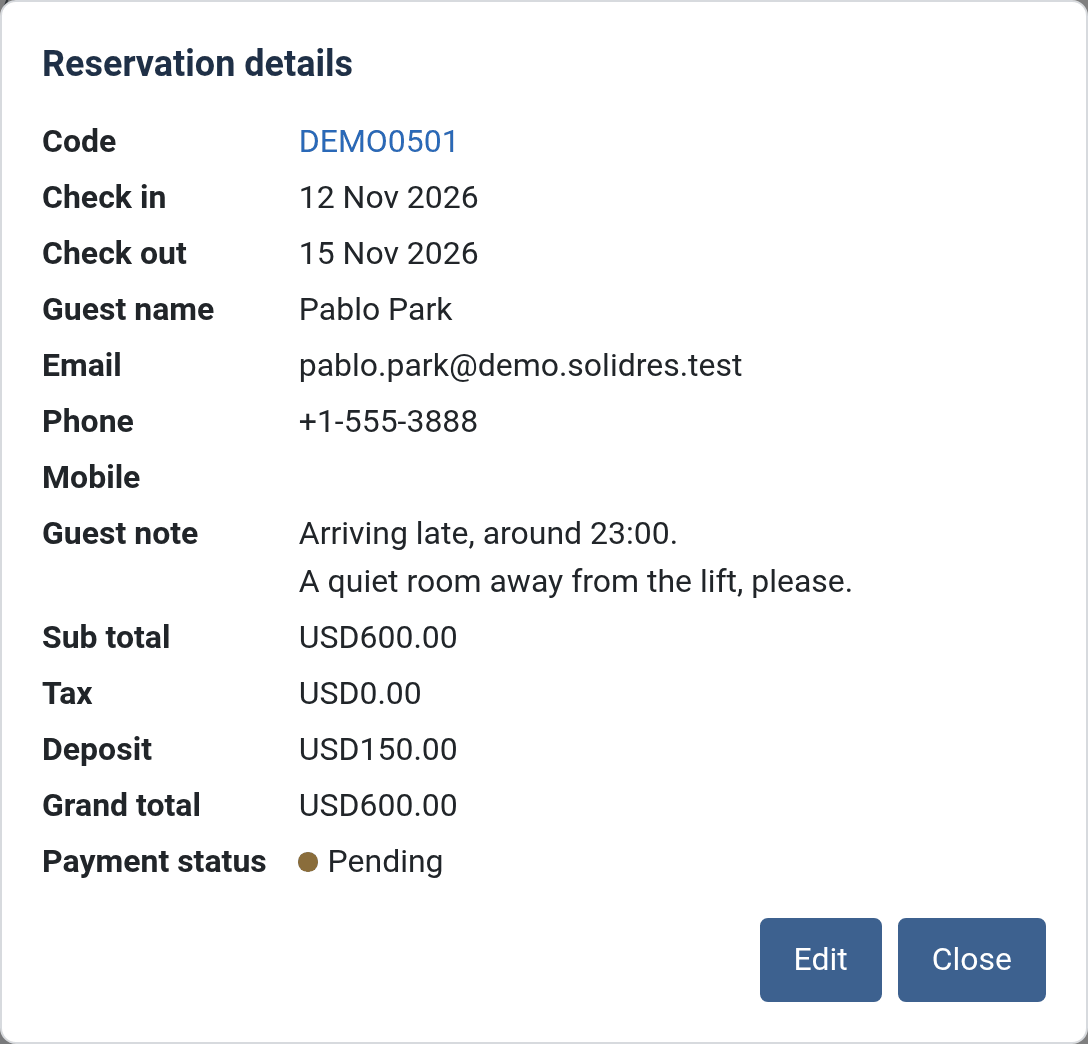
The code is a link: it opens the reservation in a new tab, where you can change anything else about it, take a payment or check the guest in. What the reservation screen offers is described in Managing reservations. Edit opens the window that moves the booking: see the next section.
Moving a booking or changing its dates
To move a booking to another room, to other dates, or both:
- Click Draggable above the calendar. The button stays highlighted while bars can be dragged; click it again to switch it off, so that a slip of the mouse moves nothing.
- Drag the bar to its new room and dates. The arrival moves to the day you drop it on, and the stay keeps its length. To change the length instead, drag the start or the end of the bar.
- Check the window that opens: it shows the booking Before and After. Click Yes to save the change, or No to leave the booking as it was.
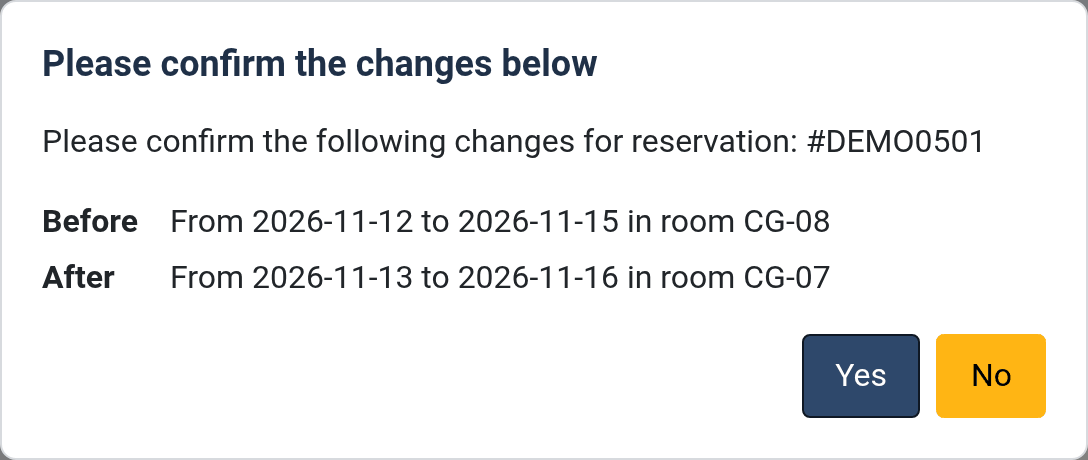
Without the mouse, click the bar, then Edit: the Move / resize window has the Room, the Start date and the End date, and asks for the same confirmation.
Solidres checks the new room and dates before saving, and refuses with Dates are not available. when another booking or a room block is in the way. Keep in mind:
- The price does not change. The Front Desk keeps the amounts of the booking: it does not price the new dates or the new room. If a longer stay or a better room should cost more, change the amounts on the reservation screen.
- The payment method does not change. Front Desk 1.1.2 and earlier set a moved booking's payment method to Pay later; check the bookings you moved with those versions on the reservation screen.
- A booking of several rooms cannot be moved here, because moving one of its bars would change the dates of all its rooms. Its bars do not drag and its details have no Edit; change it on the reservation screen.
- A booking someone else has open on the reservation screen cannot be moved until they close it: the Front Desk says This reservation is being edited in other places. A booking you have open yourself, in another tab, can be moved from Front Desk 1.1.3; save nothing on that tab afterwards, or reload it first.
Taking a booking: Quick Booking
For a booking taken on the phone or at the desk:
- On the calendar, drag across the empty days of a room, from the guest's arrival day to their departure day. Drag down over more rooms to book several rooms for the same dates. Days that have passed, and days already booked or blocked, cannot be selected; a booking's arrival day can be the last day you select, as the departure of the new guest.
- In Please choose an action, click Quick Booking.
- For each room, enter the Price and the Tax of the whole stay in that room, and the Guest name.
- Fill in the booking: an optional Deposit, the Reservation status, the Origin (where the booking came from, such as a phone call), and the customer's details, which are the fields of Customers → Custom fields. In the administrator, Customer finds an existing customer as you type and fills their details in.
- Click Book.
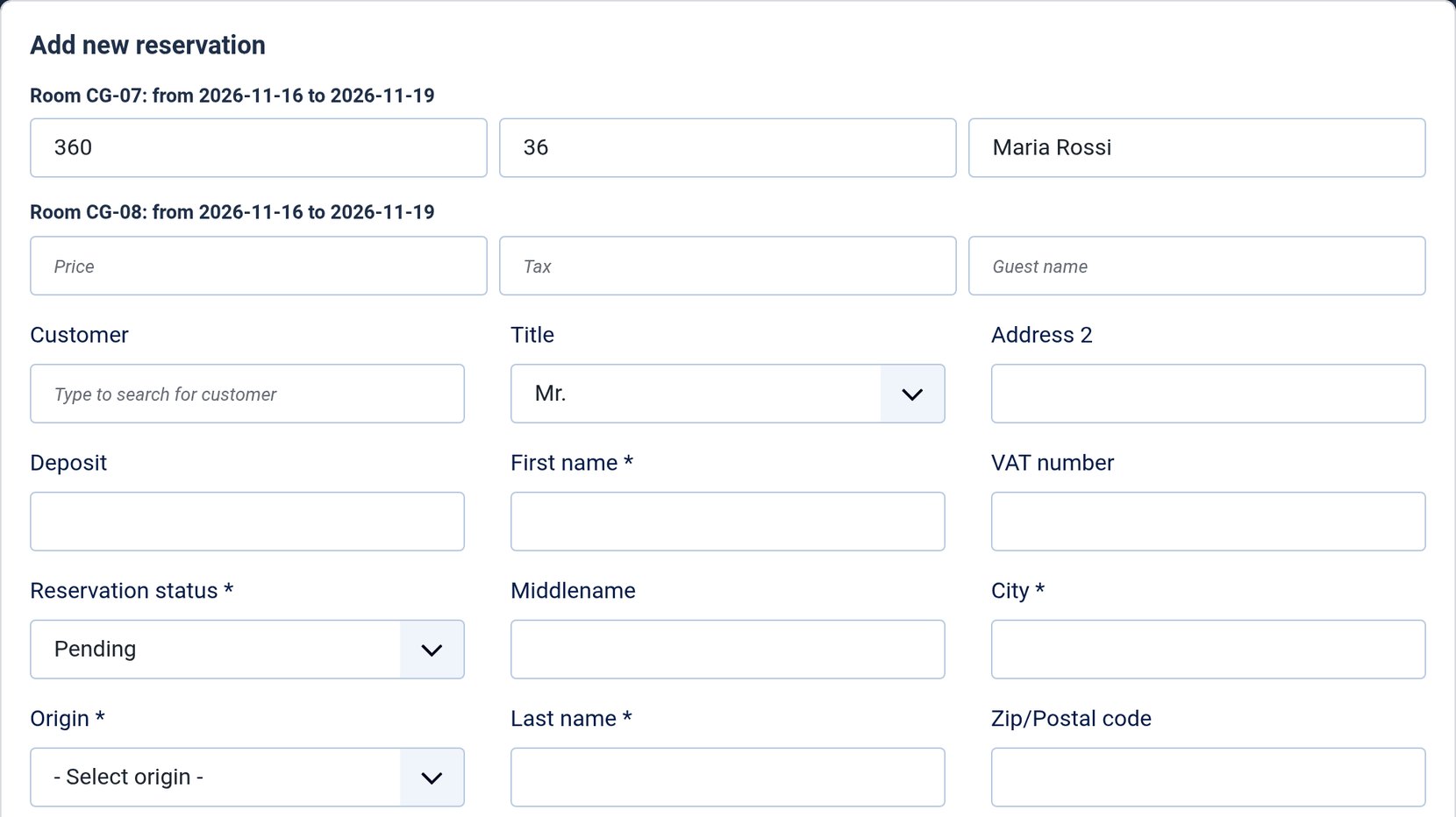
The booking is one reservation with all the selected rooms, for the dates of the first one. Its amounts are the ones you entered: the Front Desk does not price the stay with the room type's rates, and does not add extras. Each room is booked for one adult. The payment method is Pay later. Add anything else, such as children, extras or a payment, on the reservation screen afterwards.
Quick Booking needs the Custom Field plugin: without it the window says so and has no fields to fill in. A customer field of the file type that is required must have its file attached before Book works.
Closing rooms: Close dates
With the Closed Dates plugin enabled, the same selection can close rooms instead, for works, a private use or an allotment kept back from sale:
- Drag across the days and rooms to close.
- In Please choose an action, click Close dates.
- Enter a Title and a Description, both required, and click Save.
A room block takes whole days, from the first to the last day you selected, and nobody can book those rooms on those days. It is the same as closed dates added in Reservations → Closed dates, where it is also listed. Click a block to see it: its title opens it in the closed dates screen, and Edit moves it. With Draggable on, a block drags and resizes like a booking.
Using the keyboard
- Tab moves between the buttons and the bars; Enter on a bar opens its details.
- On the calendar's days, the arrow keys move from day to day and from room to room.
- Space selects a free day, Shift + Space extends the selection to the day you are on, and Enter opens Please choose an action for it.
- Esc closes a window without saving.
Settings
The Front Desk has no settings of its own. It uses three settings on the Statistics tab of Solidres Options:
| Setting | What it does on the Front Desk |
|---|---|
| Default dashboard statuses | The reservation statuses shown on the calendar and in its legend. Left empty, every status is shown, the cancelled bookings included, and their days look taken. Choose the statuses that hold a room, such as Pending and Confirmed, to see only those. |
| Statistics statuses | The statuses the four tiles of today count, as the reports and the home page tiles do. Left empty, Confirmed and Closed bookings, and Checked in and Checked out where those statuses exist: Pending and cancelled bookings are not counted. |
| Dashboard refresh (in seconds) | How often the calendar reloads itself. 60 by default; 0 switches the reloading off. |
The dates are written in the Date format of Solidres Options, and the week starts on its Week start day.
Who can do what
In the administrator, anyone who can open Solidres can open the Front Desk and see every published property's calendar. With the ACL plugin on, it also takes the Manage reservation permission, from Front Desk 1.1.3, as the Reservations screens do, and users without it no longer see the Front Desk in the Solidres menu. Changing anything needs a permission of System Info → Access controls (the ACL plugin), which a Super User always has:
- Manage reservation: moving a booking, Quick Booking and the customer search in it.
- Manage closed dates: room blocks.
A user who can see the calendar but lacks the permission for a change gets a message refusing it.
The Front Desk for Hub partners
With the Hub plugin, partners have the Front Desk on the website too: in the menu of the partner dashboard, Properties → Front Desk. It is the same calendar, with these differences:
- A partner sees only their own published properties, and the staff of a property see the properties of its partner. Anyone else is refused.
- With the ACL plugin on, the website's Front Desk asks for the same permissions as the administrator's, from Front Desk 1.1.3: Manage reservation to see the bookings, move them and use Quick Booking, and Manage closed dates for room blocks, as the partner dashboard's other screens do. Give them to the partners' user groups in System Info → Access controls. Without the ACL plugin, every partner may do all of it.
- The code in a booking's details opens the partner's reservation screen, and a room block's title the partner's closed dates screen.
- Quick Booking has no Customer search: the partner types the customer's details in.
Setting up partners is described in Initial configuration for Hub plugin. The look of the website's Front Desk can be changed with a template override of com_solidres/frontdesk/default.php, like any Solidres page.
Coming from the Statistics plugin
The Front Desk replaces the calendars of the Statistics plugin, and the Dashboard plugin replaces its dashboard. Solidres 4.6.0 removed Statistics. Both read the same reservations and room blocks, so there is nothing to move or enter again.
- Updating to Solidres 4.6.0 or later: install Front Desk and Dashboard first. They can stay disabled: the Solidres update enables them and uninstalls Statistics. The update stops, and says why, on a site that has Statistics enabled without them.
- On an older Solidres: Front Desk needs Solidres 4.6.0, but from version 1.1.2 it installs on an older Solidres that still has Statistics, so that the site can update. It installs disabled, with a message saying so. Update Solidres right after; do not enable Front Desk before then.
- Links and menu items that pointed to the Statistics calendars open the Front Desk.
The Upgrade article has the whole procedure.
Troubleshooting
- The Front Desk page says the plugin is not installed or enabled.
- Enable Solidres - Front Desk in System → Manage → Plugins.
- No published room types were found for this property.
- The property has no published room types, or they have no rooms. Rooms are added on each room type's screen.
- A booking is missing from the calendar.
- Check that its status is ticked in the legend and is one of the Default dashboard statuses, that the search box is empty, that its room type is not folded, and that the calendar shows its dates and its property.
- Cancelled bookings fill the calendar.
- Untick Cancelled in the legend, or leave it out of Default dashboard statuses.
- Dates are not available.
- Another booking or a room block takes the room on one of those days, possibly one with a status the calendar does not show. Look for it in Reservations with that room and those dates.
- This reservation is being edited in other places.
- Someone else has the booking open on the reservation screen. Once they close it, try again. A booking left open after a browser was closed is released with System → Global Check-in. Front Desk 1.1.2 and earlier say so for a booking you have open yourself too.
- A booking does not drag.
- Switch Draggable on. A booking of several rooms never drags: change it on the reservation screen.
- Quick Booking shows no fields.
- Enable the Custom Field plugin.
- There is no Close dates button.
- Enable the Closed Dates plugin.
- Today's tiles count a day too early or too late.
- They follow the site's time zone, in Global Configuration, Server tab. Set it to the property's.