

Reports turns your bookings into figures: how full the property was and at what price, what it earned, where the bookings came from, who your guests are and who still owes you money. Each report has a chart and a table you can sort, print or take away as a spreadsheet. The Dashboard's figures come from the same reports, on the same rules, so the two always agree.
PREREQUISITES:
- Solidres 4.5.0 or later. Six of the nine reports, and the Compare with and Break down by filters, come with the Reports add-on, which Solidres Self-hosted installs; a site we run for you has it too.
- Some bookings. Reports counts confirmed bookings only, unless you change it (see Which bookings count).
Open a report
- Open Reservations → Reports. It opens on Performance; the row of buttons at the top lists the other reports.
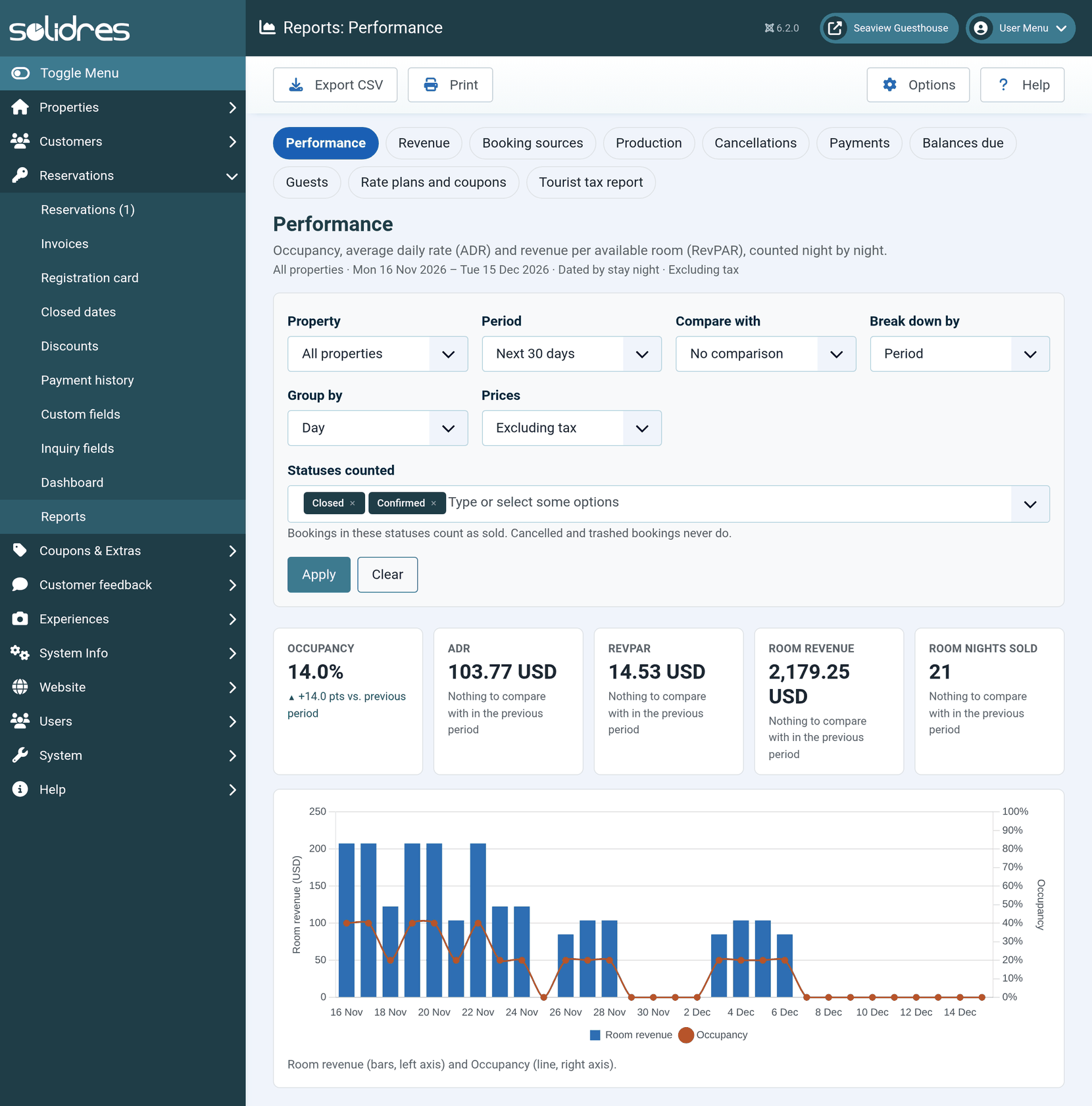
- Under the report's name, a sentence says what it counts, and a line says what you are looking at, such as All properties · Mon 16 Nov 2026 – Tue 15 Dec 2026 · Dated by stay night · Excluding tax.
- Choose the Period and the other filters, and click Apply. Clear sets every filter back as it was.
Your filters stay as you move from one report to the next, until you sign out. Each report then shows its headline figures, a chart and a table with a Total row at the foot. Click a column heading to sort the table by it. Under the table, About these figures says how each column is worked out.
The reports
- Performance: how full you were and at what price. Occupancy is the share of your rooms sold each night; ADR (average daily rate) what a sold room brought in a night; RevPAR (revenue per available room) what each room brought in a night, sold or not, which is ADR and occupancy in one figure.
- Revenue: what the bookings earned, night by night: rooms, extras, tours (with the Experience add-on) and fees, less the discounts on whole bookings, with the tax and the tourist tax beside it. Its tourist tax counts only the statuses counted and includes its VAT, so its total can differ from the Tourist tax report's.
- Booking sources: a row for each source of your bookings, such as your website or a booking site: bookings, room nights, revenue and its share, ADR and average stay, and, with the add-on, how many were cancelled and how far ahead they were made.
- Production: what was booked, by the day it was booked rather than the night of the stay: the bookings made, what they are worth, how far ahead and for how long, and how many have been cancelled since. Two more tables share them out by lead time and by length of stay.
- Cancellations: what was cancelled, by the day it was cancelled: the bookings, the room nights and revenue lost, and how much notice the guests gave.
- Payments: the money taken, by the day it was paid, as recorded in each booking's Payment history, with what is still awaiting confirmation and a table by payment method.
- Balances due: what the guests in house and to come still owe, as of today, by how soon they arrive: In house, Today, In 1–3 days and so on. It has no period: it is always today's picture.
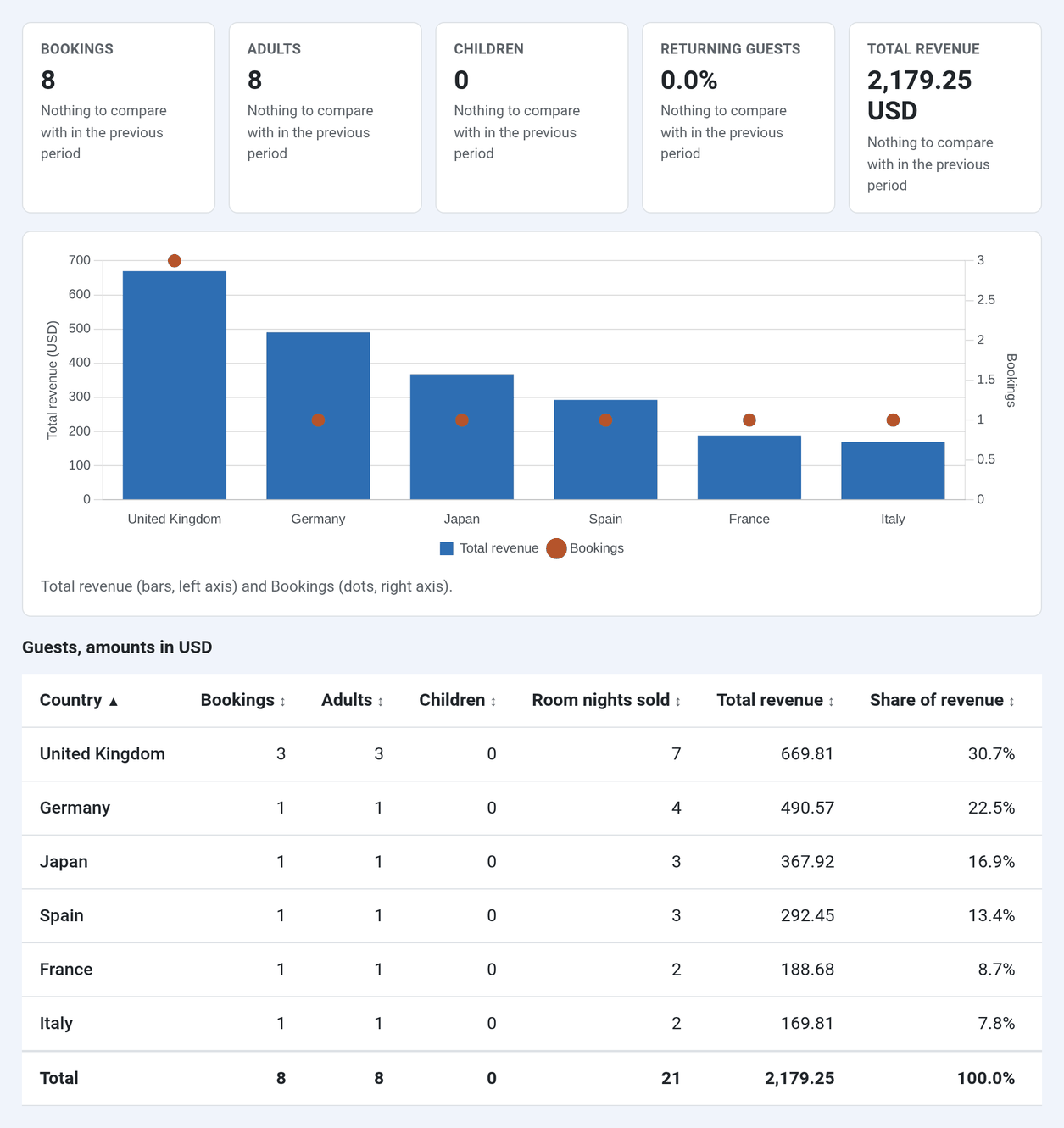
- Guests: where your guests come from, a row for each country, with adults, children and how many had stayed before; and tables of new and returning guests, the ten guests who brought the most, and the language and the device they booked with.
- Rate plans and coupons: what each rate plan sold, and what each coupon was used for.
- Tourist tax report: the tourist tax charged, for your declaration. It is a screen of its own, described in How to configure tourist tax.
Experiences → Reports & statistics, if you sell tours, is the Experience add-on's own page of tour sales, apart from these reports. Tours booked together with a stay are in the Revenue report's Tours column.
The period
Period offers This month, Last month, This quarter, Last quarter, This year, Last year, Last 30 days, Last 90 days, Next 30 days, Next 90 days and Custom range. Last 30 days ends yesterday, as today is not over; Next 30 days starts today, and shows the bookings already made for the weeks ahead. Production, Cancellations and Payments look back only, so they do not offer the periods ahead. Custom range asks for the First night and the Last night, up to 24 months apart: a longer range is cut to its first 24 months, and a notice above the report says so. The dates follow your site's time zone.
- Group by makes a row of each Day, Week (Monday to Sunday) or Month. Choose Month for a year, or the table has a row for each of its 365 days.
- Each headline figure is compared with the period just before, of the same length: ▲ +12.5% vs. previous period. A share, such as occupancy, moves in points: +3.0 pts. When the period before has nothing to compare with, it says so.
- Compare with compares the whole report with the Previous period or the Same period last year: the table then shows under each figure the figure compared with and the change, and the chart adds them in outline.
- Break down by makes a row of each Property or Room type instead of each day, week or month, for the reports that have rows by period.
Which bookings count
- Statuses counted: the booking statuses that count as sold. Unless you change it, Confirmed and Closed. A Pending booking does not count until you confirm it. Cancelled and trashed bookings never count as sold; they are what the Cancellations report counts. What you choose here lasts until you sign out; to change it for every report and for the Dashboard, open Properties → Properties, click Options, and choose the statuses in Statistics statuses on the Statistics tab.
- Night by night. A booking counts in the period its nights fall in: a stay from 30 November to 3 December puts one night in November and two in December, with its price shared between them. Production, Cancellations and Payments count instead on the day the booking was made, cancelled or paid.
- Prices: Excluding tax unless you choose Including tax. The tourist tax is never in the revenue; Revenue shows it in a column of its own.
- Your rooms. Occupancy is worked out from the rooms of your published room types, less the nights they are closed in Closed dates, as they are today: a room added this month counts in last year's figures too. The nights an iCal import closes count as closed: the room is booked on another website then, not for sale here.
- One currency at a time. Amounts in different currencies are never added together: a property that takes bookings in two currencies has a block of figures for each.
Because of these rules, a report can differ from a count of the Reservations list, which lists bookings by their dates and shows every status.
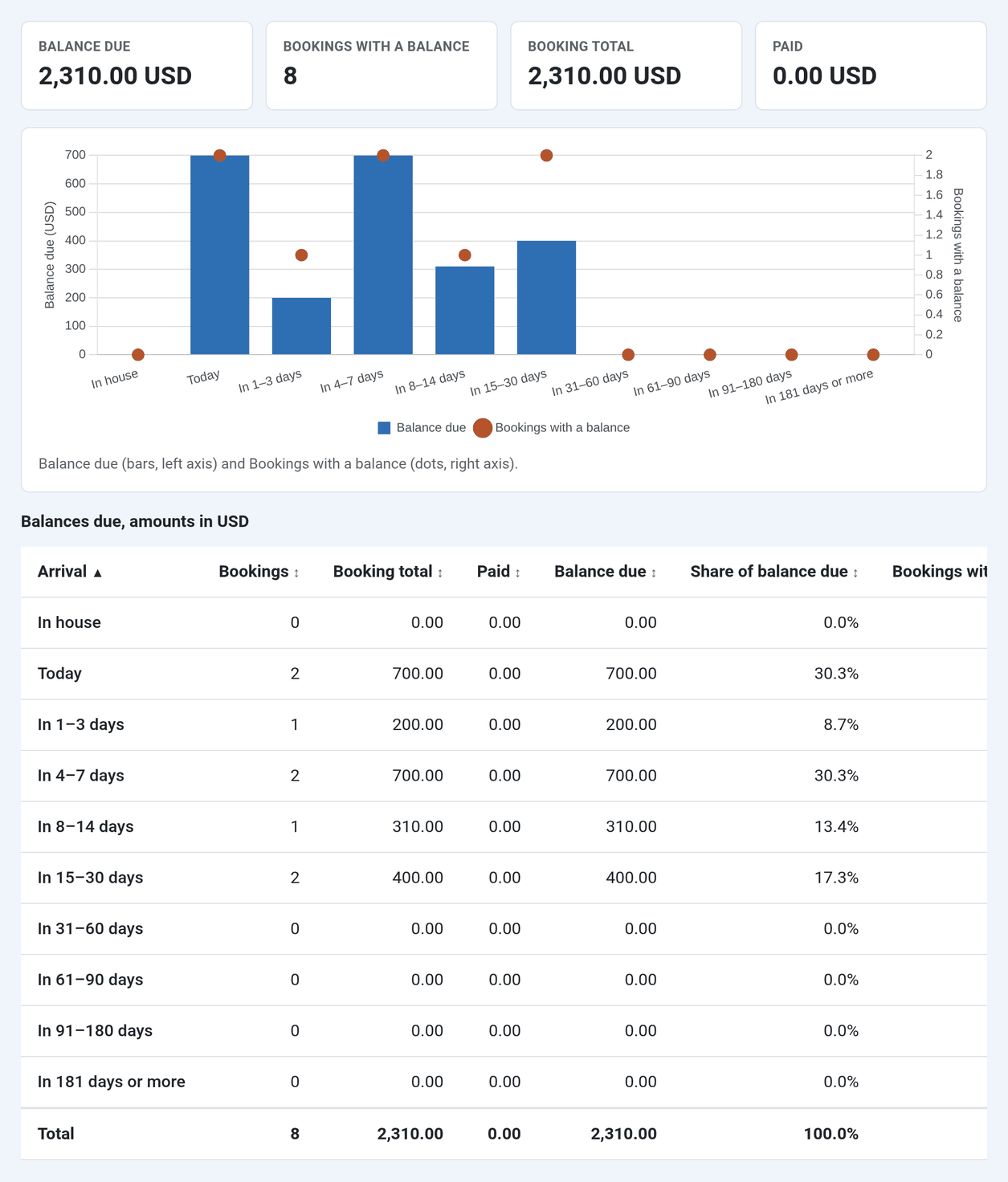
On Balances due, a guest who leaves today is listed under In house until they have gone, so a balance still owed at check-out is there to collect. Pending bookings are left out with the other statuses not counted.
Export and print
Export CSV downloads the report you are looking at, with its filters, as a file such as report-performance-2026-11-16-2026-12-15.csv; Balances due's is named with the day it is as of, report-balances-2026-11-16.csv. It opens in Excel, Numbers or Google Sheets. The first lines say what it holds (the report, the property, the period, how it is dated, the prices and the statuses counted), then comes the table with its Total row, one table per currency, and the report's other tables below. Dates are written 2026-11-16, weeks 2026-W47, months 2026-11, and amounts with a full stop for decimals and no currency sign. If your spreadsheet expects a comma for decimals and opens the file in a single column, import it instead: in Excel, Data → From Text/CSV.
Print prints the page as you see it, with the charts in light colours for paper.
Who can see reports
Reports needs the right Manage reports. You have it, and so do Property staff on Solidres Self-hosted and on a site we run for you: they see every report and can export and print, but not the Options button. To take it from them, see Change what they may see. The Tourist tax report needs Manage system, which Property staff do not have, so they do not see its button. The Help button of the screen opens this article.
For site builders
Solidres itself has Performance, Revenue and Booking sources, the CSV export and the change against the period before. The Reports add-on (the plugin Solidres - Reports, no settings of its own) adds the six other reports, Compare with, Break down by and two columns of Booking sources; without it, the screen says More reports are available in the Reports plugin. With the ACL plugin enabled, the screen needs Manage reports; without it, everyone who opens Solidres sees it. Nightly prices have been recorded since Solidres 4.5.0; for older bookings the room price is spread evenly over the stay, and a note under the table says how much of the period that concerns. Statistics statuses left empty counts Confirmed and Closed bookings, and the old Checked in and Checked out statuses on a site that still has them. Reports 1.0.1 works with Solidres 4.5.0 or later; guests leaving today in Balances due and the periods offered follow Solidres 4.8.0.