

Your account is the name and password you sign in to the back office with. Keep the password to yourself, give each member of your staff an account of their own (see Adding staff, and what they may see), and turn on two-factor sign-in: your back office holds your guests' names, addresses and bookings, and a stolen password alone should not open it.
PREREQUISITES:
- A Solidres site on Joomla 6. The sign-in page described is Solidres 4.8.0's.
- Your own account in the back office.
Open your account
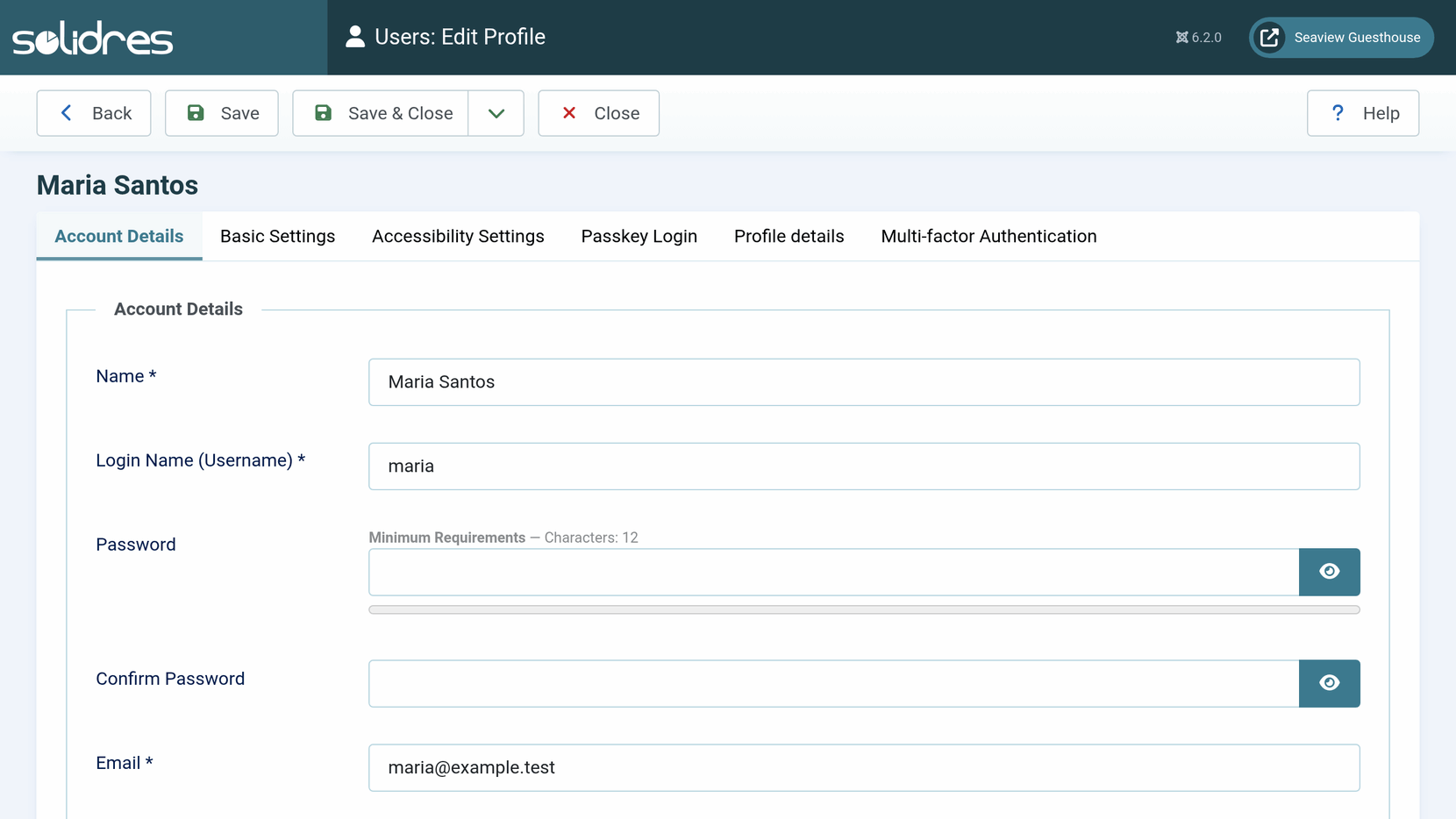
Click User Menu, at the top right of the back office, then Edit Account. The screen is titled Users: Edit Profile, and its tabs hold everything about you:
- Account Details: your name, the username you sign in with, your password and your email address;
- Basic Settings and Accessibility Settings: how the back office looks to you;
- Passkey Login and Multi-factor Authentication: the ways you sign in.
Whatever you change, click Save & Close to keep it.
Change your password
- On the Account Details tab, type the new password in Password. It needs at least 12 characters: a few unrelated words make one you can remember.
- Type it again in Confirm Password.
- Click Save & Close. Joomla answers User saved.
You stay signed in, and the new password counts from your next sign-in. Leave both fields empty when you change something else: the password then stays as it is.
On a site we run for you, the first time you sign in, Joomla asks you to choose your own password before anything else: You are required to reset your password before proceeding. It is the same field.
Your email address
The Email on this tab is where a password reset is sent, and the codes by email if you choose them for two-factor sign-in. Keep it current. Your bookings are emailed to the property's address instead, the one in your property's Details tab.
Turn on two-factor sign-in
With two-factor sign-in, which Joomla calls Multi-factor Authentication, signing in takes your password and a six-digit code that your phone makes afresh every 30 seconds. Someone who learns your password still cannot sign in without your phone.
- On your phone, install an authenticator app, such as Google Authenticator, or use the one your password manager has.
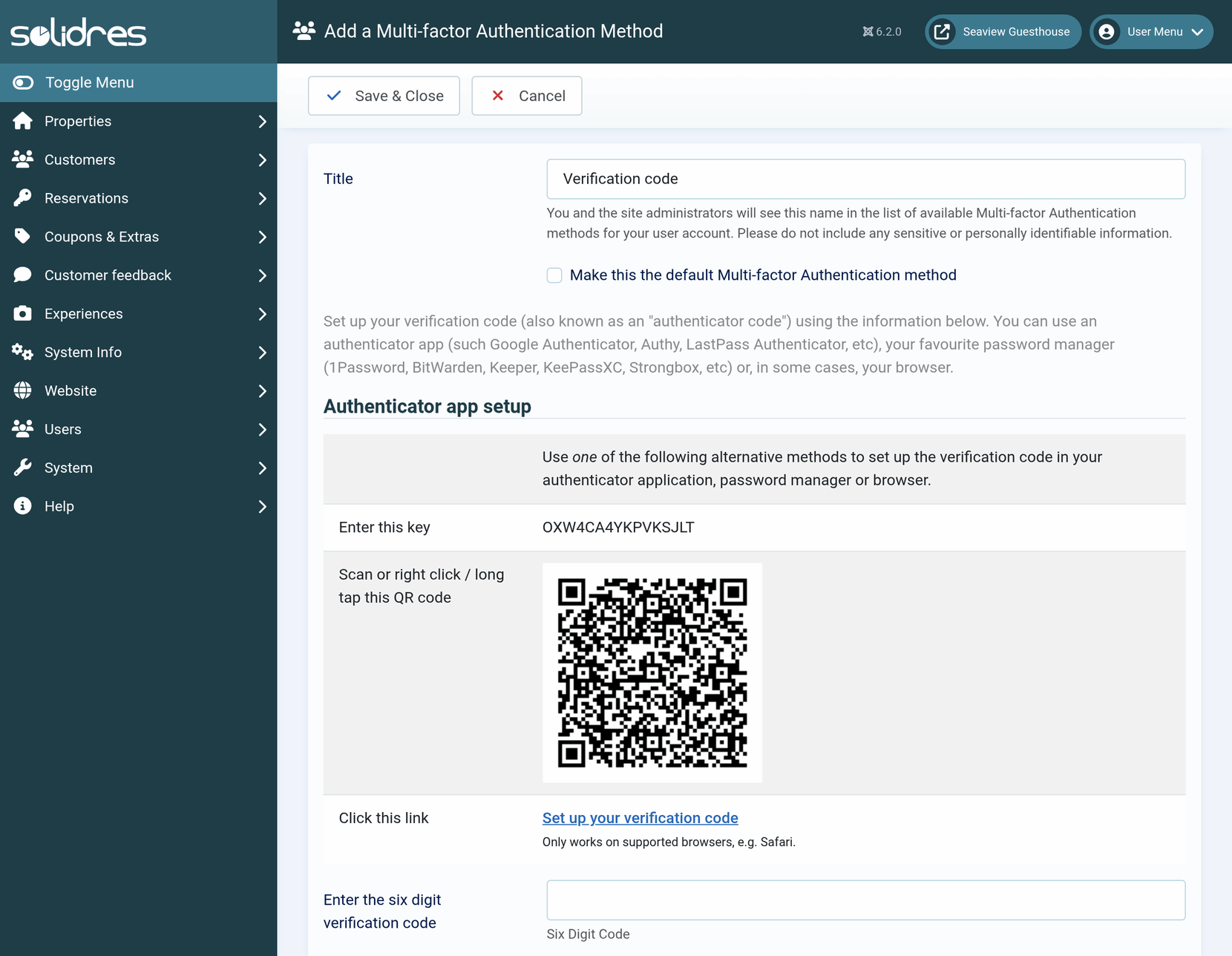
- In your account, open the Multi-factor Authentication tab. Under Verification code, click Add a new Verification code.
- In the app, add an account and scan the QR code on the screen. If the app cannot scan, type the key shown beside Enter this key instead.
- The app now shows a six-digit code for your site. Type it in Enter the six digit verification code and click Save & Close.
The tab now reads Multi-factor Authentication is enabled.
Print your backup codes
Turning on two-factor sign-in also makes ten backup codes, each good for one sign-in, for the day your phone is lost or broken. On the Multi-factor Authentication tab, under Backup Codes, click Print these codes, and print them or write them down. Keep them somewhere other than your phone. When you run low, the same page's Regenerate Backup Codes makes a new set and cancels the old one.
Signing in from then on
After your username and password, a screen titled Multi-factor Authentication asks for the code. Open the app, type the six digits it shows for your site, and click Validate.
Without your phone, click Select a different method, then Backup Codes, type one of your codes and click Validate. That code does not work again: cross it off.
Other ways to prove it is you
The same tab offers three more ways, which you can add beside the verification code or instead of it:
- Passkey: the fingerprint, face or PIN that unlocks your computer or phone, or a security key.
- Code by Email: a code sent to your email address each time. It is only as safe as your mailbox, so prefer the app.
- YubiKey: a small hardware key you plug in or tap.
To turn two-factor sign-in off, click Turn Off on the same tab.
Signing in without a password
The Passkey Login tab lets you sign in with your device's fingerprint, face or PIN in place of your password. Click Add New Passkey and follow what your browser asks. From then on, click Sign in with a passkey on the sign-in page.
Your back office, your way
- Basic Settings: the Backend Language of the back office for you, and Dark Mode. User Menu → Light/Dark Mode switches it too.
- Accessibility Settings: Monochrome, High Contrast, Highlight Links and Increase Font Size. User Menu → Accessibility Settings opens this tab.
These change the back office for you alone, never your website.
If you forget your password
Set a new one on your website's password reset page:
- On the back office's sign-in page, click Forgot your password?, under Log in. It opens the page on your website: on a site installed from Solidres Self-hosted, its address ends in
/reset-password. On your website itself, Sign in, then Forgot your password? opens the same page. - Type the email address of your account in Email Address and click Submit.
- An email titled Your … password reset request, with your site's name, brings a verification code and a link. Click the link: it fills in the code.
- Type your username in Username and click Submit.
- Type the new password twice and click Submit. The website answers Reset password successful. You may now login to the site.
Sign in to the back office with the new password. Two-factor sign-in still asks for its code.
On a site we run for you, the sign-in page says so under the form, and its Help link reaches us if the email does not arrive.
If you lose your phone and your backup codes
Without the app and without a backup code, you cannot sign in, and you cannot turn two-factor sign-in off for yourself. Only a Super User can turn it off for another person: on a site we run for you, ask us through Help on the sign-in page, then answer the message we send to the email address you signed up with. We turn it off once you have, and the site emails your account's address to say so. On a site you installed yourself, the Super User opens Users → Manage, clicks your name and, on the Multi-factor Authentication tab, clicks Turn Off. Then sign in with your password and set it up again on your new phone.
The same goes for your staff: their accounts show you no Multi-factor Authentication tab. When a member of staff loses both, you ask for them, giving their username: us on a site we run for you, the same way, or the Super User. They then sign in with their password and set it up again.
For the Super User of a site you installed
Joomla does not reset a Super User's password from the website: the page gives the answer it gives for any address, If the email address you entered is registered on this site you will shortly receive an email with a link to reset the password for your account. No email comes. A second Super User can set a new one in Users → Manage. Without one, the person who can reach the site's files runs php cli/joomla.php user:reset-password in the site's main folder.