

The SMS plugin sends a text message when a new booking is made: to you, so that you hear of it even when you are away from your e-mail, to the guest, or to both. Each property has its own settings and messages, and you choose the SMS gateway that delivers them from four: Vonage (Nexmo), Clickatell, BulkSMS and Sparrow SMS.
PREREQUISITES:
- Solidres 4.0 or later. This article describes Solidres 4.6.0 and later, where the settings are on the property's Booking tab; before 4.6.0 they were on its Plugins tab.
- The SMS plugin, available to Solidres subscribers. It is a download of its own, not part of the Solidres package; this article describes 1.0.4.
- An account with one of the four gateways, with credit to send messages. Each message is billed by the gateway, not by Solidres.
- PHP's cURL extension on your server, which most hosts have, and a server that may open connections to the gateway.
On this page:
- What is sent, and when
- Getting started
- The settings
- The gateways
- Phone numbers
- Writing the messages
- On a Hub site
- Troubleshooting
What is sent, and when
A message is sent once, when a new booking is saved. That covers a booking made on your website, one you enter in the administrator, and one made through the public booking API. The message goes out the moment the booking is made: when the guest pays online, that is before the guest reaches the payment page, so a message that shows the payment status or the amount paid shows them as they were then, usually unpaid.
Nothing is sent:
- when a booking is changed, approved, cancelled or paid later;
- when the property has no gateway selected, or the gateway's credentials are missing;
- to the guest, when the guest left the Mobile phone field of the booking form empty.
Text messages do not replace the booking emails, and they are not on the Emails screen of Solidres 4.7.0: their text is on each property, as described below.
Getting started
- Install the plugin from System → Install → Extensions.
- Enable it: go to System → Manage → Plugins, search for SMS and click the status of Solidres - SMS plugin. Joomla installs it disabled.
- Open a property in Solidres → Properties and go to its Booking tab. The settings are in the SMS notification section, after the booking emails.
- In Select a gateway, choose your gateway and enter the credentials it shows (see The gateways).
- Choose who receives a message in Send to, and write the messages (see Writing the messages).
- Click Save, then make a test booking (see Troubleshooting).
Repeat steps 3 to 6 for each property that should send messages. A property can use another gateway, or another account, than the next.
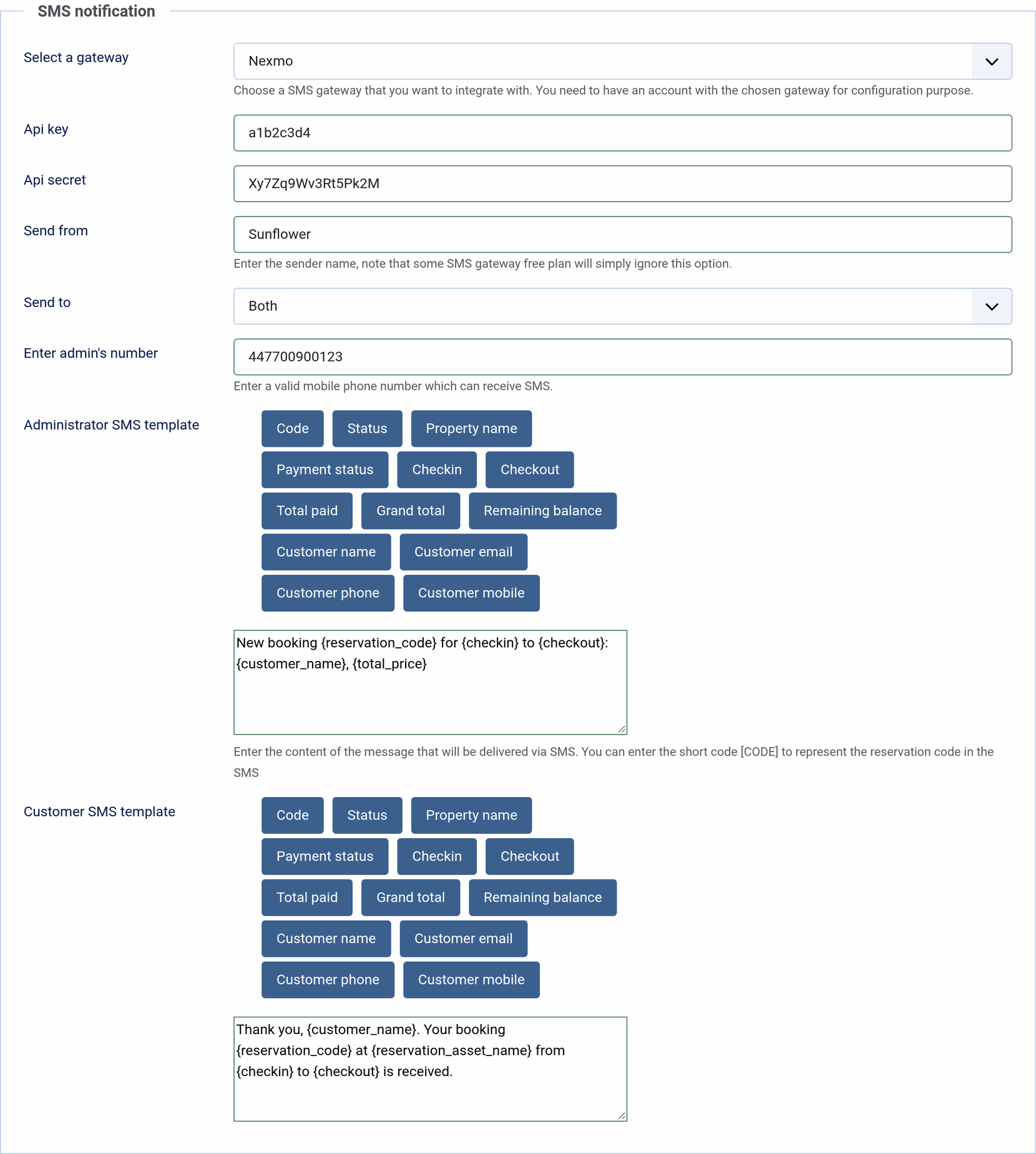
The settings
| Setting | What it does |
|---|---|
| Select a gateway | The service that delivers the messages. Leave it on Select a gateway to send nothing for this property. The fields below it change with the gateway. |
| Send from | The sender name the recipient sees, Solidres unless you change it. Only Vonage (Nexmo) and Sparrow SMS receive it; Clickatell and BulkSMS send from the sender set in your account with them. Not every country or plan allows a name as sender, and the gateway may replace it with a number. |
| Send to | Administrator (the default) sends one message to you, Customer one to the guest, and Both one to each. |
| Enter admin's number | The mobile number that receives the administrator's message, in international format (see Phone numbers). Shown unless Send to is Customer. |
| Administrator SMS template | The text of your message. Shown unless Send to is Customer. |
| Customer SMS template | The text of the guest's message. Shown unless Send to is Administrator. |
Choose the recipients with Send to rather than by leaving a template empty. With Both, a template left empty does not stop its message: the gateway is still asked to send an empty one, which it may refuse or bill.
The gateways
Open an account with the gateway first, and buy the credit it asks for. Where to find the credentials depends on the gateway and changes with its website, so follow the gateway's own help for that step.
Vonage (Nexmo)
Choose Nexmo, the name Vonage's SMS service had before. Enter the Api key and Api secret that the Vonage API Dashboard shows for your account. The plugin uses Vonage's SMS API.
Clickatell
Choose Click a tell and enter the Username, Password and Api key (the API ID) of your Clickatell account. The plugin uses Clickatell's older HTTP API, which signs in with all three. An account on Clickatell's current platform, which gives an API key only, may not be able to use it: ask Clickatell before you buy credit.
BulkSMS
Choose Bulk SMS and enter the Username and Password of your BulkSMS account. The plugin asks BulkSMS for single-part messages, so keep each message within one SMS (see Length).
Sparrow SMS
Choose Sparrow SMS and enter the Sparrow token of your Sparrow SMS account. Sparrow SMS sends from a sender identity it gives you: enter that identity in Send from.
Phone numbers
Gateways expect numbers in international format: the country code, then the number without its leading 0, with no spaces, dashes or brackets. A UK mobile 07700 900123 is 447700900123.
- Your number, in Enter admin's number: enter it that way. A
+in front is removed before sending. - The guest's number is what the guest typed in the Mobile phone field of the booking form, sent exactly as typed. The form marks the field optional, and the Landline number field is never used. A guest who leaves out the country code, or types spaces, may not receive the message. If many of your guests do, ask for the number with its country code in your booking form's wording or on the property page.
Writing the messages
Write the text in the template box. The buttons above it insert placeholders, which are replaced with the booking's details when the message is sent. You can also type a placeholder yourself.
For example, a message to you:
New booking {reservation_code} at {reservation_asset_name}: {customer_name}, {checkin} to {checkout}, {total_price}
arrives as:
New booking DEMO0860 at Sunflower Beach Resort: Mr John Smith, 12-12-2026 to 15-12-2026, €351.00
| Button | Placeholder | Replaced with |
|---|---|---|
| Code | {reservation_code} | The booking code. [CODE], from earlier versions, still works. |
| Status | {reservation_status} | The booking's status when it was made, such as Pending or Confirmed. |
| Property name | {reservation_asset_name} | The property's name. |
| Payment status | {payment_status} | The payment status when the booking was made, usually Unpaid. |
| Checkin, Checkout | {checkin}, {checkout} | The arrival and departure dates, in the Date format of Solidres Options. |
| Total paid | {total_paid} | The amount paid when the booking was made, usually nothing. |
| Grand total | {grand_total} | What the booking costs in all, in the booking's currency: the same grand total as the booking emails, with tax, extras, tourist tax, fees and the payment method's surcharge or discount, and the tours booked with the stay through Experience 2.4.0 or later. From SMS 1.0.4. |
| Remaining balance | {remaining_balance} | The grand total less what has been paid, without a tourist tax paid at the property. From SMS 1.0.4. |
| (none) | {total_price} | The grand total, under the name earlier versions used. Type it yourself: no button inserts it. |
| Customer name | {customer_name} | The guest's title, first, middle and last name. |
| Customer email | {customer_email} | The guest's e-mail address. |
| Customer phone | {customer_phonenumber} | The guest's landline number. |
| Customer mobile | {customer_mobilephone} | The guest's mobile number. |
ON SMS 1.0.3 OR EARLIER Grand total and Remaining balance insert {grand_total} and {remaining_balance}, which those versions do not replace: the message shows them as typed. Update the plugin, or type {total_price} for the total.
Before Solidres 4.7.0, the grand total leaves out fees and the payment method's surcharge or discount. Up to Solidres 4.7.0, the Total paid button can show SR_TOTAL_PAID as its label; it inserts the right placeholder all the same.
Messages are plain text. Any HTML is removed, and line breaks become spaces, so the message is one paragraph. There is one text for each message, whatever the guest's language: write the guest's message in the language most of your guests read.
Length
One SMS holds 160 characters, or 70 when the text has characters outside the basic Latin set, such as many accented letters, non-Latin scripts or emoji. A longer message is sent as several parts and most gateways bill each part; BulkSMS is asked for one part only, so keep its messages within one. Count the placeholders at their longest: a property name or a guest's name can be long.
On a Hub site
On a site that runs Solidres Hub, partners see the SMS notification section on their own property's Booking tab and can enter their gateway account and number. To keep it off their screen, add its fields to Ignored property fields in the Hub options: a partner's save then keeps the values you set.
Troubleshooting
To test, set Send to to Both, enter your own number in Enter admin's number, and make a booking on your website with your own number, in international format, in the Mobile phone field. Each test message is billed by the gateway. Cancel the test booking afterwards.
Each message the plugin hands to the gateway is written to the log file solidres_sms.php, in Joomla's log folder (administrator/logs, unless Path to Log Folder on the System tab of Joomla's Global Configuration names another). Open it with your host's file manager or FTP. Each line reads SMS sent to administrator: or SMS sent to customer:, followed by the gateway's answer:
- No line for the booking: the plugin did not try. Check that the plugin is enabled, that the booking's property has a gateway and all of its credentials, that the booking is new rather than an edited one, and, for the guest's message, that the guest gave a mobile number.
- A line with an error from the gateway: the gateway refused the message. Its answer says why, typically wrong credentials, no credit, a number in the wrong format, a sender name it does not allow, or a message too long. Look the error up in the gateway's help.
- A line with nothing after the colon: the server could not reach the gateway. Ask your host whether outgoing connections are allowed.
- A line that looks accepted, but no message arrives: look the message up in the gateway's own delivery report. Delivery after the gateway is between the gateway and the phone network.