

Housekeeping is the list your team works from: every room of the property, whether it is clean, inspected or dirty, who is to clean it and a note for them. You and your staff change it as the work is done. It is a board, not an automatic one: no check-out and no booking changes a room's status, and a guest can still book a room marked dirty. It tells your team what to do; the rooms guests can book are decided by the bookings alone.
PREREQUISITES:
- Housekeeping 2.0.5 or later, with Solidres 4.8.0. On Solidres Self-hosted, and on a site we run for you, Housekeeping is installed.
- Your property's rooms, added as Room types and rooms explains.
Open Housekeeping
Open Properties → Housekeeping. Every room of your property is listed, marked Clean until your team changes it. A room you add to a room type later is listed as soon as you open the screen again, and a room you remove leaves the list. The Help button opens this article.
Your housekeepers
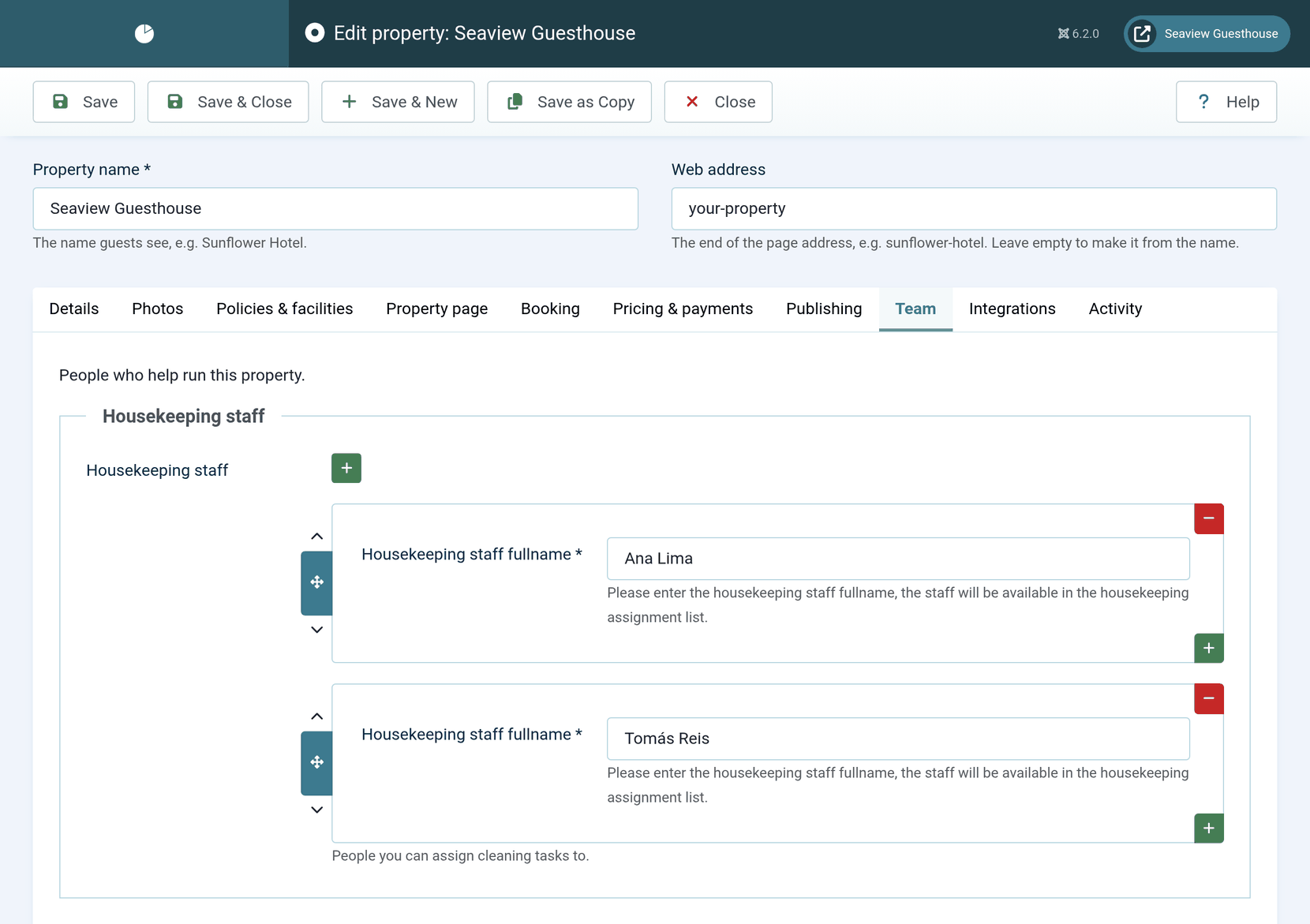
The people you hand rooms to are names you type on the property, not accounts:
- Open Properties → Properties and click your property.
- On the Team tab, under Housekeeping staff, click the green + button.
- Type the person's name in Housekeeping staff fullname. Click + again for the next one.
- Click Save & Close.
The names are the choices in the Employee column. A housekeeper needs no account to be given a room; to let them mark their rooms themselves, also give them an account in Property staff, as Adding staff, and what they may see explains. To take a name off the list, click the red − button beside it and save: rooms already given to that person keep the name until you change them.
The list
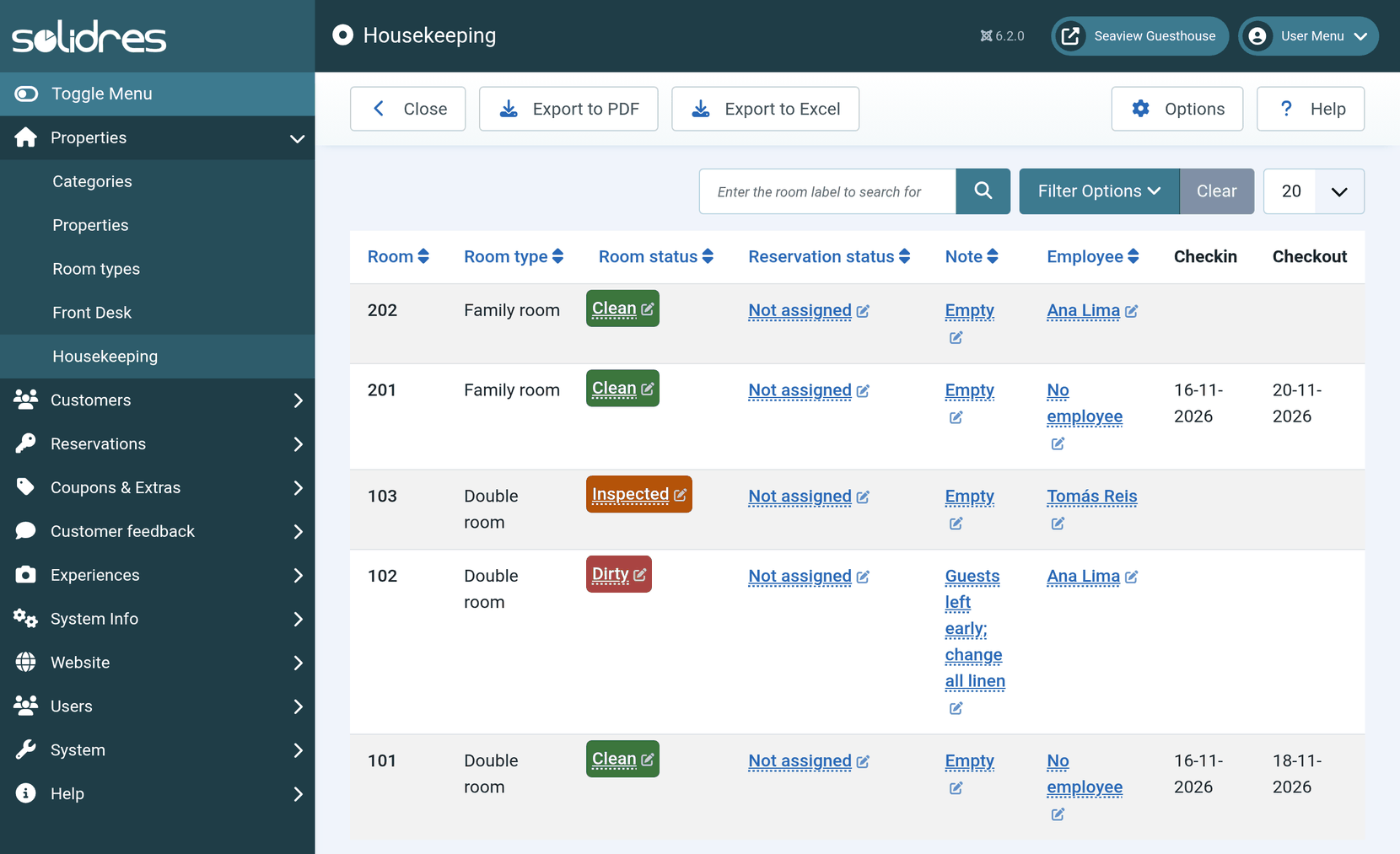
Each row is a room, with its number (Room) and its Room type, then what your team fills in:
- Room status: Clean (green), Inspected (orange) or Dirty (red). Use them as your team works: Dirty for a room to be cleaned, Clean once it is, Inspected once you or your head housekeeper has checked it and it is ready for the next guest.
- Note: a line for whoever cleans the room, such as Extra bed for a child, up to 255 characters.
- Employee: who is to clean it, chosen from your housekeepers.
- Checkin and Checkout: the dates of the confirmed booking in the room today, from its arrival day to its departure day. On a day one guest leaves and another arrives, they show the guest leaving, whose room needs cleaning. They are empty for a room no one stays in today. Solidres fills them in; you cannot change them here.
- Reservation status: a label you may choose from your booking statuses, such as Confirmed, or Not assigned to clear it. It does not follow the bookings: Solidres never fills it in or changes it. Most properties leave it alone.
Change a room
- Click the value you want to change, such as Dirty or No employee. A small box opens beside it.
- Choose the new value, or type the note.
- Click the Save button of the box, or press Enter. Escape closes the box without saving.
Each change is kept at once; the page has no Save button of its own. The keyboard works too: Tab to the value, then press Enter. A note holds up to 255 characters. If a change is refused, such as after your sign-in has expired, a message above the list says why, and the old value stays: reload the page and try again.
To find a room, type its number in the search box. Filter Options narrows the list to one property or one room type, and a click on a column heading sorts the list by it, such as Room status to bring the dirty rooms together.
A day's work
Nothing on Housekeeping moves by itself, so a day runs like this:
- In the morning, open the Front Desk: its tiles say who leaves today and who arrives.
- On Housekeeping, mark the rooms of today's departures Dirty, and give each one an Employee.
- Print the list for the team, or let them open it on their phone (below).
- As each room is done, the housekeeper, or you, marks it Clean; after checking it, Inspected.
The Front Desk does not show these statuses, and a booking does not wait for them: a guest who books online can be given a room still marked Dirty. Rooms you must keep empty, for repairs for example, are closed on Closed dates, not here.
Print the list
Export to PDF downloads the list as a PDF page in landscape, ready to print; Export to Excel as an Excel file. Both hold the rooms the list shows, with the search box and Filter Options applied, each with its room type, status, reservation status, note, employee and the check-in and check-out of the booking in it today, under its property's name: one table or sheet for each property.
Your staff on Housekeeping
Members of Property staff open Housekeeping and change every column, as you do, from the same address you sign in at. There is no page for it on the website itself: a housekeeper signs in to the back office, on a phone if they like. The screen needs the right Manage housekeeping, which Property staff have on Solidres Self-hosted and on a site we run for you. To take it from them, or give it to another group, see Change what they may see.
Housekeeping keeps no history: it shows what each room is now, not who changed it or when.
For site builders
Housekeeping is the plugin Solidres - Housekeeping, with no settings of its own. The names in the Employee column come from each property's Team tab; Employee user group in Solidres' Options only feeds System Info → Employees, and since Housekeeping 2.0.5 the screen no longer needs it to open. The PDF export needs the Solidres Dompdf library, which every Solidres package installs. On a site with the Hub, partners have the same list on the website, for their own properties, from the Hub's menu; without the Hub there is no front-end page.