

With the Invoice add-on, Solidres makes a PDF invoice for each booking, with your company's details and logo, emails it to the guest, and reminds guests of a balance still due a few days before they arrive. Payment history keeps every payment of a booking: those your payment methods record by themselves, and those you record, such as a bank transfer or cash at the desk.
PREREQUISITES:
- Solidres 4.8.0 or later.
- For invoices and the payment reminder: the Invoice add-on, 2.2.1 or later. Solidres Self-hosted, and every site we run for you, has it. Payment history is part of Solidres.
What an invoice prints
Before your first invoice, give it your company's details. Open Properties → Properties and your property:
- On the Pricing & payments tab, under Invoice details, turn on Print company details on invoices and fill in what your invoices must show: Company name, VAT number, Business registration number, Address, Phone, Fax, Email, Website and Bank account, one item a line: bank name, account holder, IBAN, SWIFT/BIC. Each field left empty is left off. With the switch off, invoices print the property's own address, phone, email and website instead.
- In Note at the bottom of invoices, write anything else they must say, such as your payment terms.
- On the Photos tab, add your Logo under Logo. It is printed on invoices and in your booking emails. A logo about as wide as it is tall, or up to three times wider, prints best: a wider one is printed smaller, to fit.
- Click Save & Close.
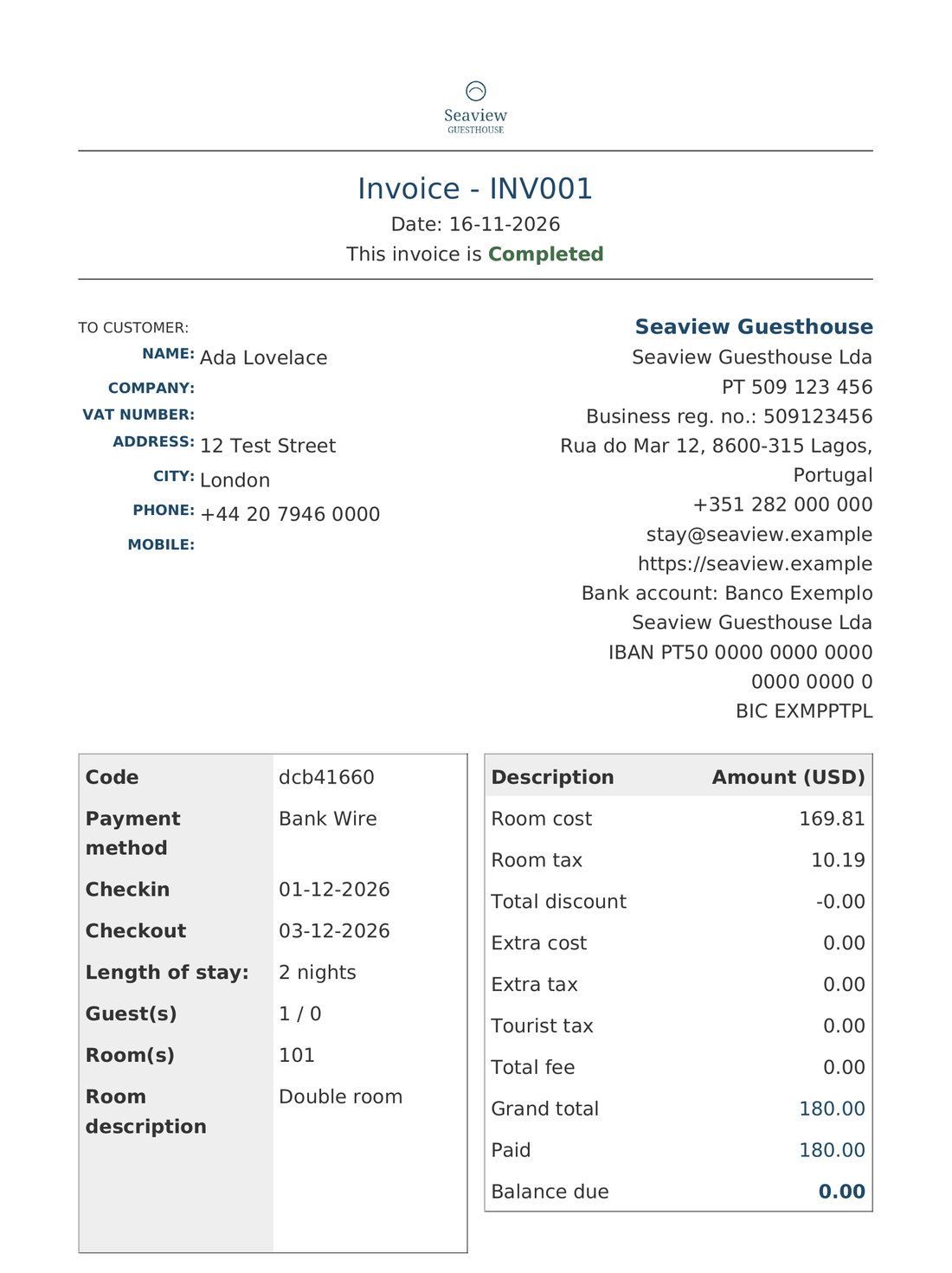
The invoice then prints, under its number and date: your details and logo, the guest's name, company, VAT number, address and phone, the booking's code, payment method, dates, guests and rooms, and its amounts: room cost and room tax, discount, extras and their tax, tours booked with the stay and their tax, tourist tax, fee, the grand total, what has been paid and the balance due. It is written in the guest's language, in the booking's currency.
Numbers and layout
Open Properties → Properties, click Options, and the Invoice tab:
- Invoice number prefix format: the letters before the number, INV by default.
[yy],[mm]and[dd]put in the year, month and day the invoice is made: INV-[yy]- gives INV-2026-…. - Invoice number of digits: written between the prefix and the number, as it is: with 00, invoice 7 is INV007 and invoice 123 is INV00123. Leave it empty for INV7.
- Invoice number start: the first invoice's number, for a site that already had invoices elsewhere. It counts only while the site has none. Each property then numbers its own invoices.
- Invoice number override: leave it empty.
- Invoice layout: three arrangements of the same content. Layout 2, above, keeps a booking on one page best.
- Invoice PDF file name, and PDF font name, which can stay as they are.
The same tab has the voucher, a PDF summary of the booking that is not an invoice: Send PDF voucher attachment attaches it to the guest's booking confirmation.
Make an invoice
Open the booking from Reservations → Reservations and its Invoice info tab, and click Generate. Solidres answers Your invoice is generated., and the tab lists the invoice, with Preview, Download, Email and Re-generate. The invoice gets the property's next number and is dated that day.
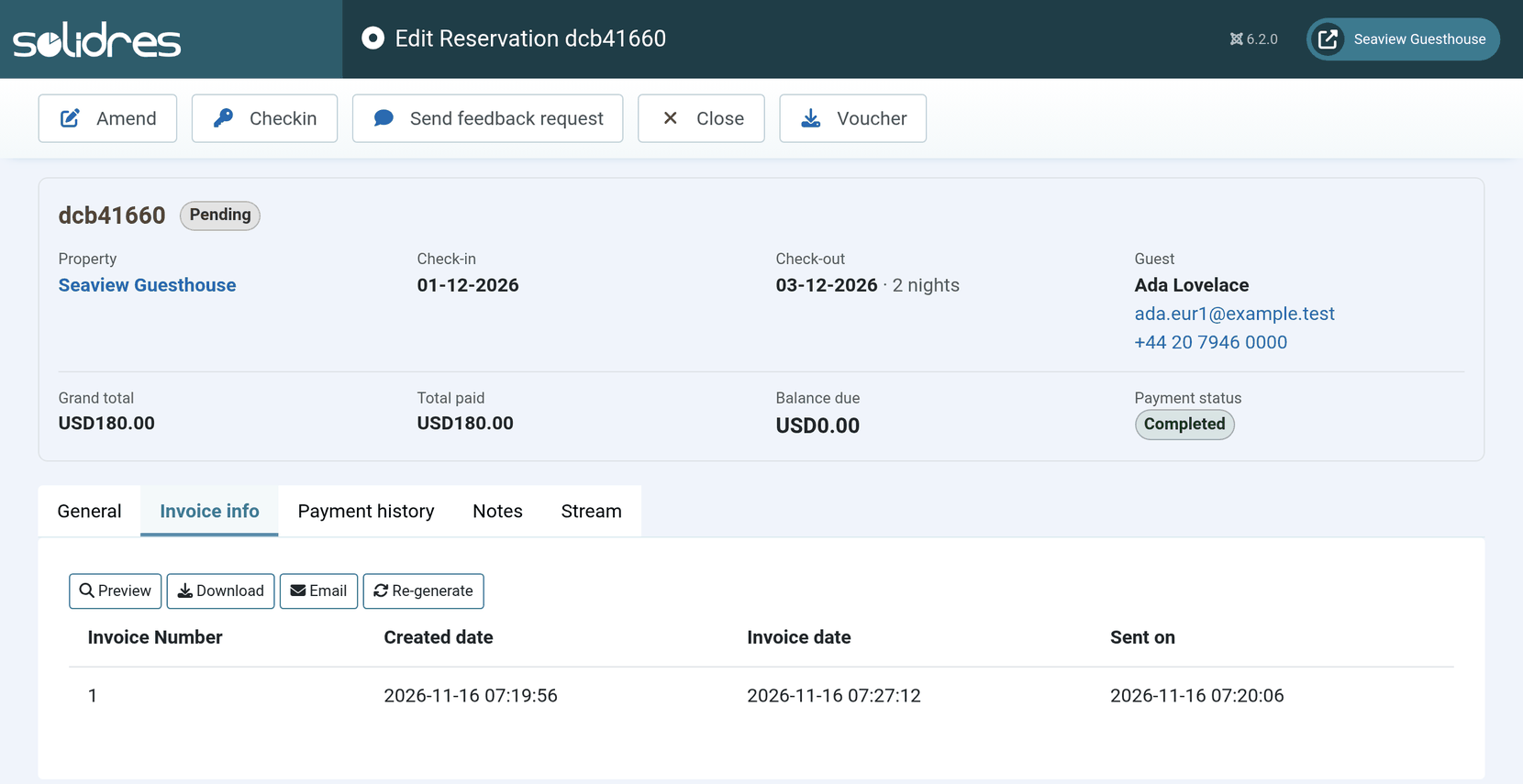
- After a change, such as a payment received or a booking amended, click Re-generate: the invoice is made again, with the same number and date. An invoice shows the booking as it was when it was made, and is not updated by itself.
- A booking has one invoice, and it keeps its number and date however often it is made again, so the numbers follow each other without a gap.
- In the reservations list, the PDF icon beside a booking's payment status, Download the invoice, downloads it, and makes it first if the booking has none.
Every booking, by itself
Set Auto create invoice to Yes on the Options' Invoice tab, and each booking gets its invoice as it is made, from your website or in the back office; a booking you change gets it made again, with its number. Without it, a booking gets its invoice when you make it, or when the guest's payment through PayPal or Stripe confirms the booking. With it on:
- Auto send invoice attaches the invoice to the guest's booking confirmation, for the payment methods you tick in Apply to payment methods.
- Regenerate invoice for statuses makes the invoice again when you change a booking to one of the statuses you choose, such as Confirmed.
Send it to the guest
On the booking's Invoice info tab, click Email. The guest receives the invoice as a PDF attached to the email Your invoice for reservation #…, with your property's address to reply to. Solidres answers Your invoice is sent. and the tab shows when, under Sent on. The words of that email are yours to change, on the Emails screen, under Invoice: see Wording the emails your guests receive.
Guests with an account on your website also find their invoices in their customer dashboard, to download.
All invoices
Reservations → Invoices lists every invoice: the booking's code, the invoice's number (without its prefix), the property, the guest, when it was first made, the grand total and the booking's payment status today. The Actions menu of each has Preview, Download, Email and Re-generate, as on the booking. Search by invoice number, booking code or guest name, or choose the day an invoice was made in Filter Options.
The payment reminder
Solidres can email guests who still owe part of their booking a few days before they arrive, from the Options' Invoice tab:
- Set Reminder email automation to Yes.
- In Days in advance, type how many days before arrival: 3 sends it three days before.
- In Payment reminder for statuses, choose the booking statuses that get it, such as Pending and Confirmed. Left empty, every status does, cancelled bookings too.
- Skip payment reminder for payment statuses leaves out bookings whose payment status is one of these: Completed at first. Add the statuses you use for bookings paid elsewhere, such as through a booking site.
- Word it in Email subject and Email body, with the same values as your other emails: see The payment reminder.
- Click Save & Close.
The reminder goes once, on that day, to the guest's email address, with your property's address to reply to, and tells them the balance due. A guest who booked with Pay Later pays at your property and is not sent it; a guest who booked with Bank Wire finds your bank details at its end. Solidres checks every day: on a site we run for you, and on Solidres Self-hosted, that daily check is already set up. On a site you installed yourself, the site's Super User adds it in System → Scheduled Tasks: New, then Solidres - Invoice, once a day.
Payment history
A booking's Payment history tab lists its payments, a line each: its description, date, payment method, payment status, amount, surcharge, discount and transaction ID. A booking paid online through PayPal or Stripe gets its line by itself. Offline methods, such as Bank Wire or paying on arrival, record nothing: you record those payments yourself.
Reservations → Payment history lists the payments of every booking, with filters by payment method, date and status: a view, not a place to change them. Click a booking's code to open it.
Record a payment
- Open the booking and its Payment history tab, and click New.
- Fill in Description, such as Bank transfer received, and the Payment date.
- Choose the Payment method, and Completed in Payment status.
- Type the Amount, and the bank's reference in Transaction ID if you have one. Two payments cannot share a transaction ID.
- Click Save.
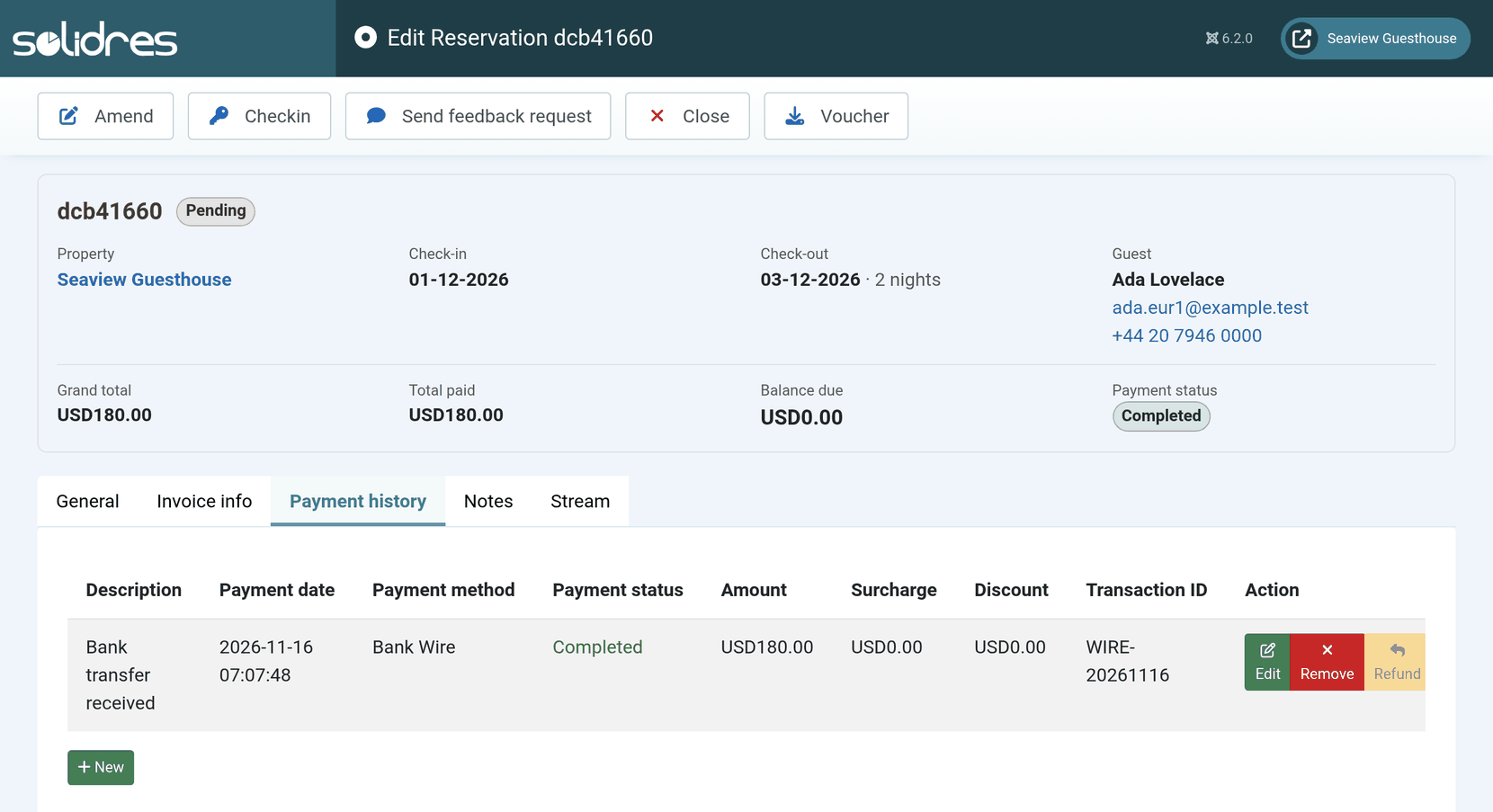
The booking's Total paid becomes the sum of its Completed payments, and its Balance due what is left. Once the whole grand total is paid, its payment status becomes Completed, shown when you open the booking again. Then click Re-generate on the Invoice info tab, so the invoice shows the payment.
Edit and Remove change or delete a line, and Total paid follows. Recording a payment takes the right to edit bookings, which your account has, and so do your staff in Solidres Self-hosted's Property staff group. Total paid can also be typed straight on the booking, but that records no payment: see Changing a figure in place.
Refunds
A refund is made where the money was paid: in your Stripe or PayPal account, or from your bank. Then:
- Stripe records it by itself. The Refund button on a Stripe payment's line refunds the whole payment through Stripe. A refund made in your Stripe dashboard, whole or in part, comes back too: the line's amount drops to what you kept, a note Refunded … at Stripe on … appears under it, and a payment refunded in full becomes Cancelled. See How to set up the Stripe plugin.
- Anything else, PayPal, a bank transfer, cash: click Edit on the payment's line and lower its Amount to what you kept, or set its Payment status to Cancelled for a full refund, and Save. A line cannot be a negative amount.
Total paid and the balance due follow. The booking's status and payment status stay as they are: change them yourself on the booking. Changing the booking's payment status to Cancelled cancels the booking too.
For site builders
Reservations → Invoices and the invoice buttons need the Solidres right Manage invoice, given on System Info → Access controls; Solidres Self-hosted gives it to Property staff. Recording, changing and removing a payment line needs Edit on Solidres, the right that edits a booking, which Solidres Self-hosted gives to Property staff too. The Invoice add-on has no settings of its own on the Plugins screen: they are all on the Options' Invoice tab and the property's Invoice details. The reminder runs as a scheduled task of the routine Solidres - Invoice; Solidres Self-hosted installs one, Solidres: payment reminders, daily at 01:00, which sends only once Reminder email automation is on. Tours of the Experience add-on have invoices of their own, in Experiences → Invoices, numbered apart but with the same prefix, digits, layout and font.