

The pages of your website that tell guests about you, such as About us, the way to get to you, or your booking conditions, are written in Website → Pages. Each page has a title and its text, with headings, links and photos, and you change it the way you would change a document.
PREREQUISITES:
- Solidres 4.8.0 or later with its back office menu, on any Solidres site. On a site whose administrator menu is Joomla's own, the same screen is Content → Articles.
- An account that may manage pages: the site's administrator, or a member of Property staff.
Which page is which
- Home is your property's own page, made from what you enter for the property: its name, description, photos and rooms. Change it in Properties → Properties, as Setting up a property explains.
- About us, Booking conditions and Privacy, and every page you add, are in Website → Pages. This article is about them.
- Contact shows your address, telephone and a form that sends you an email. It is changed in Website → Contacts, see The Contact page below.
On a new site each of these opens with a paragraph that starts This page is a placeholder, and its headings say what to write under them.
Open your pages
In the back office menu, open Website → Pages. Joomla, on which Solidres is built, calls a page an article, so the screen's title reads Articles, and the editor's Articles: Edit. They are your pages all the same.
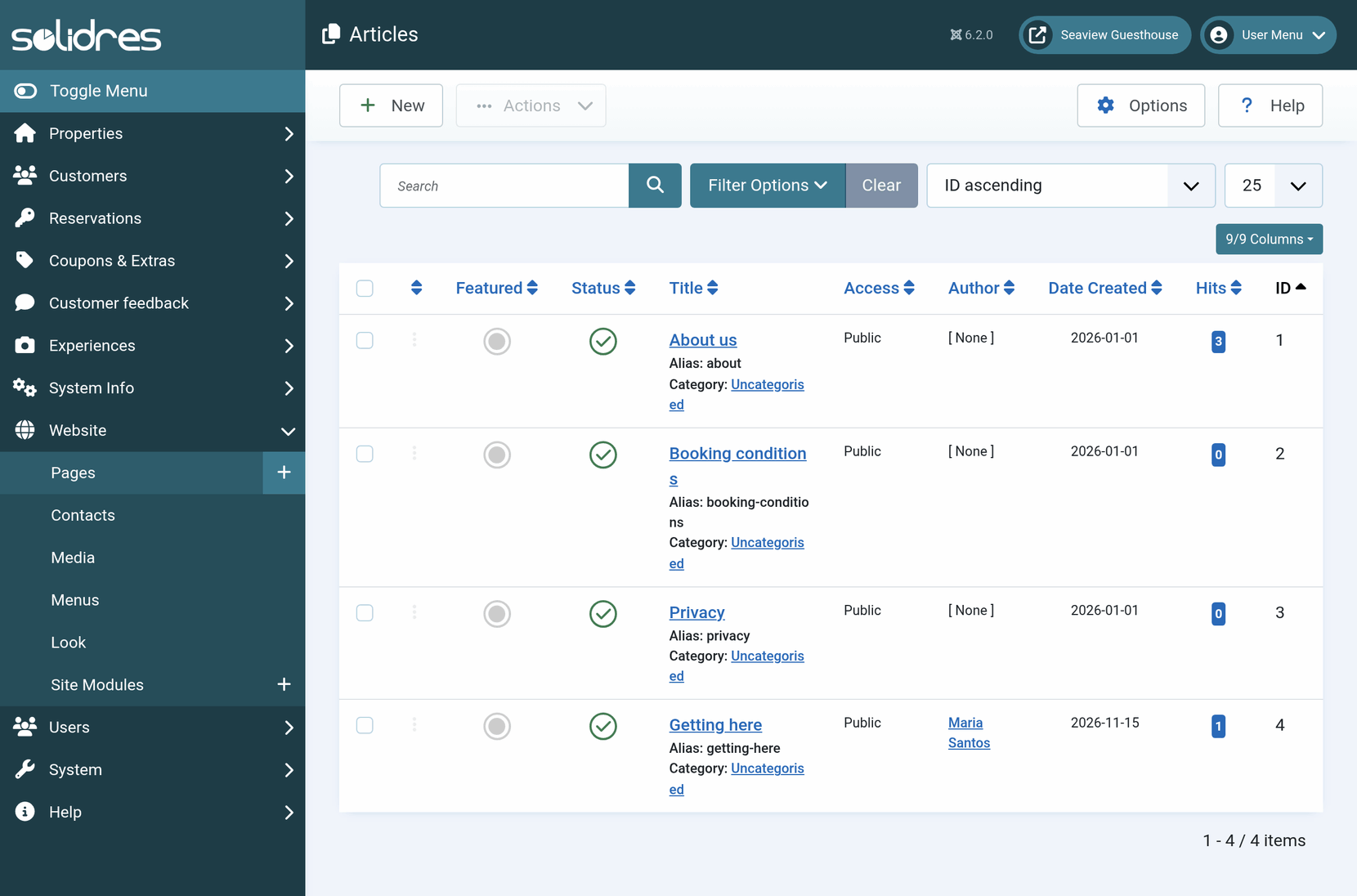
A green tick in Status means the page is on your website. Click a page's title to change it.
Change a page
- Click the page's title. The page opens in the editor, on the Content tab.
- Under Article Text, delete the paragraph that starts This page is a placeholder, and replace the text under each heading with your own. Write as you would to a guest: short paragraphs, the facts they ask you about.
- To make a line a heading, put the cursor in it and choose Heading 2 in the list that reads Paragraph. Your page's title is already its main heading, so the headings in the text start at Heading 2.
- Click Save & Close. Save keeps the page open; Close leaves without saving.
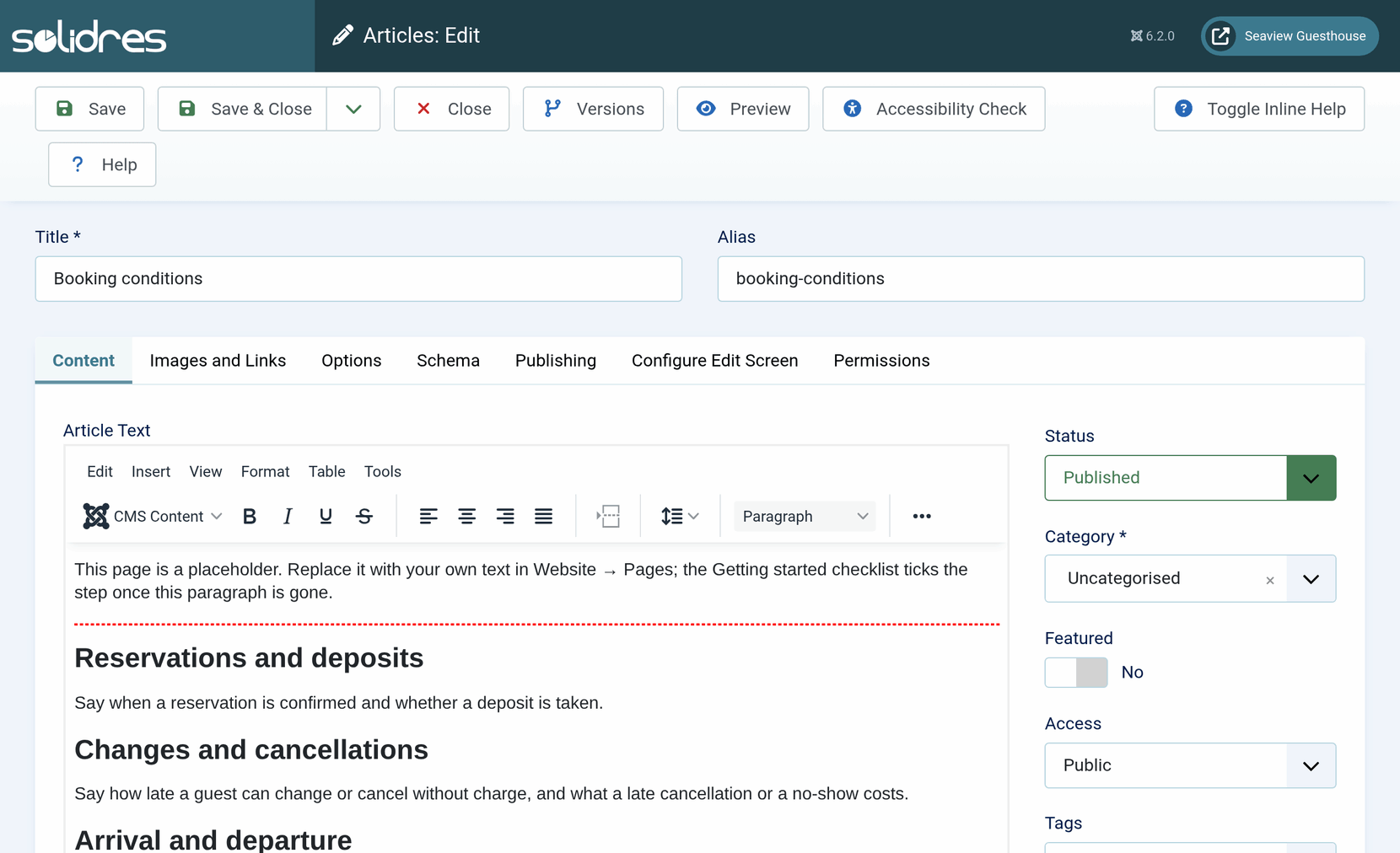
The red dotted line under the placeholder is a Read More break. A page shows the text on both sides of it, so you can leave it or delete it.
Once no page carries the placeholder paragraph, the Getting started checklist on your home dashboard ticks Review your website pages.
Photos and links
- A photo: put the cursor where it goes, then choose CMS Content → Media in the editor's toolbar. Pick a photo you have uploaded, or upload one there, and describe it in Image Description (Alt Text): a guest who cannot see the photo hears that description, and search engines read it. Uploading and organising photos says which photos suit a page.
- A link to another of your pages: select the words, then choose CMS Content → Article and click the page.
- A link to another website: select the words, click the editor's link button and paste the address.
Undo a change
Joomla keeps the earlier saves of a page. Open the page and click Versions: pick a save by its date and click Restore to bring it back into the editor, then save.
Add a page
- In Website → Pages, click New, or click the + beside Pages in the menu.
- Give the page a Title, such as Getting here, and write its text.
- Click Save & Close.
A new page is on your website, but no guest finds it until something links to it. Add it to your website's menu, as Changing the menu of your website shows, or link it from another page.
The Contact page
The Contact page is not one of your pages: it is a contact, Joomla's page for an address and a contact form, and it has a screen of its own.
- Open Website → Contacts and click your contact's name, such as Front desk.
- On the Edit Contact tab, fill in your address, Telephone and Email. The contact form appears on the page once the contact has an email address, and the messages guests send with it go to that address.
- On the Miscellaneous Information tab, replace the placeholder paragraph with a sentence of your own, such as when you answer the telephone.
- Click Save & Close.
Booking conditions and privacy
Guests read these two pages before they pay. The booking form asks them to tick I agree with Booking conditions and Privacy Policy, and those two words open your pages; the Footer Menu links them on every page, and the cookie banner links your privacy page. Write them for your property: when a booking is confirmed, what a cancellation costs, what you keep about a guest and why.
Change their text here, as any page. To have the booking form open other pages instead, open Properties → Properties, click Options in the toolbar and choose them on the General tab, under Terms of Use and Privacy Policy.
NOTE What your booking conditions and your privacy page must say depends on the law where you and your guests are. The headings of the placeholder pages are a start, not legal advice.
Take a page off your website
Open the page and set Status to Unpublished, or tick it in the list and choose Actions → Trash. If the page is in a menu, take it out of the menu first, or the menu leads guests to an error page.
What you can leave as it is
A page has more settings than its text. None of them needs changing for a page to work, and your site was set up so that a page shows its title and text without dates or an author's name.
- Category stays Uncategorised, and Featured stays No: a property's website has no blog for them to sort.
- Access stays Public, so every visitor can read the page.
- The Images and Links, Options, Publishing, Configure Edit Screen and Permissions tabs, and the Options button of the list, are Joomla's settings for a site builder. Joomla's own documentation describes them. One is yours: the Meta Description of the Publishing tab, the sentence search engines may show under the page's title (see Your site in search engines).