

Give everyone who works in your back office, a receptionist, a housekeeper, a manager who covers your days off, an account of their own. Each person signs in with their own name and password, sees the screens their work needs, and what they do is theirs on record. You add them in Users → Manage and choose what they may see in System Info → Access controls.
PREREQUISITES:
- Solidres 4.8.0 or later with its back office menu, and a site installed from the Solidres Self-hosted package, which has the Property staff group. On a site whose administrator menu is Joomla's own, the same screens are Users → Manage and the Access controls entry of Solidres' own menu.
- The site's administrator account.
Add a member of staff
- Open Users → Manage and click New.
- On the Account Details tab, fill in their Name, the Login Name (Username) they sign in with, a Password of at least 12 characters, once more in Confirm Password, and their Email.
- Set Require Password Reset to Yes, so they choose a password of their own the first time they sign in, and no one else knows it.
- On the Assigned User Groups tab, tick Property staff. Registered, ticked already, can stay.
- Click Save & Close.
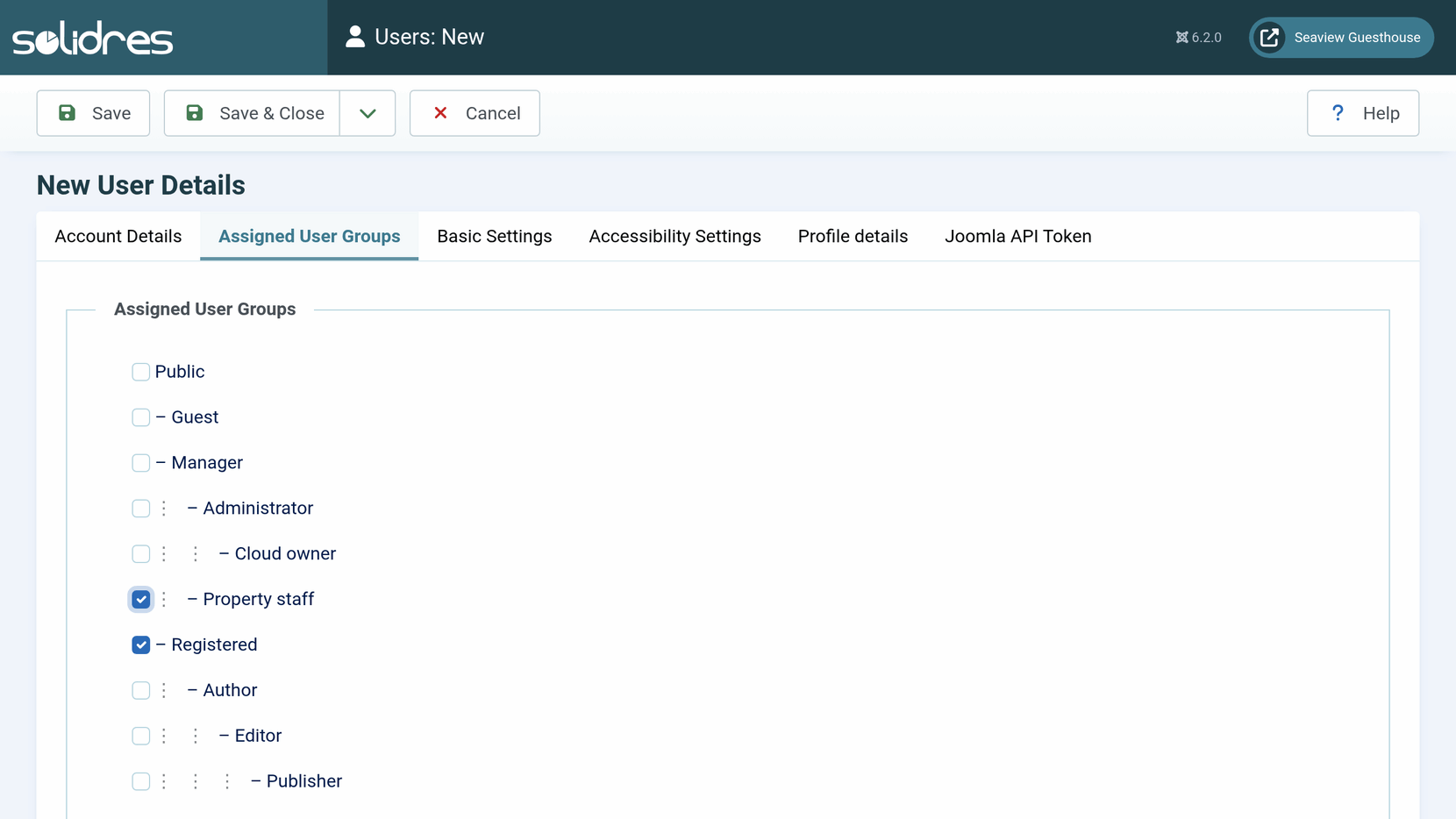
Joomla emails them their username and password, under the subject New User Details. They sign in at the same address as you, the one that ends in /administrator. Tick no other group: the others either open more than a member of staff needs or are for other kinds of website.
Ask each of them to turn on two-factor sign-in and print their backup codes, as Your own account shows. You cannot turn it off for them: if one of them loses both the phone and the codes, see If you lose your phone and your backup codes.
What Property staff see
A member of Property staff does the property's daily work:
- Properties: your property, its room types, the Front Desk and Housekeeping;
- Customers: your guests and their groups;
- Reservations: the bookings, invoices, the registration card, closed dates, discounts, the payment history, the Dashboard and the Reports;
- Coupons & Extras and Customer feedback;
- Website → Pages, Contacts and Media.
They do not see the System Info screens (taxes, currencies, the booking form, the emails' wording, Access controls), Solidres' Options, the users, the menus, the modules or the Look screen. Those stay yours.
Housekeepers
Properties → Housekeeping is where you hand rooms to clean. The housekeepers you can choose there are names typed on the property's Team tab, under Housekeeping staff; a housekeeper needs an account in Property staff only to mark rooms themselves. See Housekeeping. System Info → Employees lists the members of the group chosen in Solidres' Options, on the General tab, under Employee user group: on a site installed from Solidres Self-hosted 4.8.0 or later, Property staff.
Change what they may see
- Open System Info → Access controls.
- On the left, click Property staff.
- Beside a right, choose in Select New Setting: Allowed to give it, Inherited to take it away. The change is saved as you choose it, with no button to click, and Calculated Setting shows the result.
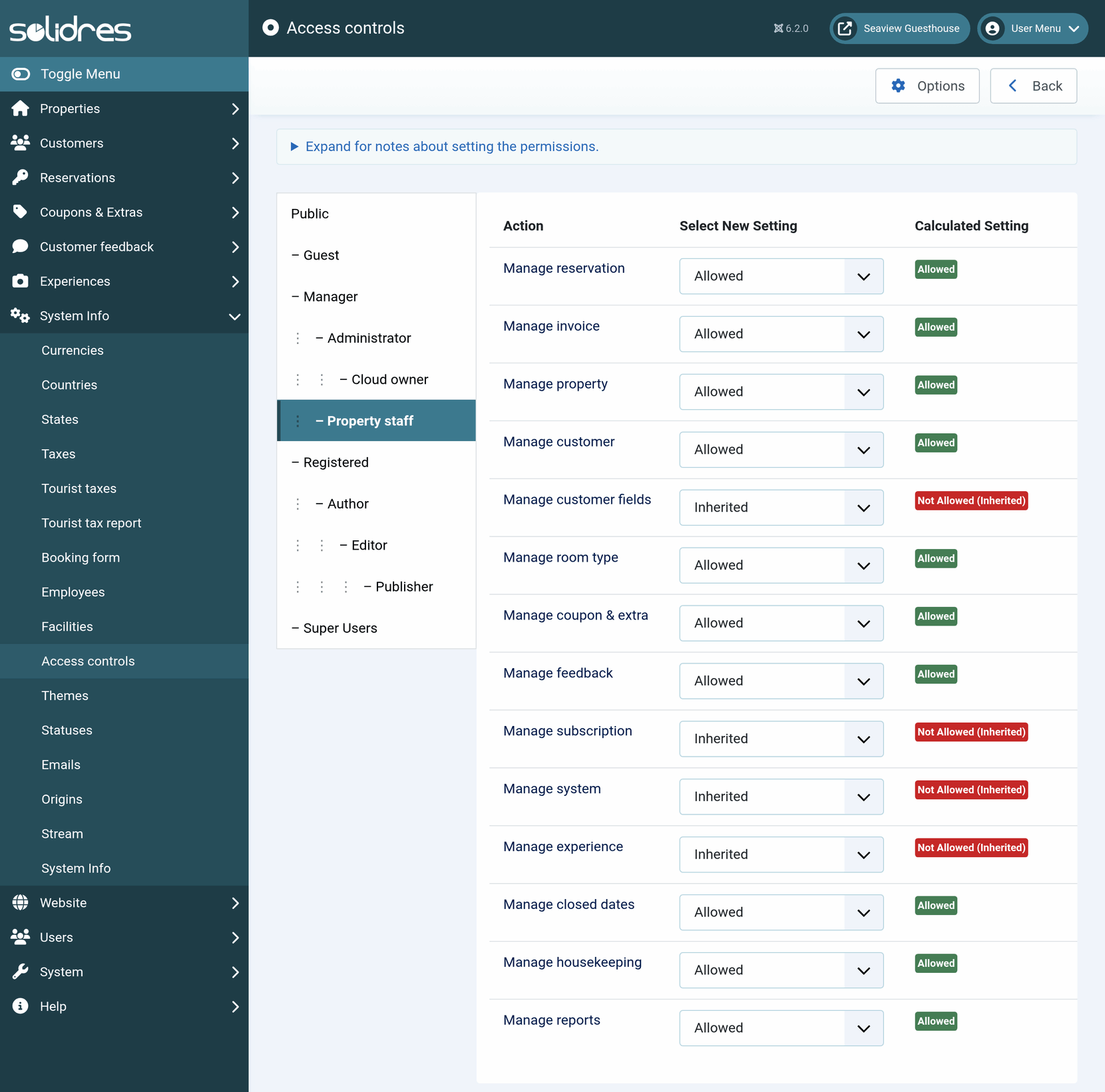
Inherited gives the group what the group above it has, Manager, which has no Solidres right of its own: so Not Allowed (Inherited). Denied refuses the right even to a person who is also in another group that has it; you rarely need it.
| Right | What it opens | Property staff |
|---|---|---|
| Manage reservation | The Reservations group and the Front Desk. Without it the whole Reservations group leaves the menu | Allowed |
| Manage invoice | Reservations → Invoices | Allowed |
| Manage property | Properties → Properties and Categories | Allowed |
| Manage customer | Customers → Customers and Customer groups | Allowed |
| Manage customer fields | Customers → Custom fields, the fields of the guest form | Not allowed |
| Manage room type | Properties → Room types | Allowed |
| Manage coupon & extra | Coupons & Extras | Allowed |
| Manage feedback | Customer feedback | Allowed |
| Manage subscription | The Hub's subscriptions and commissions, on a site that runs the Hub | Not allowed |
| Manage system | The System Info group: currencies, taxes, tourist taxes, facilities, statuses, the emails' wording, the booking form. Access controls and Options stay yours even then | Not allowed |
| Manage experience | Experiences, on a site that sells tours | Not allowed |
| Manage closed dates | Reservations → Closed dates | Allowed |
| Manage housekeeping | Properties → Housekeeping | Allowed |
| Manage reports | Reservations → Reports | Allowed |
A right for one person
To give one person a right without giving it to all your staff, make a group of its own for them in Users → Groups: click New, type a Group Title, choose Property staff as its Group Parent and save. Put the person in that group instead of Property staff: they keep every right of Property staff, and the right you allow on the new group comes on top.
Your own group
Access controls lists every group, yours too, but your own group and the groups above it cannot be changed from it: choosing a setting there answers A user is not allowed to change permissions of their own group(s)., and nothing is saved. You cannot take a screen away from yourself by mistake.
On a site we run for you, your group is Cloud owner, under Administrator and Manager. The Super Users group is ours, for the updates and backups we do; a setting on it changes nothing, since a Super User may do everything whatever the screen says.
When someone leaves
Open Users → Manage, click the person and set User Status to Blocked, then click Save & Close. They can no longer sign in, and their name stays on what they did. Block rather than delete: a blocked account can be enabled again if they come back.