

The footer of your website, with your address, your policies and your social pages, is made of modules: blocks of content, each shown in a place on the page. You change their text, move them from one place to another and switch them off in Website → Site Modules. The same goes for the sidebars beside a page's text.
PREREQUISITES:
- Solidres 4.8.0 or later with its back office menu, and Lumina as your site's template. On a site whose administrator menu is Joomla's own, the same screen is Content → Site Modules.
- The site's administrator account. Staff in Property staff do not see the modules.
The footer's places
Each module sits in a position, a named place of your template, Lumina. The footer has five: four columns side by side, Footer A to Footer D, and the line below them, Footer bottom.
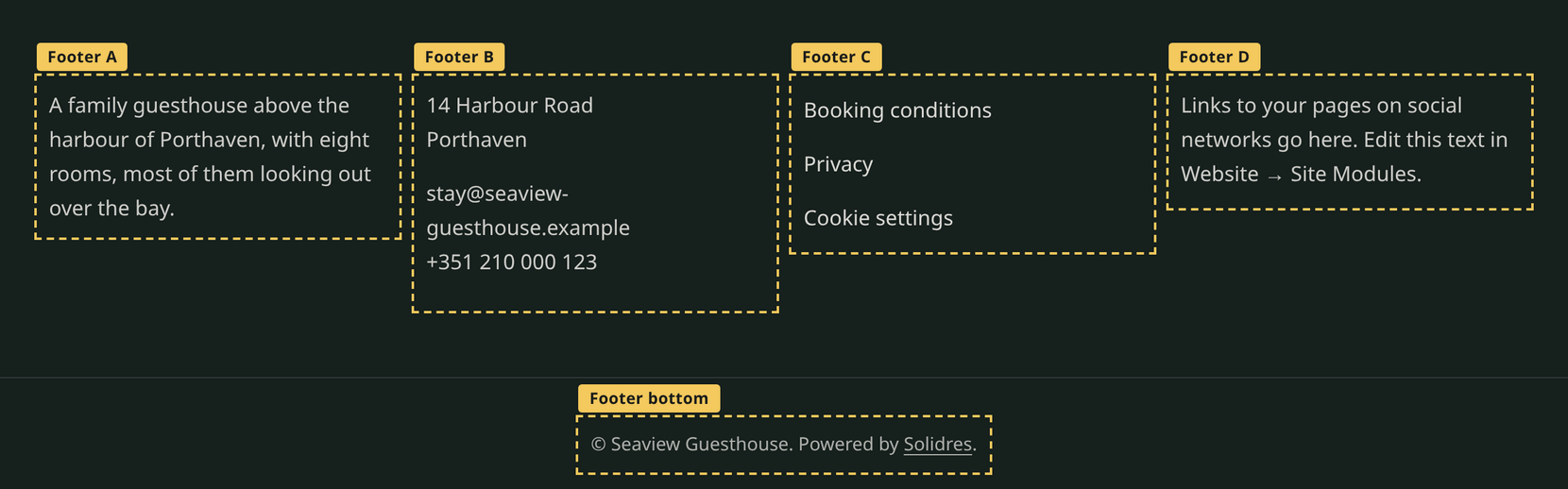
On a new site they hold:
- Footer A: About, a sentence about your property.
- Footer B: Contact, your address, email and telephone.
- Footer C: Footer Menu, the links to your booking conditions and privacy pages.
- Footer D: Follow us, for the links to your social pages. Until you write them, it says where to.
- Footer bottom: Copyright, the line with your property's name.
The footer sets its modules side by side in the order of their positions, A to D, each in a column of its own: a position with no module takes no room, and two modules in one position make two columns. On a phone the columns stand one under the other. The footer prints a module's text, not its title.
Change a module's text
- Open Website → Site Modules and click the module's title, such as About.
- Change the text in the editor, as you would a page.
- Click Save & Close.
A module without a green tick in Status is switched off and not on your website. To find a module quickly, type its title in Search.
For Follow us, replace its sentence with the names of your social networks, one a line, make them a bulleted list, and link each name to your page with the editor's link button.
Move a module
- Open the module.
- On the right, click Position and choose the new place in the Lumina group of the list, such as Footer D [footer-d]. The groups above it, Cassiopeia and Cassiopeia_extended, are Joomla's own templates, which your website does not use.
- Click Save & Close.
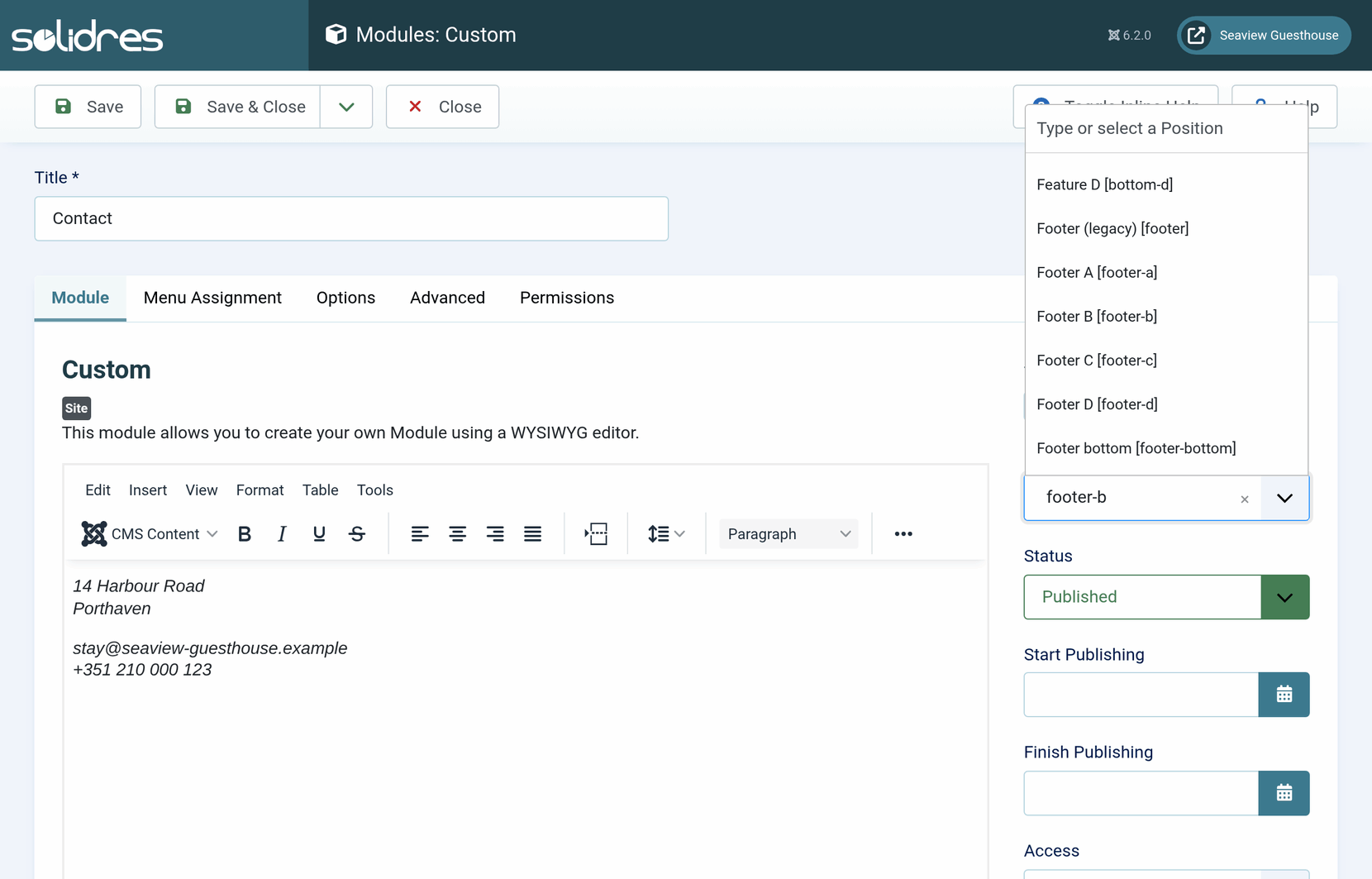
So moving Contact from Footer B to Footer D moves your address to the end of the row. When two modules share a position, the Ordering list, below the position, says which comes first.
Switch a module off
In the list, click the green tick in the module's Status: it turns to Unpublished, and the module is gone from your website. Click it again to bring it back. Switching a module off keeps its text, where deleting it would not.
The sidebars
Lumina has two sidebars, shown beside a page's text only when a module is in them: Sidebar A on the left and Sidebar B on the right. On a new site, Sidebar B holds Your stay on the home page: the summary of the rooms, dates and price a guest has chosen while they book. Leave it there.
To show a module in a sidebar, choose Sidebar A [sidebar-a] or Sidebar B [sidebar-b] as its position, then choose the pages on its Menu Assignment tab, in Module Assignment:
- On all pages;
- Only on the pages selected, then tick the pages, which are listed by their menu entries;
- On all pages except those selected;
- No pages, which hides the module as switching it off does.
A sidebar takes width from the page's text, so keep what you put there short.
Add a module
Click New in Website → Site Modules, or the + beside Site Modules in the menu, and choose Custom, the module for your own text and photos. Give it a Title, write its text, choose its Position and its pages, and click Save & Close.
Other places
The Lumina group of the Position list names every place of your website. Besides the footer and the sidebars:
| Position | Where it is |
|---|---|
| Announcement bar | A strip above the header, for a short notice such as a seasonal closing |
| Primary navigation, Header utilities | The header: the Main Menu, and the User Menu with the currency switcher |
| Hero slideshow, Availability bar (Solidres) | The photo at the top of the home page, and the availability search on every page |
| Main top, Main bottom | The width of the page, above and below the page's text and its sidebars. On a new site, Main bottom holds the map |
| Content top, Content bottom | Above and below the page's text, beside the sidebars |
| Feature A to Feature D | A row of up to four cards below the page |
| Map (Solidres) | A map the full width of the page, above the footer |
The positions marked (legacy) are kept for sites that came from an older template; do not use them. How the hero, the header and the footer look is set on the Look screen (Changing the look of your site); its Centred under the logo footer sets the four columns one under the other.
What you can leave as it is
The Options, Advanced and Permissions tabs of a module, and the Options button of the list, are settings for a site builder. Joomla's own documentation describes them.