

Website → Media holds the photos and files your website's pages and modules show: a picture of the breakfast terrace on your About us page, your logo, a PDF of your restaurant's menu. You upload them here, keep them in folders, and pick them from here wherever a page or a setting asks for a picture.
PREREQUISITES:
- Solidres 4.8.0 or later with its back office menu. On a site whose administrator menu is Joomla's own, the same screen is Content → Media.
- An account that may manage media: the site's administrator, or a member of Property staff.
NOTE Your property's own photos and your room types' photos are not uploaded here. Add them on the property's Photos tab and on each room type, as Setting up a property explains: Solidres makes the small copies its lists need from them, and shows them in the property's gallery.
The two folders
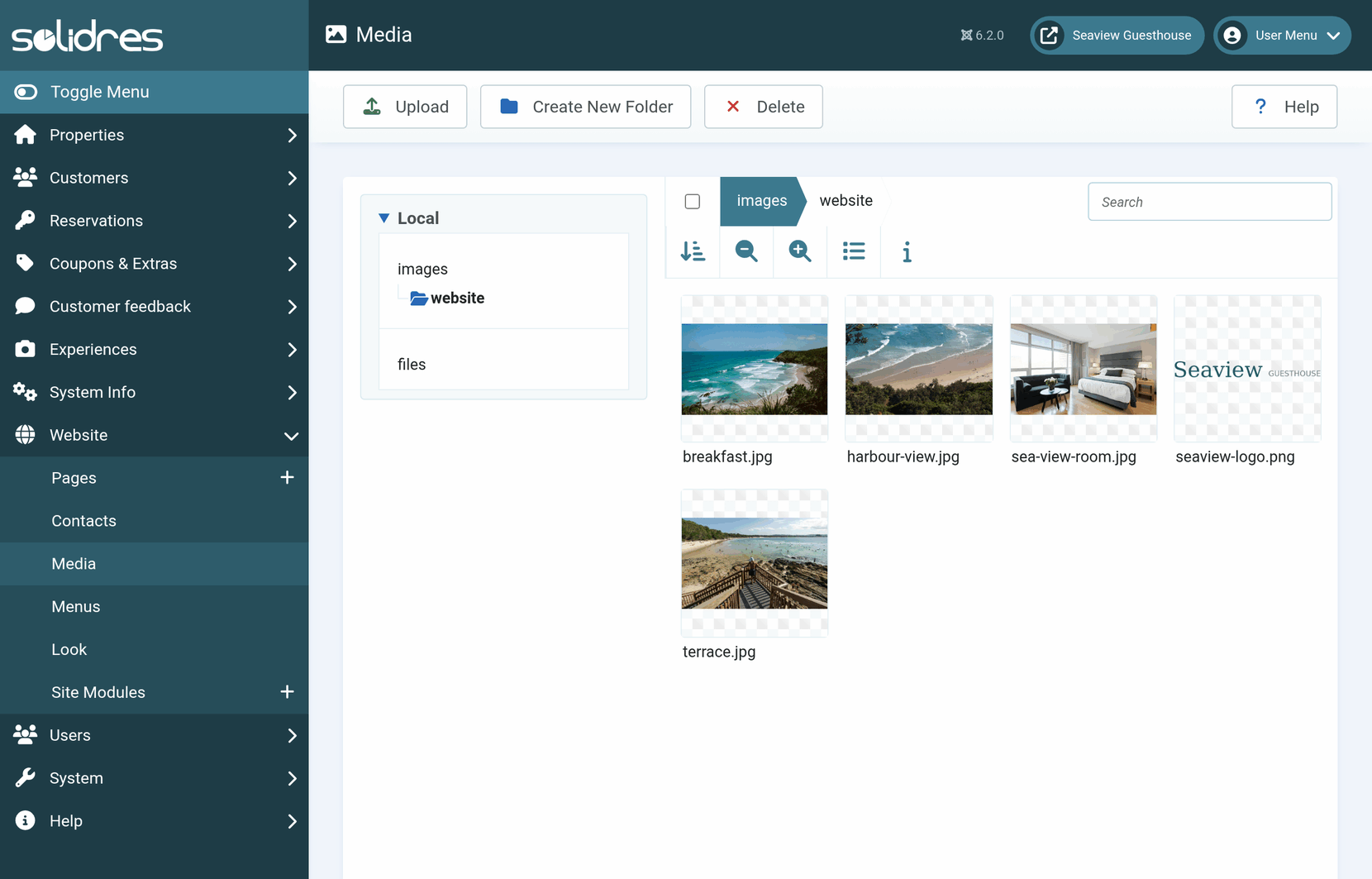
Open Website → Media. On the left, under Local, are two folders, and nothing above them:
- images, for photos and pictures: the ones in your pages and modules, and your logo.
- files, for documents a page links to, such as a PDF of a menu or of a walking map.
Some folders are there from the start. solidres holds the logos of your back office's sign-in page; leave it. bookingengine appears with your first property photo and holds Solidres' photos; leave it too, or the photos disappear from your property's page. banners, headers and sampledata, and the two Joomla logos, come with Joomla and are not used by your website.
Upload photos
- Open the folder they go in. To make one, click Create New Folder, type its Folder Name, such as website, and click Create; then click the new folder.
- Click Upload and choose the files on your computer, or drag them from your computer onto the list.
What you can upload
- Photos and pictures in JPEG, PNG, WebP, AVIF, GIF, BMP or SVG; documents in PDF, OpenDocument, plain text or CSV; sound in MP3 and video in MP4 or MOV.
- Up to 10 MB a file. A larger one is refused with This file is too large to upload.
- A Word document is refused with This file type is not supported: save it as a PDF.
- An SVG is checked as it arrives, and one with code inside is refused with The file looks suspicious, therefore cannot be uploaded. Export it again from the drawing program as a plain SVG, or as a PNG.
Give a file a name that says what it shows, such as breakfast-terrace.jpg, in lower case and without spaces: the name is part of its web address.
Sizes that suit your website
A photo straight from a phone or a camera is often 4,000 pixels wide and several megabytes, and makes a page slow to open on a phone. Before you upload:
- A photo across the width of a page: about 2,000 pixels wide, in landscape.
- A photo within a page's text: about 1,200 pixels wide.
- Saved as JPEG or WebP, under 500 KB a photo where you can.
Your computer's or your phone's photo app can make a smaller copy. The same sizes suit the photos you add to your property and room types.
Rename, crop, move out
Point at a file and click the button in its corner. It offers:
- Preview and Download;
- Rename;
- Edit, for a picture other than an SVG: Crop, Resize and Rotate it. Save & Close replaces the file with the changed picture; Reset undoes what you have not saved;
- Get Link, the file's web address, to paste in an email or a social post;
- Delete.
A page or a module that shows a file you rename or delete shows nothing in its place. Change the page first, then the file.
Use a photo
- In a page or a module: in the editor, choose CMS Content → Media, as Editing your website's pages shows.
- As your logo: see below.
Replace your logo
- Upload your logo to a folder of images, as above.
- Open Website → Look, on the Brand tab. The Look screen is for the site's administrator.
- Under Logo, click Select: Media opens in a window. Open the folder that holds your logo and click it.
- Click Select at the foot of the window, then Save.
An SVG suits a logo best: it stays sharp at any size. Otherwise, a PNG with a transparent background, about 400 pixels wide. If your header is dark, add a light version in Logo (dark mode) too. Changing the look of your site describes the rest of the Look screen.
NOTE On a site we run for you, Media has the two folders and the limits above, and they are ours to change: ask us if a file you need is refused.