

A room type is what a guest books: Double room, Family room. It holds the name, how many people it sleeps, the photos, the words guests read and the rate plans. Its rooms are the units of that type, each with its number: a room type with three rooms can be booked three times for the same night. This article goes through the room type screen tab by tab; to add your first room type and its rates in five minutes, see Your first hour.
PREREQUISITES:
- Solidres 4.8.0 or later. The screens are much the same in 4.x; a few labels changed in 4.8.0.
- A property, set up as Setting up a property explains.
The room types list
Open Properties → Room types. Each row is a room type, with its property, its status, how many rooms it has (# Rooms) and how many adults and children one room takes (# Adult(s), # Child(ren)). Click a name to open it. With more than one property, Filter Options narrows the list to one.
Guests see the room types on the property page in the order of this list. To change it, click the heading of the first column, the one with the arrows, so the list is sorted by its order, then drag a row by its handle. The new order is kept at once.
Add a room type
- In Properties → Room types, click New. On an empty list the button is Add Room Type.
- On the General tab, type the Name guests will read, and choose your property in Property.
- Set how many people it sleeps: Max occupancy, Max adults and Max children (see below).
- Write a Description: guests read it beside the photos, under the room type's name.
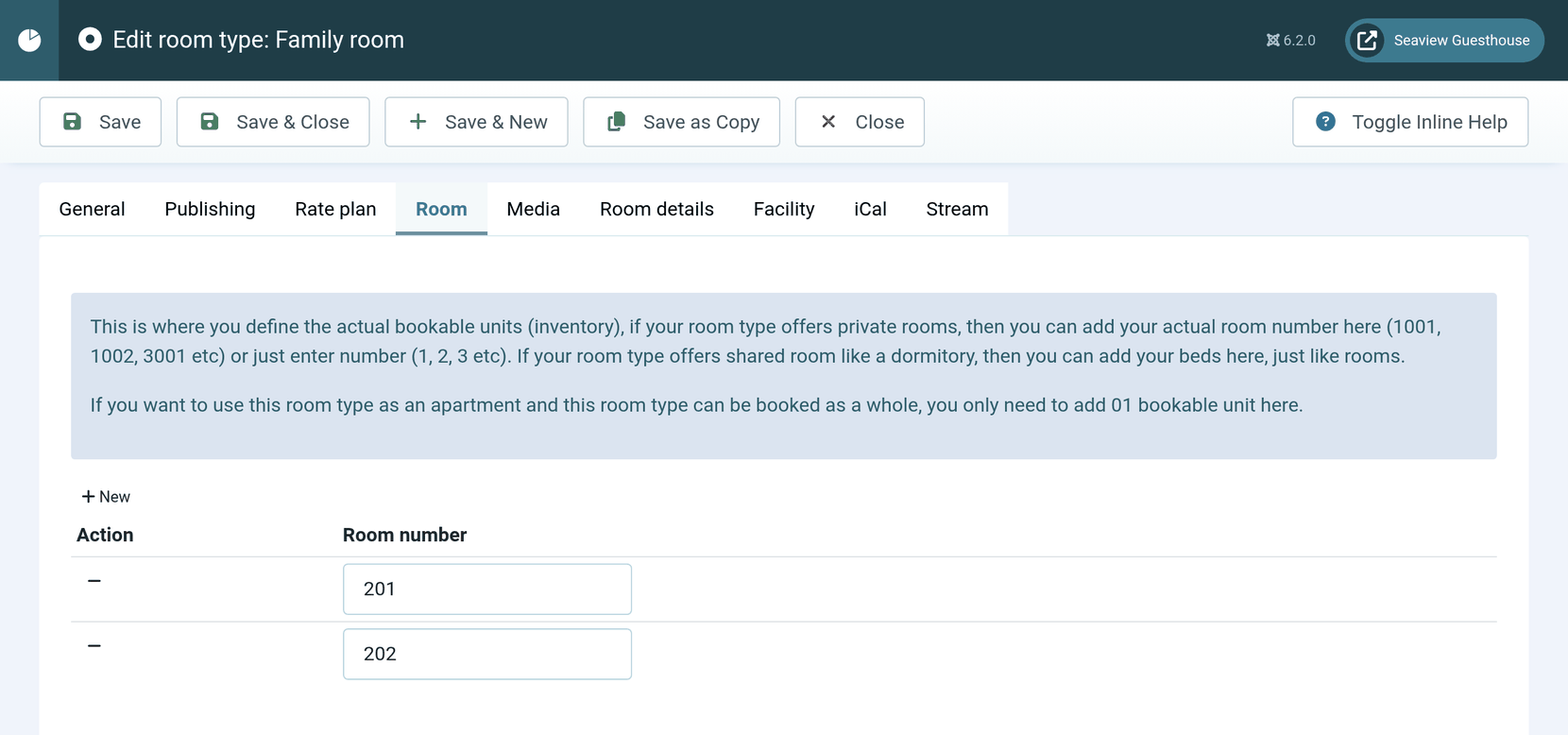
- On the Room tab, add its rooms (see Rooms). A room type cannot be saved without one: Solidres answers You must create at least 1 room (Navigate to tab Room to do that).
- Click Save. Solidres answers Item saved. and the room type stays open, ready for its photos and its rate plans.
A room type is offered to guests once it has a rate plan that covers the dates they search: see Prices.
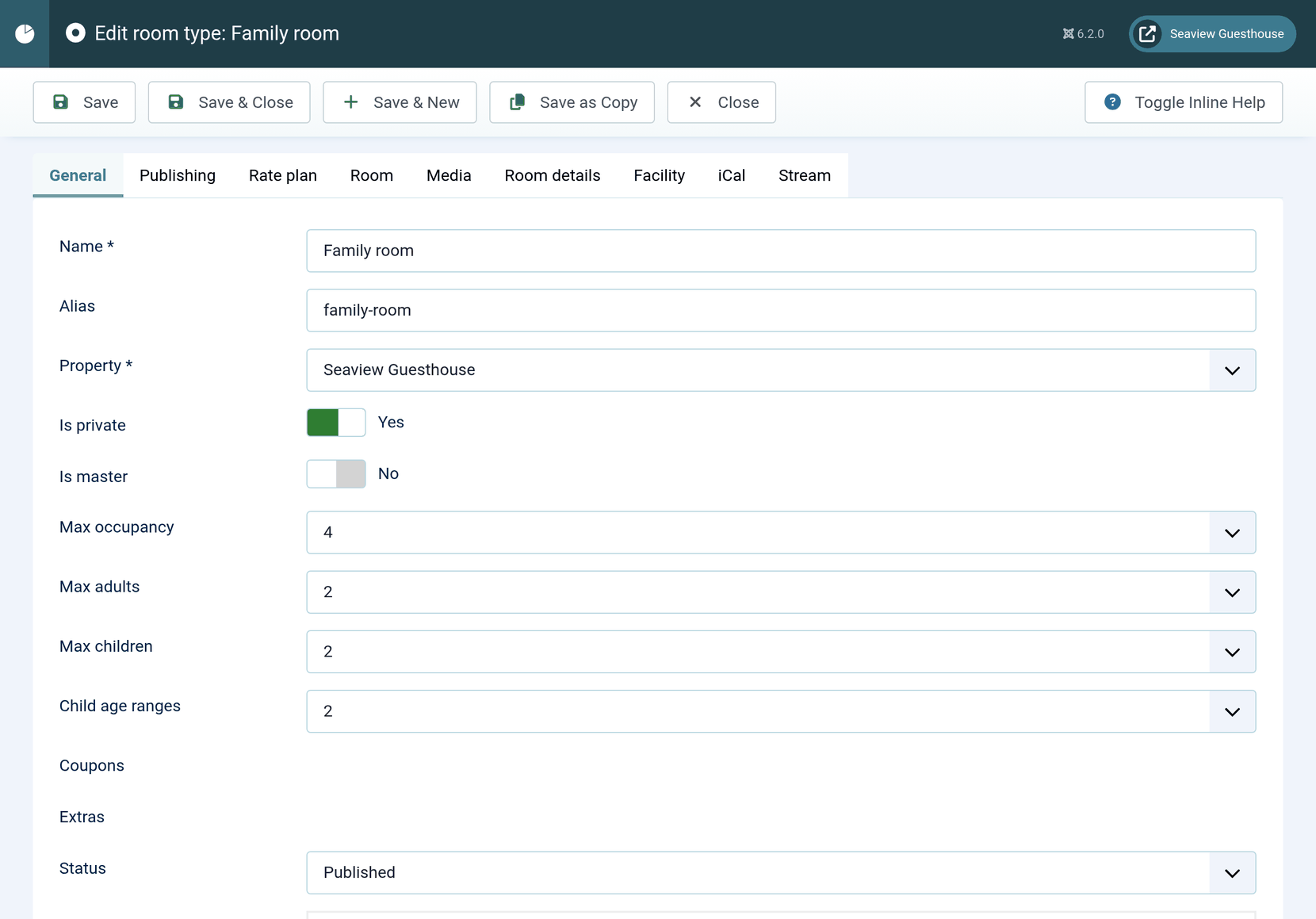
Save as Copy starts a room type like this one: the copy, named with (2) after it, has the same settings, rooms, room details and rate plans, but no photos. Rename it and change the room numbers, which it copies too.
How many people it sleeps
For each room, the guest chooses how many adults and children will stay in it, from lists that stop at what the room type takes:
- Max adults: the adults list runs from 1 to this number.
- Max children: the children list runs up to this number. Leave it at 0 for a room that takes no children: the guest then sees no children list.
- Max occupancy: adults and children together. A family room for two adults and two children, but four people at most, has 2, 2 and 4. Left at 0, the room takes as many as Max adults and Max children add up to.
The search on the property page shows every room type that is free, whatever the number of guests searched for; the lists in each room's form keep a booking within what the room takes. A party too big for one room books two.
A rate plan can narrow these numbers further, for example a single-use rate for one adult. Child age ranges is for rate plans that price children by age: Adults, children and child pricing explains it, with the Child room cost setting on the Publishing tab.
Rooms or beds
Is private is on for a room a guest has to themselves. Turn it off for a shared room, such as a dormitory, where each unit you add on the Room tab is a bed: guests then read We have 4 beds left and choose 1 bed, 2 beds instead of rooms.
Rooms
The Room tab lists the rooms of the type, each with its number. The count is what Solidres sells: with three rooms, three guests can book the room type for the same night, and the fourth finds it full.
- To add a room, click New and type its Room number, such as 201, or any name you use for it. For a holiday home or an apartment booked as a whole, add one.
- To rename a room, type over its number and save.
- To remove a room, click the minus sign beside it. A room that has never been booked is deleted at once, before you save. For a room that has bookings, Solidres asks first: This room appears in reservations or closed dates. Delete it, and take it out of them too? Click Yes to delete it: those bookings keep the room's number as text, but no longer hold the room. Click No to keep it.
To stop selling a room for some dates, for repairs or your own use, close it instead: see Closing rooms on chosen dates.
Photos
Open the Media tab and click + to choose photos from your computer: JPG, PNG, GIF or WebP, several at once if you like. On a room type you have saved, they are uploaded as soon as you choose them; on a new one, with its first save.
- Drag the photos to set their order. The first is the one guests see first on the property page; the arrows show the others.
- The bin on a photo removes it at once, without a question and without saving.
Solidres makes the small copies its pages need from each photo. Landscape photos about 1,200 to 2,000 pixels wide suit best, as Uploading and organising photos explains; a photo straight from a camera makes the page slow to open on a phone.
Room details
The Room details tab holds short texts guests read under More info, beside the room type on the property page:
- Under Facilities: Room facilities, a list separated by commas, such as Free Wi-Fi, air conditioning, shower, hairdryer; Room size, such as 28 square metres; and Bed size, such as 1 double and 2 single beds.
- Under Conditions: Taxes and Prepayment, a sentence each, such as City tax paid at the hotel. They are words for guests only: the taxes a booking is charged are set elsewhere (see Taxes and currencies), and the prepayment is the property's deposit.
Search engines are given the room facilities, the room size and the bed size with each room type, so write them as you would say them to a guest.
The Facility tab
The Facility tab, and System Info → Facilities, belong to the Hub add-on, for sites that list many properties: facilities are defined once and ticked on each room type, and guests filter a search by them. Without the Hub, both show a notice instead, and on a site that we or your host run for you, neither is there. Write your room's facilities in Room facilities, above.
What guests choose for each room
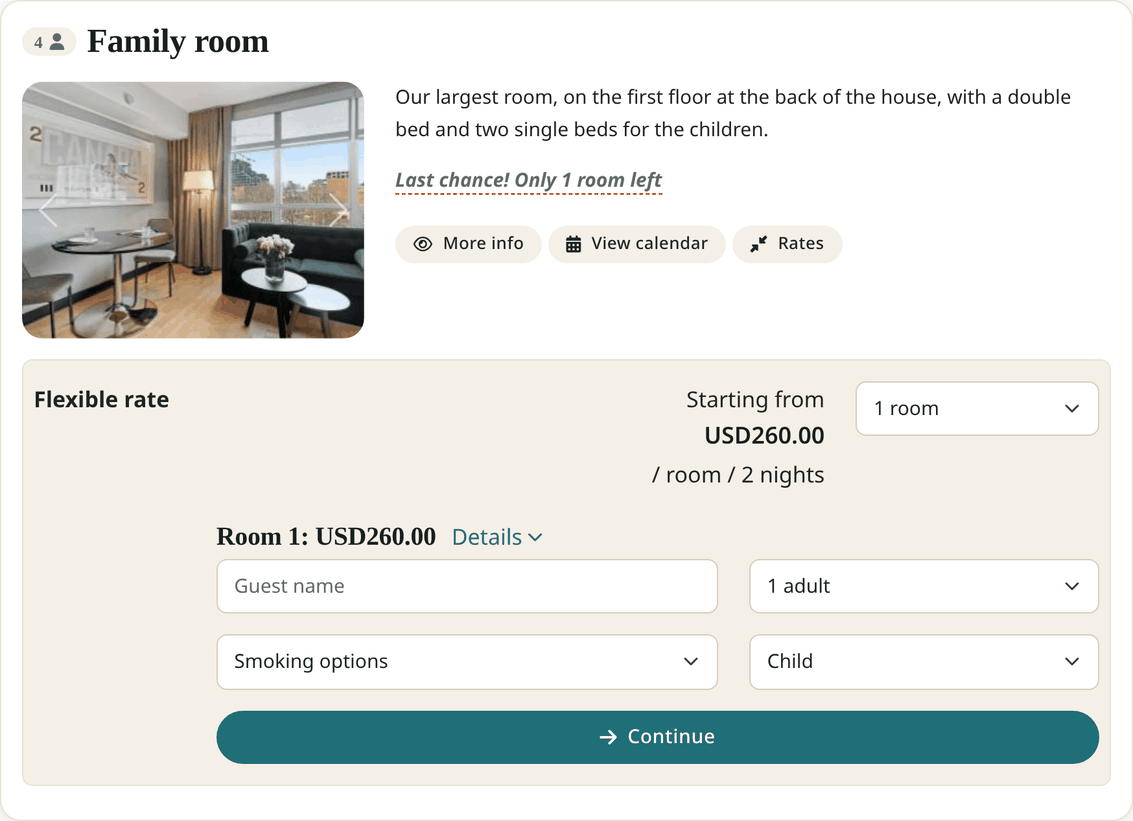
When a guest chooses a room type, a short form opens for each room. The switches on the Publishing tab decide what it asks and what the room type shows:
| Switch | What it does |
|---|---|
| The room's form | |
| Show adult option | The adults list. Turned off, each room is booked for one adult. |
| Show child option | The children list, and an age for each child. It shows only when Max children is more than 0. |
| Show guest option | A single list of guests, from 1 to Max occupancy, all booked as adults: right for an apartment. Turn off Show adult option and Show child option with it, or the form shows all three lists. |
| Show guest name field | A field for the name of the guest staying in the room. Guest name is optional lets the guest leave it empty. |
| Show smoking option | A choice between a non-smoking and a smoking room. It is a wish you read on the booking, not a rule. |
| The room type on the property page | |
| Show remaining rooms count | The line We have 2 rooms left, and Last chance! Only 1 room left when one is left. |
| Show more info button | The More info button and the room details behind it. |
| Featured | A Featured badge beside the room type's name. |
| A room type booked as a whole | |
| Is exclusive | For a room type with one room, such as a holiday home: a Reserve button instead of the list of how many rooms. |
| Skip room form | With Is exclusive on: Reserve goes straight on to the guest's details, without the room's form. |
Prices
A room type's prices are its rate plans, on its Rate plan tab: Rate plan configuration for Solidres explains them. A room type with no rate plan for the dates a guest searches is not offered.
The property page shows each rate plan with Starting from and a price. Before the guest chooses dates, it is the lowest price of one night, such as USD130.00 / room / 1 night; once they have, the price of their stay. Whether it includes tax is set in Solidres Options: see Taxes and currencies.
Three more settings on the Publishing tab change prices:
- Enable single supplement: an extra charge when one adult and no children stay in the room. Type it in Single supplement value, and turn on Single supplement is % if it is a percentage of the price. It is added to each night, or once to a package. A negative number makes it a discount.
- Child room cost: how children are priced in this room type's rate plans. Use Global keeps the choice made in Solidres Options; the other choices are explained in Adults, children and child pricing.
- Advertised price, with its prefix and suffix: a price for the Solidres - Module room types, a box listing your room types that you can put on any page from Website → Site Modules. It is never charged, and the property page does not show it. Leave it empty unless you use that module.
Coupons and extras
The Coupons and Extras lists on the General tab tick the coupons and extras of your property that can be used with this room type. They list what the property already has, so save a new room type once before ticking them. See How to configure Coupon and How to configure Extra.
Room types that share rooms
A house you let as a whole or by the bedroom is two room types sharing the same rooms: Whole house, and Bedroom. Turn on Is master on the whole house. From then on, when the whole house is booked for a night, the other room types of the property cannot be booked that night, and when any of them is booked, the whole house cannot. A property has one master room type: turning it on for another turns it off on the first.
Stop selling a room type
- For a while: set its Status to Unpublished, or tick it in the list and click Unpublish. It leaves the property page; its bookings, rooms and rate plans stay as they are.
- For some dates only: close its rooms, as Closing rooms on chosen dates explains.
- For good: tick it and click Trash. To delete it, choose Trashed in the status filter of Filter Options, tick it and click Empty Trash. Deleting takes its rooms, rate plans and room details with it, and cannot be undone; bookings already made keep their dates, prices and room numbers. Unpublish rather than delete a room type that has bookings to come.
The other tabs
- Publishing also shows who created the room type and when, and its Ordering, the same order you set by dragging in the list.
- iCal: the room type's calendar address for Airbnb and other sites, and the calendars it imports. See How to configure iCal.
- Stream: who added, changed or opened the room type, and when.
- Channel manager, when your site has it: the room type's link to your channels. See How to configure Solidres Channel Manager.
Toggle Inline Help, at the right of the toolbar, shows a line of help under each field.