

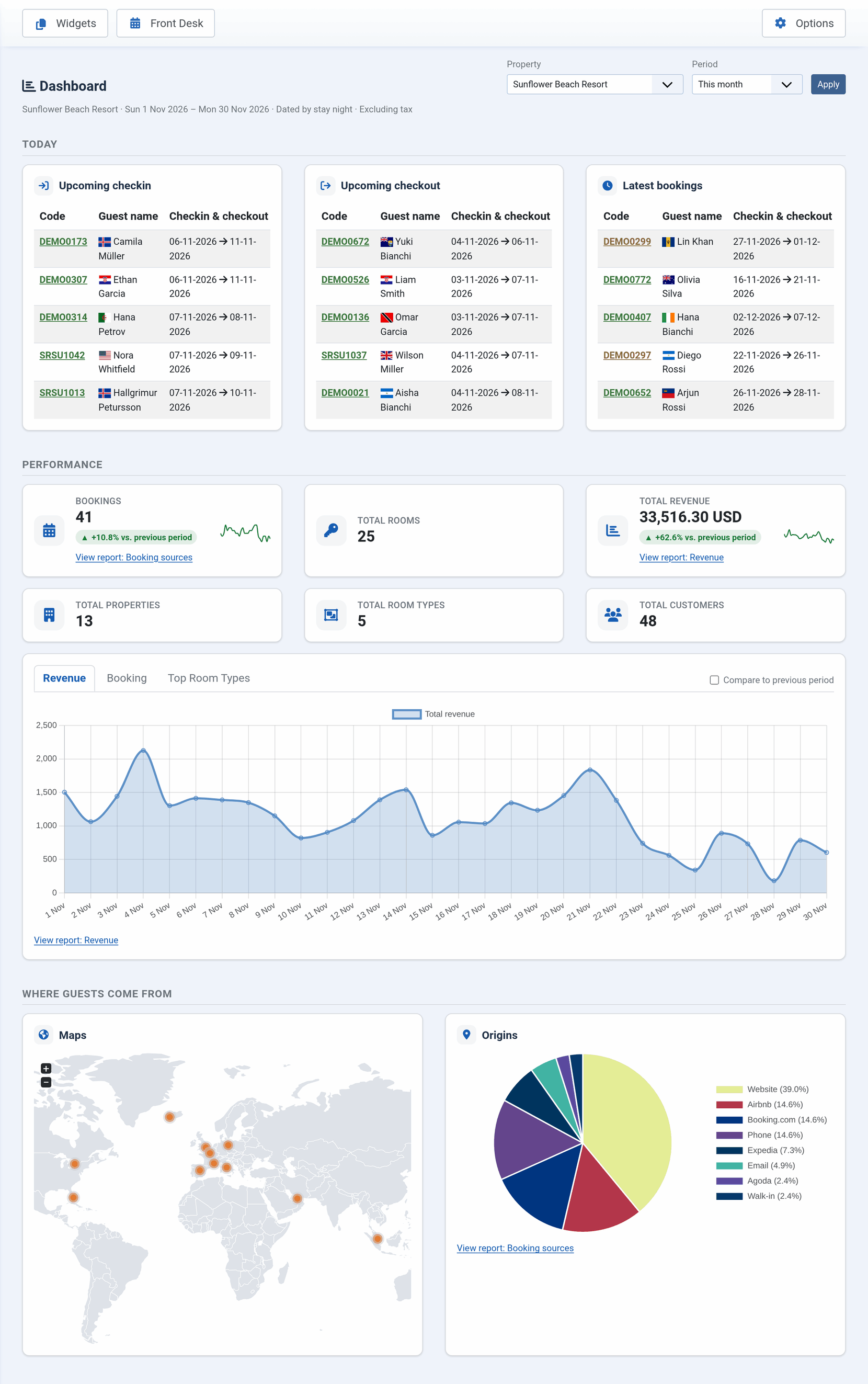
The Dashboard is the page of figures Solidres opens on: who arrives and leaves next, the latest bookings, how many bookings and how much revenue a period brought, occupancy, ADR and RevPAR, the busiest room types, where your bookings come from and where your guests live. You choose the property and the period once, at the top, and every figure on the page follows. You choose which widgets the page shows, and in which order, with the widget builder.
PREREQUISITES:
- Solidres 4.6.0 or later.
- The Dashboard plugin 1.1.2 or later, available to Solidres subscribers. It is a download of its own, not part of the Solidres package.
- For the guest map as described here: Dashboard 1.1.3 and Solidres 4.8.0, which need no key (see The guest map).
- For the Dashboard on the website, for Hub partners: the Hub plugin.
On this page:
- Getting started
- Choosing the property and the period
- The widgets
- How the figures are counted
- The guest map
- Arranging the widgets
- Who can do what
- The Dashboard for Hub partners
- Coming from the Statistics plugin
- Troubleshooting
Getting started
- Install the plugin from System → Install → Extensions.
- Enable it: go to System → Manage → Plugins, search for Dashboard and click the status of Solidres - Dashboard.
- Open Solidres → Reservations → Dashboard. While the plugin is enabled, Components → Solidres opens the Dashboard too, unless you named another screen in Default view on the General tab of Solidres Options.
The toolbar has three buttons: Widgets opens the widget builder, Front Desk the room-by-room calendar, and Options Solidres Options.
Choosing the property and the period
The bar at the top of the page sets what the figures cover:
- Property: the property the figures are for. The Dashboard shows one property at a time; it starts on your default property, or on the first one.
- Period: This month (the default), Last month, This quarter, Last quarter, This year, Last year, Last 30 days, Last 90 days, Next 30 days, Next 90 days or Custom range. A custom range shows two dates, First night and Last night.
Click Apply to reload the page with your choice. Changing a list alone does nothing, so you can set both before the page reloads. The Dashboard keeps your choice until you sign out.
The line under the bar says what the figures cover, in the words the Reports screen uses, for example Sunflower Beach Resort · 1 Nov 2026 – 30 Nov 2026 · Dated by stay night · Excluding tax. How the figures are counted explains each part.
The periods are the Reports screen's, and a link under a widget opens its report on the same property and period, so you can go from a figure to the bookings behind it.
The widgets
Out of the box, the Dashboard shows its widgets in three sections: Today, Performance and Where guests come from. The table lists every widget the plugin has, with the name the widget builder gives it. RevPAR is not on the page until you add it.
| Widget | What it shows | Follows the period |
|---|---|---|
| Upcoming checkin | The next five arrivals, from today on, of bookings in the status named by Confirmation reservation status in Solidres Options (Confirmed unless you changed it). | No |
| Upcoming checkout | The next five departures, from today on, in the same status. | No |
| Latest bookings | The five bookings made last, whatever their status, trashed bookings left out. | No |
| Bookings | The number of bookings in the period, how it moved against the period before, and a small line of its course. View report: Booking sources opens the report. | Yes |
| Total revenue | The revenue of the period, one amount for each currency, with how it moved and its course when there is only one currency. View report: Revenue opens the report. | Yes |
| Total rooms | The rooms of the property. | No |
| Total room types | The room types of the property. | No |
| Total properties | Your published properties, all of them, whichever property is chosen. | No |
| Total customers | The customer accounts (those under Customers) with a booking at the property. A guest who booked without an account is not counted. | No |
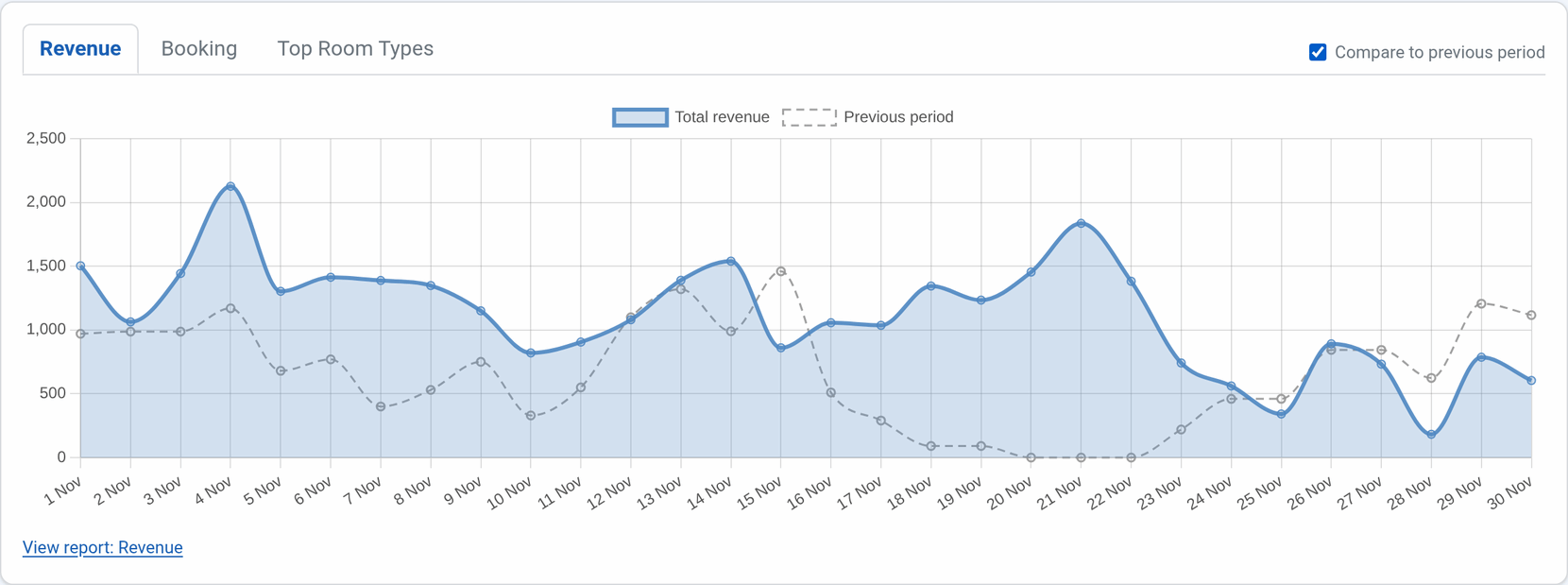
| Charts | Three tabs: Revenue and Booking over the period, and Top Room Types, the five room types that sold the most room nights. Tick Compare to previous period to draw the period before beside revenue and bookings, dashed. Each tab links to its report. | Yes |
| Maps | A world map with a marker for each city your guests come from, with the number of bookings from it (see The guest map). | Yes, from Dashboard 1.1.3 |
| Origins | A pie of the period's bookings by source (Website, Phone, an OTA…), in the colours given to the sources in Solidres → System Info → Origins, with each share in per cent. View report: Booking sources opens the report. | Yes |
| RevPAR | Occupancy, ADR and RevPAR in a table, with the period's totals. The Period tab gives a row for each day, week or month; the Room type tab a row for each room type. Hover a column's name for how it is worked out. Links to the Performance report. | Yes |
| Properties dropdown | The bar that chooses the property and the period. Keep it at the top: without it, the page cannot be set to another property or period. | – |
Every widget but Total properties follows the property you chose. The lists of bookings show each booking's code in its status colour, the guest's name and flag, and the dates; click a code to open the booking.
The charts show a point for each day of a period up to two months, for each week up to six months, and for each month beyond. A period with nothing sold says No data yet for this range. instead of drawing an empty chart.
Widgets from other plugins
Other Solidres plugins add widgets of their own to the builder:
- Experience: Total experiences, Total reservations (experience), Total revenues (experience) and Total customers (experience). They count every tour and tour booking, whatever the property and the period.
- Channel Manager: Channel manager activities, the last ten entries of its activity log. It shows in the administrator only.
How the figures are counted
The widgets that follow the period take their figures from the same engine as the Reports screen (Solidres → Reservations → Reports), on the same rules. A figure on the Dashboard is the figure its report shows for the same property and period.
- Which bookings count. Bookings in the statuses chosen in Statistics statuses, on the Statistics tab of Solidres Options. Left empty, that is Confirmed and Closed bookings (and Checked in and Checked out, on a site that has those statuses). Pending bookings do not count unless you add Pending to the setting. Cancelled and trashed bookings never count.
- Dated by stay night. A booking counts in the period its nights fall in, not the day it was made. A stay from 30 November to 3 December puts one night in November and two in December. In Bookings, a booking counts once if any of its nights is in the period, so a period in the future counts the bookings already made for it.
- Excluding tax. Total revenue is the room revenue, extras, tours booked with the stay and fees, less booking discounts, for the nights in the period. Tax is in it only when your prices include tax; tourist tax never is.
- One amount per currency. Amounts in different currencies are never added together. A property that takes bookings in two currencies shows two amounts, two lines on the revenue chart and two RevPAR tables.
- Occupancy, ADR and RevPAR. Occupancy is the room nights sold divided by the room nights available; ADR the room revenue divided by the room nights sold; RevPAR the room revenue divided by the room nights available. The rooms counted are those of the property's published room types.
- The period before is the period of the same length just before: Last month for This month, the 30 days before for Last 30 days. A change is written out, such as +12.5% vs. previous period, with an arrow; it is left out when the period before had nothing to compare with.
Because of these rules, the Dashboard's figures can differ from a count of the Reservations list, which lists bookings by their dates and shows every status.
The guest map
The Maps widget places your guests by the city and country they enter in the booking form. When a booking is saved, Solidres asks where the guest's city lies, with the service set as Geocoder URL in Solidres Options, on the Integrations tab, which is OpenStreetMap's by default, and keeps the answer. Each city is asked once for the whole site, so the next booking from that city is placed at once. It needs no key, whichever map provider your property pages use. Leave Enable geocoding, on the Reservation tab, on Yes, its default. See Setting up maps for the geocoder and when to change it.
Good to know:
- The bookings saved before are placed while an administrator has the Dashboard open: the widget places their cities one a second, those of the newest bookings first. A line under the map says how many cities are still to place and how many the geocoder could not find. If you leave the page first, it goes on the next time you open it. A Hub partner's Dashboard shows the places found but never asks for any.
- Solidres 4.8.0 clears the coordinates that earlier versions got from Google, as Google's terms do not allow keeping them, and the widget places those bookings again the same way.
- A city the geocoder cannot find, such as a misspelt one, is left off the map and asked again after 30 days.
- From Dashboard 1.1.3 the map shows the bookings the other widgets count: those of the property and period chosen, in the statuses that count. A booking without a city is placed at its country.
- Only the guest's city and country are sent to the geocoder. If you would rather send nothing, set Enable geocoding to No and remove Maps from the Dashboard.
- Before Dashboard 1.1.3 and Solidres 4.8.0, each booking asked Google's Geocoding API, with the Google Map API Key and its Geocoding API enabled, only bookings saved after the set-up were placed, and the map showed every booking of the property that was not trashed, cancelled ones included, whatever the period.
Until a booking is placed, the widget says No guest locations to map yet.
Arranging the widgets
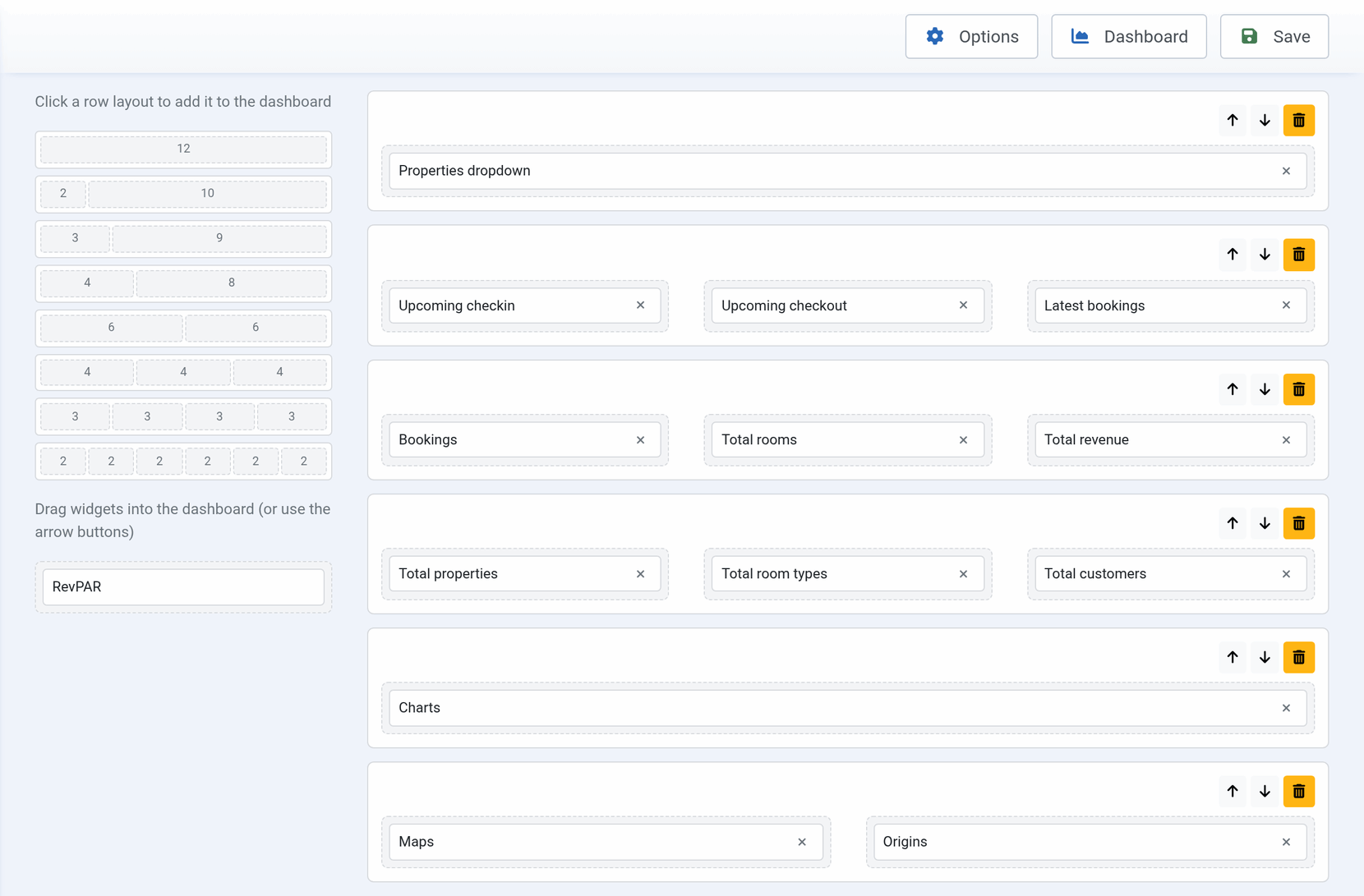
Click Widgets in the Dashboard's toolbar to open the widget builder. Its right side is the Dashboard, row by row; its left side holds the row layouts and the widgets not on the Dashboard.
- Add a row: click one of the row layouts under Click a row layout to add it to the dashboard. The numbers are the widths of its columns, out of 12: 6 6 is two halves, 4 4 4 three thirds. The row goes at the bottom.
- Place a widget: drag it from the list under Drag widgets into the dashboard (or use the arrow buttons), which holds the widgets not on the Dashboard, into a column. Drag a placed widget to move it to another column. To take one off, click its × or drag it back to the list.
- Order the rows with the arrows at the top of each row, and remove one with its bin. Its widgets go back to the list.
- Click Save. A message confirms Widget data saved., and the Dashboard button takes you back.
Without a mouse, from Dashboard 1.1.3: Tab to a widget in the list and press Enter to place it in the first empty column, so add its row first. On a placed widget, the left and right arrow keys move it to the column before or after, the up and down arrow keys move it within its column, and Delete takes it off the Dashboard. The row buttons work with Enter. Before 1.1.3, placing a widget, or moving one to another column, needs a mouse.
- The layout is the same for every user who opens the Dashboard, and for Hub partners.
- A column can hold several widgets, one under the other. A widget can be on the Dashboard once.
- The section headings of the shipped layout (Today, Performance, Where guests come from) are not part of what you save: once you save a layout, the Dashboard shows its rows without them.
- To go back to the shipped layout, remove every row and click Save. An empty Dashboard is never kept: the shipped layout takes its place.
Who can do what
- Seeing the Dashboard: in the administrator, anyone who can open Solidres can open the Dashboard and choose any published property.
- The links to the reports show to users with the Manage reports permission of System Info → Access controls (the ACL plugin). Without the ACL plugin, they show to everyone.
- Saving a layout in the widget builder needs Joomla's Configure ACL & Options permission on Solidres, which a Super User always has. Anyone else can open the builder, but Save is refused with a message.
The Dashboard for Hub partners
On a site that runs Solidres Hub, the partner's dashboard on the website shows the Dashboard's widgets under its own shortcuts, in the layout you saved. A partner sees them when the Manage property permission allows it; without the ACL plugin, every partner does.
- The property list holds the partner's own properties only, and every figure, list and count covers those properties only.
- A code in a list of bookings opens the booking in the partner's own booking screen.
- The links to the reports open the partner's Reports screen (Hub 2.4.0 or later), for partners with the Manage reports permission.
- Channel manager activities is not shown on the website.
Coming from the Statistics plugin
The Dashboard replaces the dashboard of the Statistics plugin, which Solidres 4.6.0 removed; the Front Desk replaces its calendars. Both read the same reservations, so there is nothing to enter again.
- Your layout comes with you. The update to Solidres 4.6.0 moves the layout saved in the Statistics widget builder to the Dashboard, unless the Dashboard already has one.
- Updating to Solidres 4.6.0 or later: install Front Desk and Dashboard first. They can stay disabled: the Solidres update enables them and uninstalls Statistics. The update stops, and says why, on a site that has Statistics enabled without them.
- On an older Solidres: Dashboard needs Solidres 4.6.0, but from version 1.1.2 it installs on an older Solidres that still has Statistics, so that the site can update. It installs disabled, with a message saying so. Update Solidres right after; do not enable Dashboard before then.
- Links and menu items that pointed to the Statistics dashboard, or to its widget builder, open the Dashboard's.
- The figures changed in Dashboard 1.1.0. Revenue is now filed by the nights of the stay rather than the check-in date, every widget counts the same statuses, currencies are no longer added together, and the sources follow the period. Figures you noted from Statistics may not match.
The Upgrade article has the whole procedure.
Troubleshooting
- The Dashboard page says the plugin is not installed or enabled.
- Enable Solidres - Dashboard in System → Manage → Plugins.
- The figures are lower than expected, or zero.
- Check the line under the property list: the property and the period may not be the ones you meant. Then check Statistics statuses: left empty, pending bookings are not counted. A booking also counts by the nights of its stay, so a booking made this month for a stay next month is in next month's figures.
- There is nothing to report: the properties chosen have no rooms of a published room type and no bookings in this period.
- The RevPAR widget needs rooms to work out occupancy. Add rooms on the property's room types, and publish the room types.
- The map is empty.
- See The guest map: the Geocoding API must be enabled for the key, and only bookings saved since are placed. From Dashboard 1.1.3 the map follows the period, so try a longer one.
- A widget is missing.
- Open Widgets: it may be in the list on the left rather than on the Dashboard. A widget of another plugin is in the list only while that plugin is enabled.
- You don't have permission to access this. when saving in the widget builder.
- Saving a layout needs the Configure ACL & Options permission on Solidres. Ask a Super User to save it.
- The section headings are gone.
- They belong to the shipped layout only. Remove every row and save to get them back, with the shipped layout.
- The Dashboard is dark, or light, when the rest of the page is not.
- The widgets follow the light or dark mode of your administrator template, and on the website your site template's, not your device's. They always print light.