

Each property sells in one currency and charges one tax on its rooms, such as VAT. This article sets them up: the tax and how guests see it, the property's currency, how prices are written, and the other currencies a guest may see your prices in, with their exchange rates kept up to date for you.
PREREQUISITES:
- Solidres 4.8.0 or later. The screens are much the same in 4.x.
- A property with its Country set on its Details tab: see Setting up a property.
- For prices in other currencies and automatic exchange rates: the Currency add-on, 2.1.1 or later. Solidres Self-hosted, and every site we run for you, has it.
Taxes
A tax is a rate you define once for a country, then choose on each property of that country. The guest pays it on the rooms; extras have their own (see below), and the tourist tax is a different thing, set up as How to configure tourist tax explains.
Add a tax
- Open System Info → Taxes and click New. On an empty list the button is Add Tax.
- Type its Tax name, such as VAT or IVA. Guests do not see it; it names the tax in your lists.
- Type the Tax rate as a fraction: 0.1 for 10%, 0.06 for 6%, 0.075 for 7.5%. Typing 10 would charge 1,000%.
- Choose the Country of your property. It is not marked as required, but a tax cannot be saved without one, and a property is offered only the taxes of its own country. Leave State/County empty: it changes nothing on the rooms' price.
- Click Save & Close.
The list shows the rate as you typed it, 0.06; the property shows it as a percentage, IVA (6%).
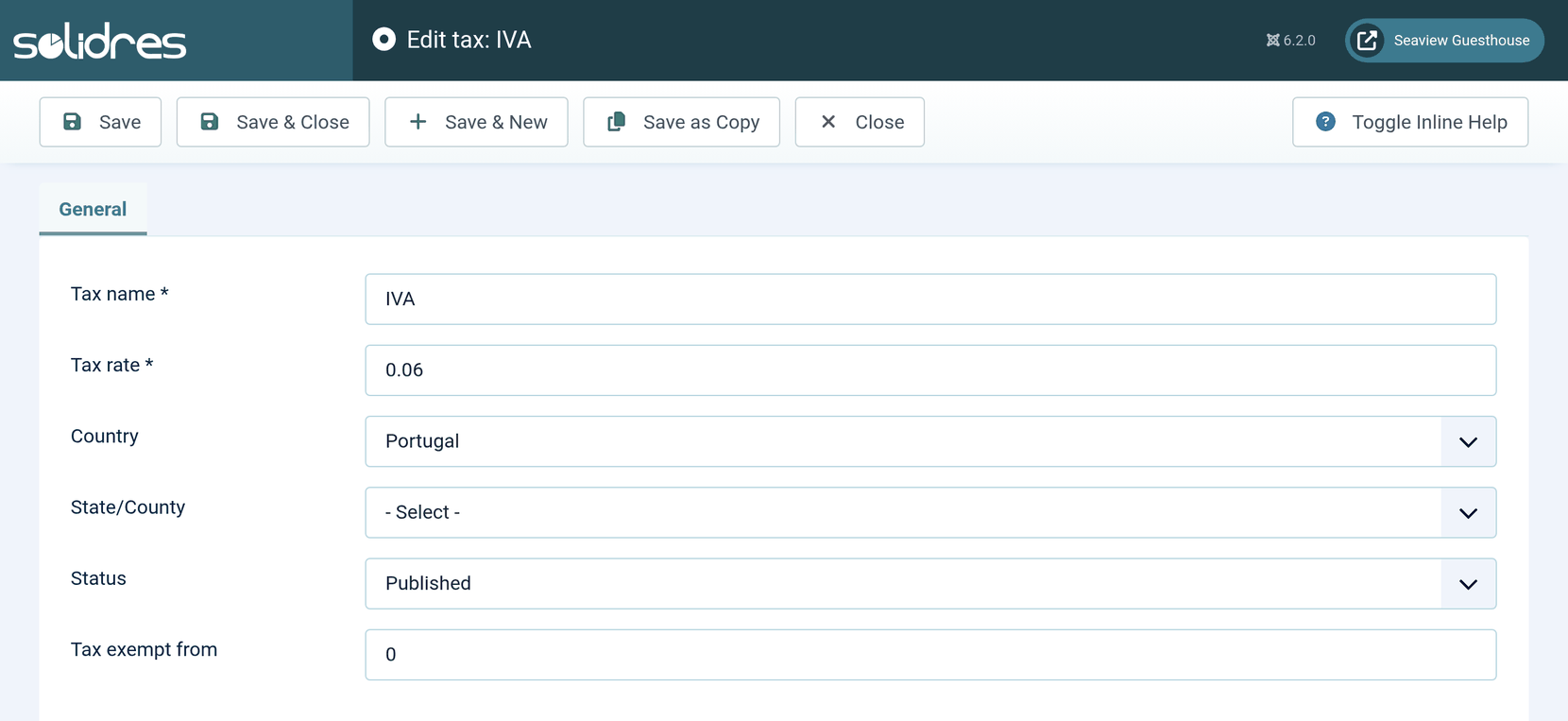
Tax exempt from is for a country where long stays are not taxed: type the number of nights from which a stay is exempt. A stay of that many nights or more then pays no tax on its rooms at all, not only on the nights after. Leave it at 0 for no exemption.
Charge it on a property
- Open Properties → Properties and your property. Check that its Country, on the Details tab, is the tax's.
- On the Pricing & payments tab, under Prices and taxes, choose the tax in Tax.
- Turn on Prices include tax if the prices in your rate plans already include it, as they usually do where guests are shown prices with tax. Leave it off if your prices are before tax, and the tax is added to them.
- Click Save & Close.
A property charges one tax on its rooms. Coupons come off the price before the tax is worked out; the booking fee is not taxed.
What guests see
Before they pay, guests see the room cost before tax, the room tax and the grand total, as here, for two nights at 90.00 a night with a 6% tax included in the price:
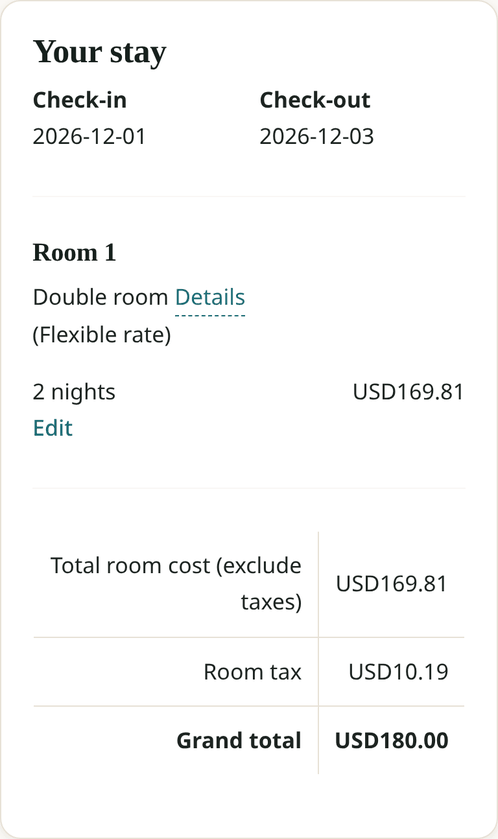
- Show the room tax in the booking summary, under Prices and taxes on the property, is on by default. Turned off, the summary shows Total room cost (include taxes) and no tax line. The booking emails and the back office always show the tax on its own line.
- The prices on the property page, Starting from and the price of a stay, are shown with tax on a site built from Solidres Self-hosted, as a site we run for you is. On any other site they are shown without tax unless you change it: with prices that include tax, a room you price at 90.00 then shows as 84.91. To choose, open Properties → Properties, click Options, and on the Reservation tab set Show price with tax to Yes or No. It applies to every property of the site.
- On the same tab, Discount pre tax decides whether a discount of the Discount add-on comes off before the tax is worked out (Yes) or after (No, the default).
Extras
Each extra has its own Tax and its own Price includes tax, on its form in Coupons & Extras → Extras, chosen from the taxes of its property's country: breakfast may be taxed at another rate than the room. See How to configure Extra.
Change or stop a tax
- The rate changes: open the tax and type the new rate. Bookings from then on use it; bookings already made keep the tax they were charged.
- Stop charging it: on the property, empty Tax and save. Do not only unpublish the tax: a property or extra that has it still charges it, and its Tax shows it marked (Unpublished).
- Delete it: first take it off the property and off every extra that uses it, then trash it, choose Trashed in Filter Options, tick it and click Empty Trash.
Currencies
The property's currency
Each property has its currency, the one its prices are entered in and its guests pay in: on the property's Details tab, under Status and settings, in Currency. Choose it before you enter your rates. Changing it later converts nothing: the same numbers are then read in the new currency.
The list offers the currencies published in System Info → Currencies. Solidres Self-hosted, and every site we run for you, starts with fourteen published, the US dollar among them as the default, and more than a hundred others ready to publish (see below).
How prices are written
Open Properties → Properties, click Options, and the Currency tab. These apply to every price on the site, in the emails and on invoices:
- Currency format pattern: where the currency goes and which marks separate the thousands and the decimals. X0,000.00, the default, writes USD1,234.00; 0 000,00 X writes 1 234,00 EUR. X is the currency.
- Digits after the decimal point: 2 by default; 0 for currencies such as the yen.
- Show code or symbol: USD or $. The code is clearer when guests come from several countries that write their currency with the same symbol.
- Default currency: the currency the exchange rates are counted from (below). Make it your property's currency.
Prices in other currencies
A guest from abroad can see your prices in their own currency with the currency switcher, a module in the header of your website. It is there but switched off, since one currency is enough to start. To switch it on, open Website → Site Modules, find Currency, tick it and click Publish in the Actions menu; see Changing the footer and the sidebars. The guest chooses a currency and clicks Change.
It lists every published currency, so unpublish the ones your guests do not need. It changes only what the guest sees: the booking, its emails and the payment stay in your property's currency, at your prices. A room at USD90.00 shows as EUR81.00 to a guest who chose the euro, and is charged USD90.00.
Exchange rates
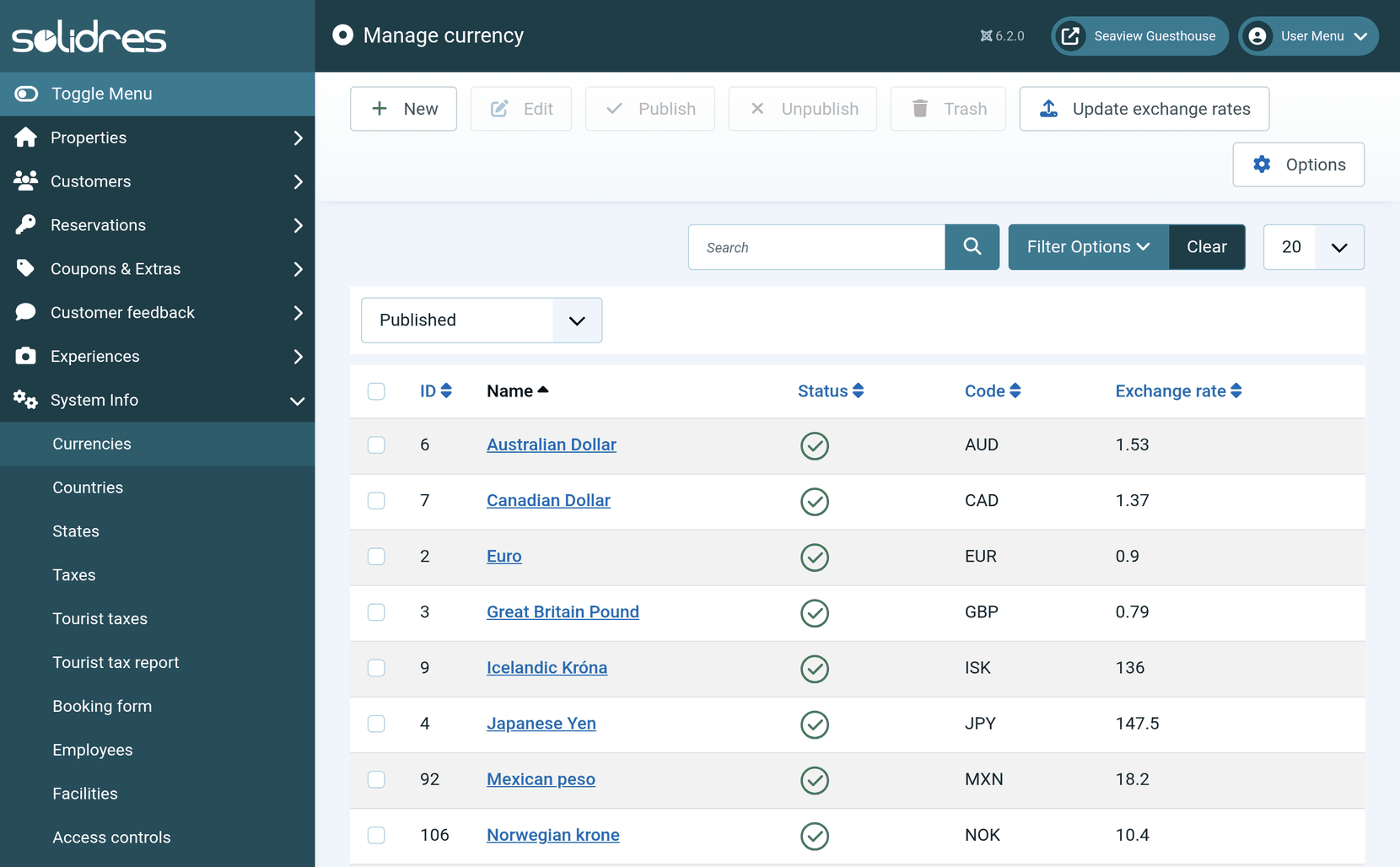
Each currency's Exchange rate is how much of it is worth one unit of your Default currency, whose own rate is 1. With US dollars as the default, the euro is about 0.9 and the yen about 150. The rate only converts the prices guests see in the switcher: nothing is charged at it.
To change a rate by hand, open the currency in System Info → Currencies, type it in Exchange rate and save. To keep them current without typing, see below.
Publish another currency
The currencies that are not published have no exchange rate yet, 0, and a currency at 0 cannot be published: a guest who chose it would see every price as 0. Open the currency, type its Exchange rate, set it to Published and click Save & Close. Or click Update exchange rates first, which fills in the rate of every currency the bank publishes, then tick the currency and click Publish.
To add a currency that is not in the list, click New and fill in its Currency name, its three-letter Currency code (ISO 4217, such as BRL), its Symbol and its Exchange rate.
Automatic exchange rates
With the Currency add-on, Solidres fetches the day's exchange rates for you, from the European Central Bank or from Open Exchange Rates.
- Open Properties → Properties, click Options, and the Currency tab.
- Check the Default currency: the rates are fetched against it.
- In Exchange rate source, choose:
- ECB, the European Central Bank, free and with no account, for about thirty currencies. If your default currency is not among them, Solidres says so and changes nothing: choose Open Exchange Rates.
- Open Exchange Rates, for about 180 currencies. It needs an account at openexchangerates.org, and the free one is enough: paste its App ID in Api key.
- Click Save & Close.
- Open System Info → Currencies and click Update exchange rates. Solidres answers Currencies's exchange rates are updated. Every currency of the list that the source knows gets today's rate, published or not; the others keep theirs.
Every day, by itself
Solidres can fetch the rates once a day, with the scheduled task Solidres: exchange rate refresh, which comes switched off.
- On a site we run for you, the scheduled tasks are ours: ask us to switch it on, once your exchange rate source is set.
- On a site you installed yourself, open System → Scheduled Tasks as the site's Super User and publish Solidres: exchange rate refresh; or click New and choose Solidres - Currency. Joomla runs its tasks as visitors open the site, or on time with a cron job: see How to set up Joomla CRON for the task scheduler.
For site builders
Taxes, currencies and the Options are on the System Info screens and the Options of Solidres. A back office account sees them with the Solidres right Manage system, given on System Info → Access controls, and the Options with Configure ACL & Options on Solidres; the owner of a site we run has both. The Currency add-on has no settings of its own on the Plugins screen: everything is on the Options' Currency tab. Tours of the Experience add-on are priced in the Default currency and have a tax of their own, on the tour.