

The menu at the top of your website takes guests to your pages. You decide what is in it, in what order and under which name, in Website → Menus: add a page you have written, put it where it belongs, rename an entry or hide it.
PREREQUISITES:
- Solidres 4.8.0 or later with its back office menu. On a site whose administrator menu is Joomla's own, the same screen is Menus → Manage.
- The site's administrator account. Staff in Property staff do not see the menus.
Your website's menus
Open Website → Menus. Your website has four menus, each shown in a place of its own:
- Main Menu, the menu at the top of every page: Home, About, Contact and the pages you add.
- User Menu, the small links at the top right: My bookings, Find my booking, Sign in and Create an account, where guests find their bookings.
- Footer Menu, in the footer: Booking conditions, Privacy and Cookie settings, which opens the cookie banner again for a visitor who wants to change their choice.
- Hidden Menu, shown nowhere: it gives an address to the pages a guest reaches only from an email or a form, such as resetting a password. Leave it as it is.
To see a menu's entries, its items, click the list icon under Menu Items in its row. Clicking the menu's title opens its name and description instead.
Add a page to the menu
Write the page first, in Website → Pages (Editing your website's pages). Then:
- Open the items of Main Menu and click New.
- In Title, type the name the menu shows, such as Getting here. Keep it short: a menu has room for a few words.
- Beside Menu Item Type, click Select, open Articles and click Single Article. Joomla calls a page an article.
- Beside Select Article, click Select and click your page in the list.
- Click Save & Close.
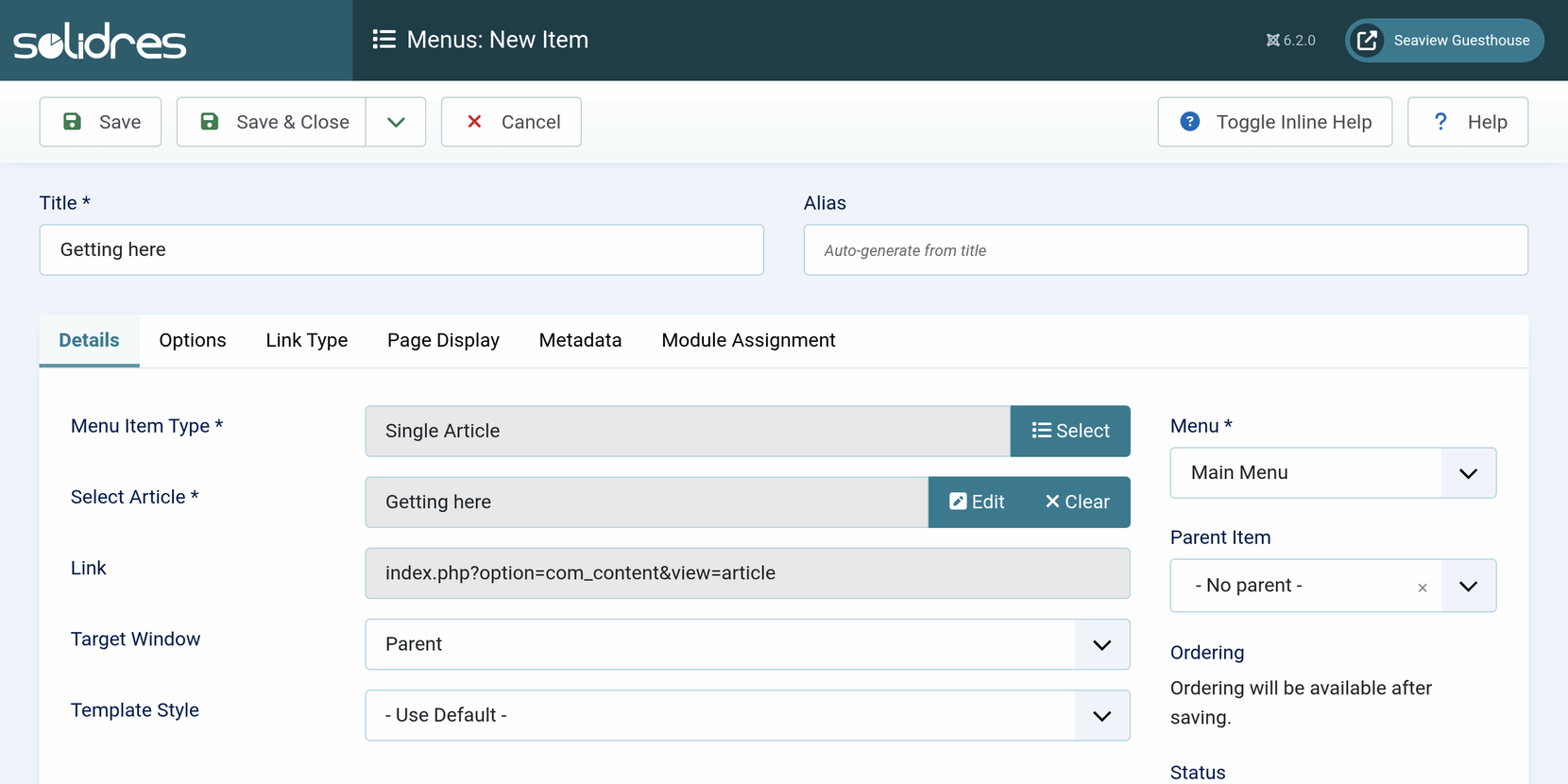
The new entry is added at the end of the menu. Leave Alias empty: Joomla makes it from the title, and it becomes the page's web address, such as /getting-here.
To put the entry under another, as a drop-down, choose that one in Parent Item.
Add a link to another website
For your page on a social network, a local guide or your restaurant's own site:
- Open the menu's items and click New, then type the Title.
- Beside Menu Item Type, click Select, open System Links and click URL.
- In Link, paste the full address, starting with
https://. - In Target Window, choose New Window With Navigation, so your own site stays open behind it.
- Click Save & Close.
Change the order
In the menu's items, drag an entry by the handle at the start of its row, the column of three dots, and drop it where it belongs. The menu changes as soon as you drop it, with nothing to save.
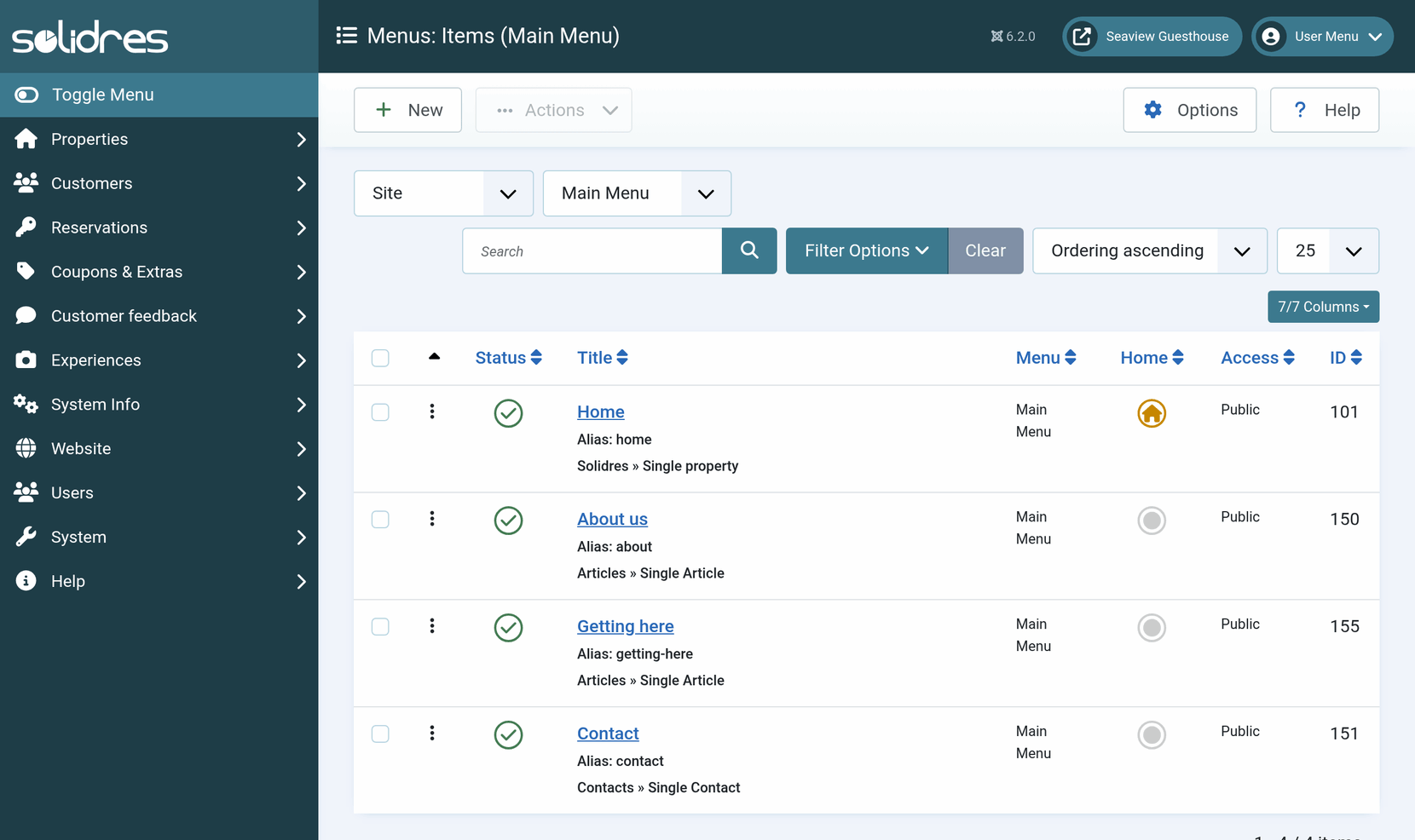
The handles work while the list is sorted by Ordering ascending, as it opens. If you sorted it by another column, choose Ordering ascending again in the sort list.
Rename an entry
Click the entry, change its Title and click Save & Close. The menu shows the new name; the page keeps its own title, and its address does not change.
Hide an entry
Click the green tick in the entry's Status. It turns to Unpublished, and the entry is gone from your website's menu. Click it again to show the entry again. Hiding an entry hides it from the menu only: the page stays as it is in Website → Pages.
Keep the entries of the User Menu: guests sign in and find their bookings with them. Cookie settings can go if your site shows no cookie banner (Cookie consent on your site).
What you can leave as it is
- Home, marked with the house icon, is the page your website opens on: your property's page. Leave it the home page.
- The other item types in the Select list (blogs, categories, news feeds, tags, user forms and more) are for building other kinds of site. Leave them as they are. One may serve a property: Solidres → Single room type gives a room type a page of its own in the menu.
- Template Style, Access, the publishing dates and the Link Type, Page Display, Metadata and Module Assignment tabs are settings for a site builder. Leave them as they are; Joomla's own documentation describes them. The Metadata tab's Meta Description and Robots are the exception: they decide how search engines show the page, or whether they list it at all (see Your site in search engines).
- Add entries to the four menus you have rather than making a new menu: a new menu is shown nowhere until a module puts it on a page (Changing the footer and the sidebars).